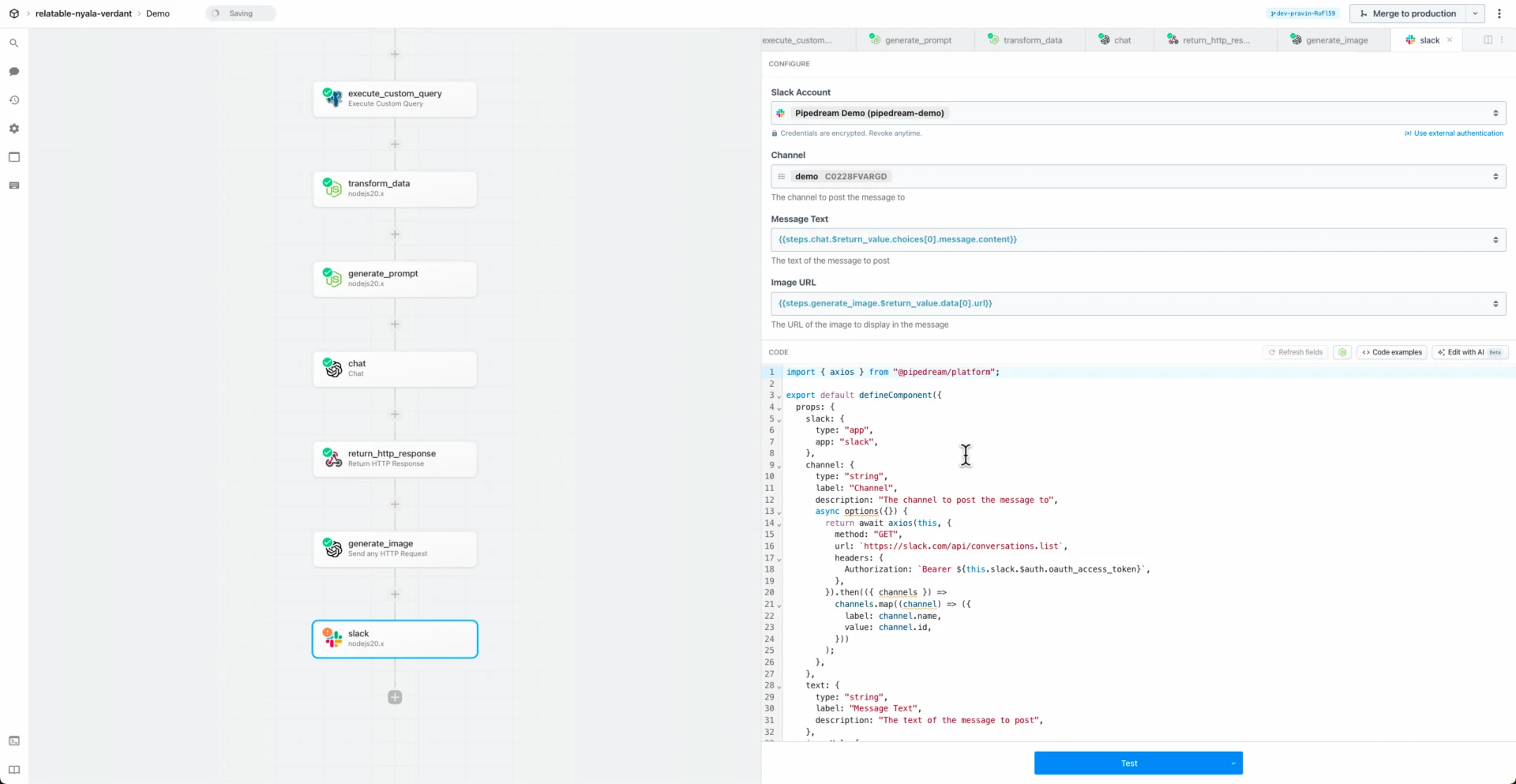
import { getFileStreamAndMetadata } from "@pipedream/platform";
import FormData from "form-data";
import constants from "../../common/constants.mjs";
import app from "../../trello.app.mjs";

export default {
  key: "trello-create-card",
  name: "Create Card",
  description: "Creates a new card. [See the documentation](https://developer.atlassian.com/cloud/trello/rest/api-group-cards/#api-cards-post).",
  version: "1.0.4",
  annotations: {
    destructiveHint: false,
    openWorldHint: true,
    readOnlyHint: false,
  },
  type: "action",
  props: {
    app,
    board: {
      propDefinition: [
        app,
        "board",
      ],
    },
    name: {
      propDefinition: [
        app,
        "name",
      ],
      description: "The name of the card.",
      optional: false,
    },
    desc: {
      propDefinition: [
        app,
        "desc",
      ],
    },
    pos: {
      propDefinition: [
        app,
        "pos",
      ],
      description: "The position of the new card. `top`, `bottom`, or a positive float",
    },
    due: {
      propDefinition: [
        app,
        "due",
      ],
    },
    dueComplete: {
      propDefinition: [
        app,
        "dueComplete",
      ],
    },
    idList: {
      propDefinition: [
        app,
        "lists",
        (c) => ({
          board: c.board,
        }),
      ],
      type: "string",
      label: "List",
      description: "The ID of the list the card should be created in.",
      optional: false,
    },
    idMembers: {
      propDefinition: [
        app,
        "member",
        (c) => ({
          board: c.board,
        }),
      ],
      type: "string[]",
      label: "Members",
      description: "Array of member IDs to add to the card",
      optional: true,
    },
    idLabels: {
      propDefinition: [
        app,
        "label",
        (c) => ({
          board: c.board,
        }),
      ],
      type: "string[]",
      label: "Labels",
      description: "Array of labelIDs to add to the card",
      optional: true,
    },
    file: {
      type: "string",
      label: "File Path or URL",
      description: "Provide either a file URL or a path to a file in the /tmp directory (for example, /tmp/myFile.pdf).",
      optional: true,
    },
    mimeType: {
      propDefinition: [
        app,
        "mimeType",
      ],
      optional: true,
    },
    idCardSource: {
      propDefinition: [
        app,
        "cards",
        (c) => ({
          board: c.board,
        }),
      ],
      type: "string",
      label: "Copy Card",
      description: "Specify an existing card to copy contents from. Keep in mind that if you copy a card, the **File Attachment Path**, **File Attachment URL** and **File Attachment Type** fields will be ignored.",
      reloadProps: true,
    },
    keepFromSource: {
      type: "string[]",
      label: "Copy From Source",
      description: "Specify which properties to copy from the source card",
      options: constants.CARD_KEEP_FROM_SOURCE_PROPERTIES,
      optional: true,
      hidden: true,
    },
    address: {
      propDefinition: [
        app,
        "address",
      ],
    },
    locationName: {
      propDefinition: [
        app,
        "locationName",
      ],
    },
    coordinates: {
      propDefinition: [
        app,
        "coordinates",
      ],
    },
    customFieldIds: {
      propDefinition: [
        app,
        "customFieldIds",
        (c) => ({
          boardId: c.board,
        }),
      ],
      reloadProps: true,
    },
    syncDir: {
      type: "dir",
      accessMode: "read",
      sync: true,
      optional: true,
    },
  },
  async additionalProps(existingProps) {
    const props = {};

    existingProps.keepFromSource.hidden = !this.idCardSource;

    if (!this.customFieldIds?.length) {
      return props;
    }
    for (const customFieldId of this.customFieldIds) {
      const customField = await this.app.getCustomField({
        customFieldId,
      });
      props[customFieldId] = {
        type: "string",
        label: `Value for Custom Field - ${customField.name}`,
      };
      if (customField.type === "list") {
        props[customFieldId].options = customField.options?.map((option) => ({
          value: option.id,
          label: option.value.text,
        })) || [];
      }
    }
    return props;
  },
  methods: {
    async getCustomFieldItems($) {
      const customFieldItems = [];
      for (const customFieldId of this.customFieldIds) {
        const customField = await this.app.getCustomField({
          $,
          customFieldId,
        });
        const customFieldItem = {
          idCustomField: customFieldId,
        };
        if (customField.type === "list") {
          customFieldItem.idValue = this[customFieldId];
        } else if (customField.type === "checkbox") {
          customFieldItem.value = {
            checked: this[customFieldId],
          };
        } else {
          customFieldItem.value = {
            [customField.type]: this[customFieldId],
          };
        }
        customFieldItems.push(customFieldItem);
      }
      return customFieldItems;
    },
  },
  async run({ $ }) {
    const {
      name,
      desc,
      pos,
      due,
      dueComplete,
      idList,
      idMembers,
      idLabels,
      mimeType,
      file,
      idCardSource,
      keepFromSource,
      address,
      locationName,
      coordinates,
      customFieldIds,
    } = this;

    let response;
    const params = {
      name,
      desc,
      pos,
      due,
      dueComplete,
      idList,
      idMembers,
      idLabels,
      mimeType,
      idCardSource,
      keepFromSource: keepFromSource?.join(","),
      address,
      locationName,
      coordinates,
    };

    if (file) {
      const form = new FormData();
      const {
        stream, metadata,
      } = await getFileStreamAndMetadata(file);
      form.append("fileSource", stream, {
        contentType: metadata.contentType,
        knownLength: metadata.size,
        filename: metadata.name,
      });
      response = await this.app.createCard({
        $,
        params,
        headers: form.getHeaders(),
        data: form,
      });
    } else {
      response = await this.app.createCard({
        $,
        params,
      });
    }

    if (customFieldIds) {
      const customFieldItems = await this.getCustomFieldItems($);
      const customFields = await this.app.updateCustomFields({
        $,
        cardId: response.id,
        data: {
          customFieldItems,
        },
      });
      response.customFields = customFields;
    }

    $.export("$summary", `Successfully created card \`${response.id}\`.`);

    return response;
  },
};


















 Chase Roberts@chsrbrts@benedictevans If you haven’t used @pipedream yet, then you haven’t lived.
 ✨Ellie Day✨@heyelliedayEvaluation update: @pipedream has quite literally been a dream to work with! I’m excited to leverage this tool for all the various workflows I need to write. I’m currently at 11k invocations a day from the initial workflows I’ve written in the past couple weeks.
 Michael Braedley@MBraedleyUpdate: I got it working properly, and it's working so well that I'm dropping IFTTT. @pipedream can do everything that IFTTT basic can, and most (if not all things) IFTTT pro can for free or at a reasonable price if you need it. I am recommending it for basically any power user.
 Thomas Cutting@mrthomascuttingWant quick+dirty integrations for a serverless workflow - @pipedream is my new go-to 😃
 Matthew Roberts@mattdotrobertsday 013 - finally hit node js. This is the secret sauce of taking #nocode projects that one step further. Pumped about getting deeper into @pipedream now
 Kenneth Auchenberg 💭@auchenbergYahoo Pipes is back! Kinda 😍 @pipedream
 Raymond Camden 🥑@raymondcamdenAwesome video by the @pipedream folks showing real time twitter sentiment analysis integrated with Google Sheets. This is where Pipedream *really* shines, connecting systems together in easy workflows.
 Nacho Caballero@nachocaballeroI couldn't recommend @pipedream more. It's an amazing service to integrate different APIs. Much more powerful than Zapier and more user-friendly than AWS Lambda. I'm very proud to wear this t-shirt #NoCode
 Jason Snow@jyksnwDeveloped a working prototype environmental sensor IoT solution with @particle Photon, @pipedream, and @MongoDB with full graphing and alerting in less than a day! All amazing technology, will def. be exploring these more.
 Steven Terrana@steven_terrana@burgwyn you've inspired me to finally set up my own blog. I'll make sure my first blog post explains the tech behind the setup. think @obsdmd + @GatsbyJS + @pipedream.
 🚄 James Augeri, PhD@DotDotJamesWant to low-code your back end, need more horsepower than @Bubble / @KnackHQ, or just miss Yahoo! Pipes? Check out @PipeDream
 Sébastien Chopin@AtinuxGitHub issues should be like @linear_app for maintainers. Looking forward more integrations with GH actions or tools like @pipedream 👀
 Raul@raul_predescuIf you're a dev and not using @pipedream, you're missing out. Been using it for months, daily. FREE for devs. Plenty of integrations and good limits. Absolutely love it.
 Bruno Skvorc@bitfallsSo @pipedream is pretty amazing. In 3 minutes I just made a flow which adds @rickastley's Never Gonna Give You Up to my @spotify playlist whenever a new pull request arrives in an old repo of mine.
 Zach Lanich@ZachLanichUm, wow 🤯 @pipedream
 Steven Bell@bellontechI just used @pipedream to build a Shopify App. Wow, they make small backed tasks easy.
 Jay Hack 🎩🇺🇸@_jayhack_Very impressed with this bad boi - it reminds me of a @PalantirTech internal tool, but geared towards integrations instead of data analysis and far more customizable. Great expectations here 🚀🤩
 Tree Sturgeon 🔥🚴♂️🌳@philsturgeonFor context this is day 2 of a really challenging and stupid migration from Notion to @airtable with disparate/missing data. It's going better than expected and thanks to @pipedream I don't have to bother the iOS dev to add W3W.