> ## Documentation Index
> Fetch the complete documentation index at: https://pipedream.com/docs/llms.txt
> Use this file to discover all available pages before exploring further.
# Domain Verification
Pipedream requires that you verify ownership of your email domain in order to [configure SAML SSO](/workspaces/sso/) for your workspace. If your email is `foo@example.com`, you need to verify ownership of `example.com`. If configuring Google OAuth (not SAML), you can disregard this section.
## Getting started
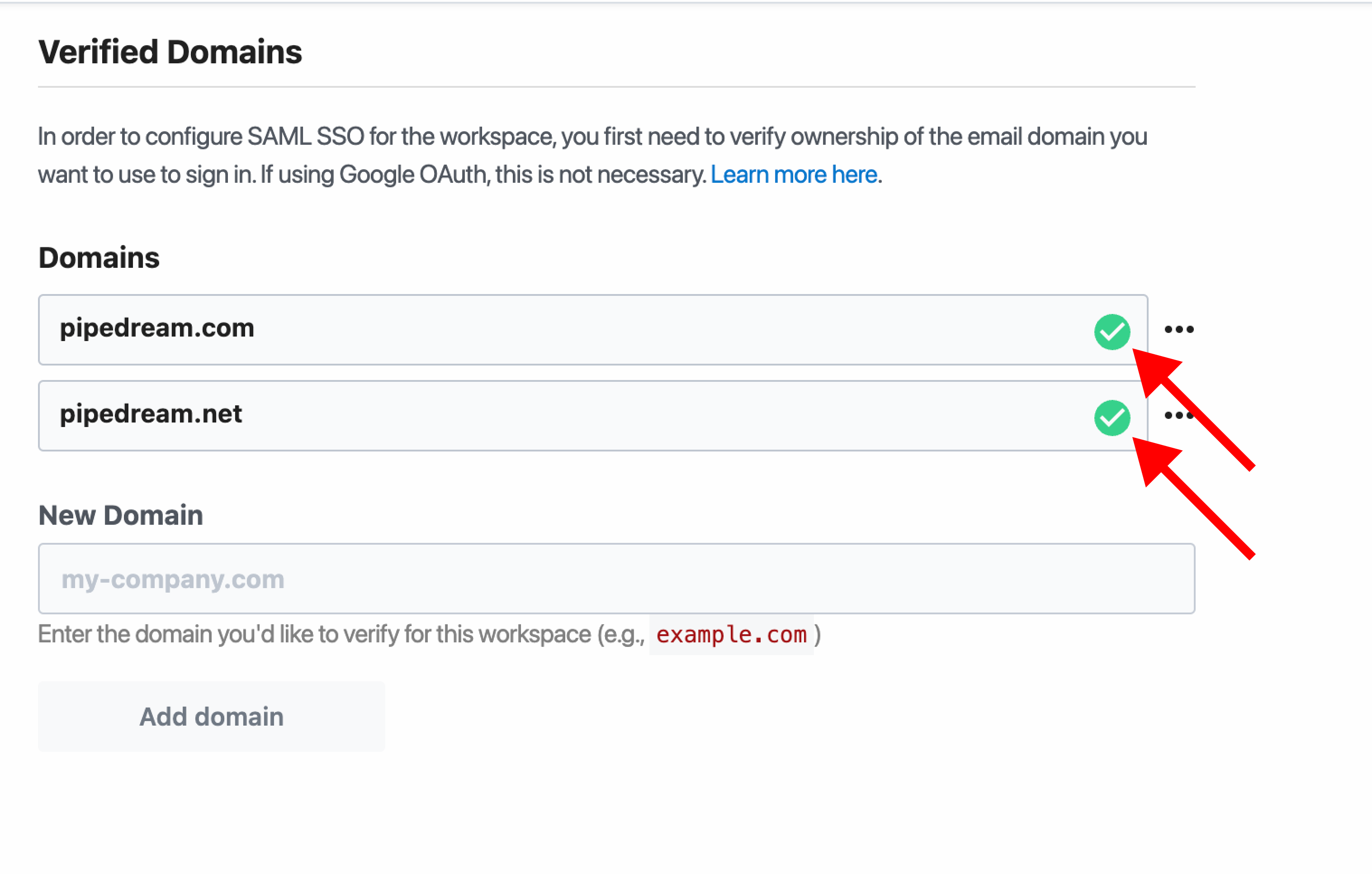
1. Navigate to the **[Verified Domains](https://pipedream.com/settings/domains)** section of your workspace settings
2. Enter the domain you’d like to use then click **Add Domain**
3. You’ll see a modal with instructions for adding a `TXT` record in the DNS configuration for your domain
4. DNS changes may take between a few minutes and up to 72 hours to propagate. Once they’re live, click the **Verify** button for the domain you’ve entered
5. Once Pipedream verifies the `TXT` record, we’ll show a green checkmark on the domain
Make sure to verify all your domains. There’s no limit on the number of domains you can verify for SSO, so if you use `example.com`, `example.net`, and `foo.example.com`, make sure to verify each one.