> ## Documentation Index
> Fetch the complete documentation index at: https://pipedream.com/docs/llms.txt
> Use this file to discover all available pages before exploring further.
# GitHub Sync
export const PD_EGRESS_IP_RANGE = '44.223.89.56/29';
When GitHub Syncing is enabled on your project, Pipedream will serialize your workflows and synchronize changes to a GitHub repo.
Capabilities include:
* Bi-directional GitHub sync (push and pull changes)
* Edit in development branches
* Track commit and merge history
* Link users to commits
* Merge from Pipedream or create PRs and merge from GitHub
* Edit in Pipedream or use a local editor and synchronize via GitHub (e.g., edit code, find and replace across multiple steps or workflows)
* Organize workflows into projects with support for nested folders
## Getting Started
### Create a new project and enable GitHub Sync
A project may contain one or more workflows and may be further organized using nested folders. Each project may be synchronized to a single GitHub repo.
* Go to [https://pipedream.com/projects](https://pipedream.com/projects)
* Create a new project
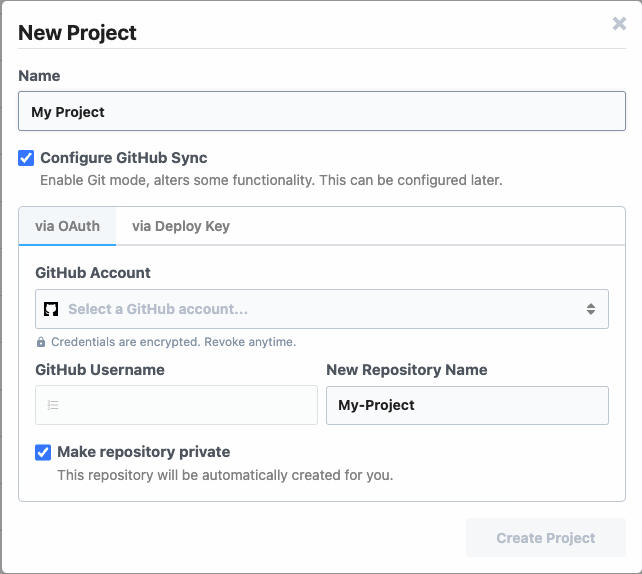
* Enter a project name and check the box to **Configure GitHub Sync**
* To use **OAuth**
* Select a connected account, GitHub scope and repo name
* Pipedream will automatically create a new, empty repo in GitHub
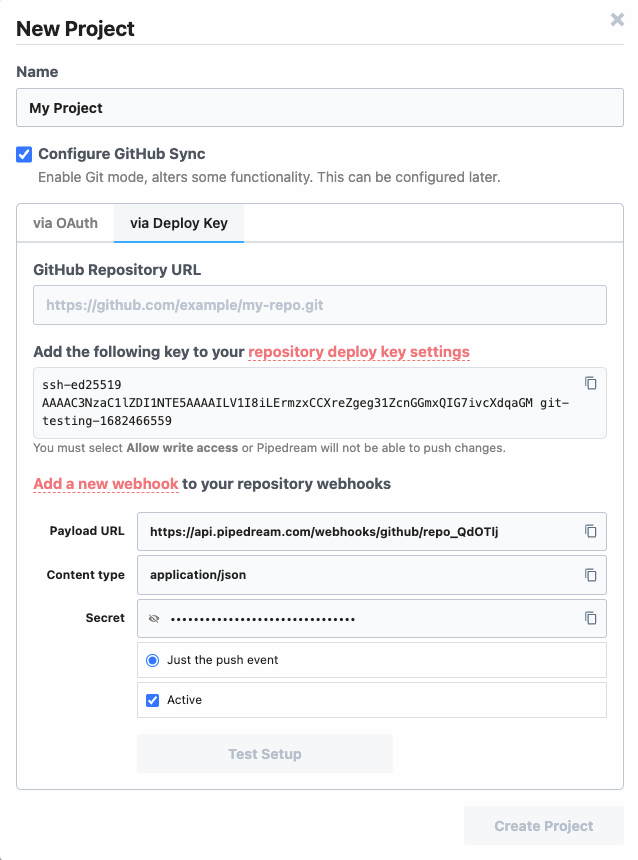
 * To use **Deploy Keys**
* [Create a new repo](https://github.com/new) in GitHub
* Copy and paste the URL of your new repo
* Follow the instructions to configure the deploy key
* Test your setup and create a new project
* To use **Deploy Keys**
* [Create a new repo](https://github.com/new) in GitHub
* Copy and paste the URL of your new repo
* Follow the instructions to configure the deploy key
* Test your setup and create a new project
 ### Create a branch to edit a project
Branches are required to make changes
All changes to resources in a project must be made in a development branch.
Examples of changes include creating, editing, deleting, enabling, disabling and renaming workflows. This also includes changing workflow settings like concurrency, VPC assignment and auto-retries.
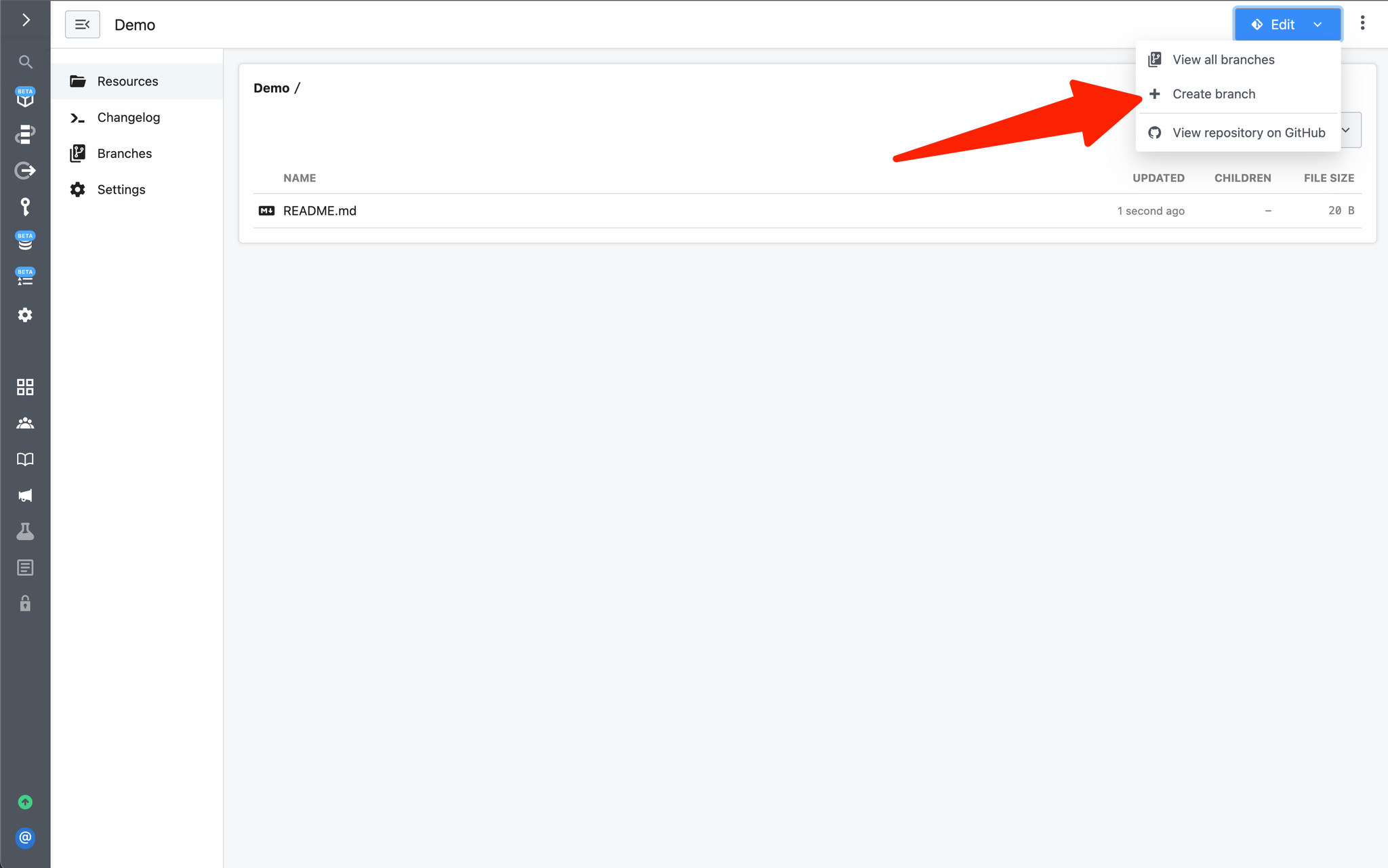
To edit a git-backed project you must create a development branch by clicking **Edit > Create Branch**
### Create a branch to edit a project
Branches are required to make changes
All changes to resources in a project must be made in a development branch.
Examples of changes include creating, editing, deleting, enabling, disabling and renaming workflows. This also includes changing workflow settings like concurrency, VPC assignment and auto-retries.
To edit a git-backed project you must create a development branch by clicking **Edit > Create Branch**
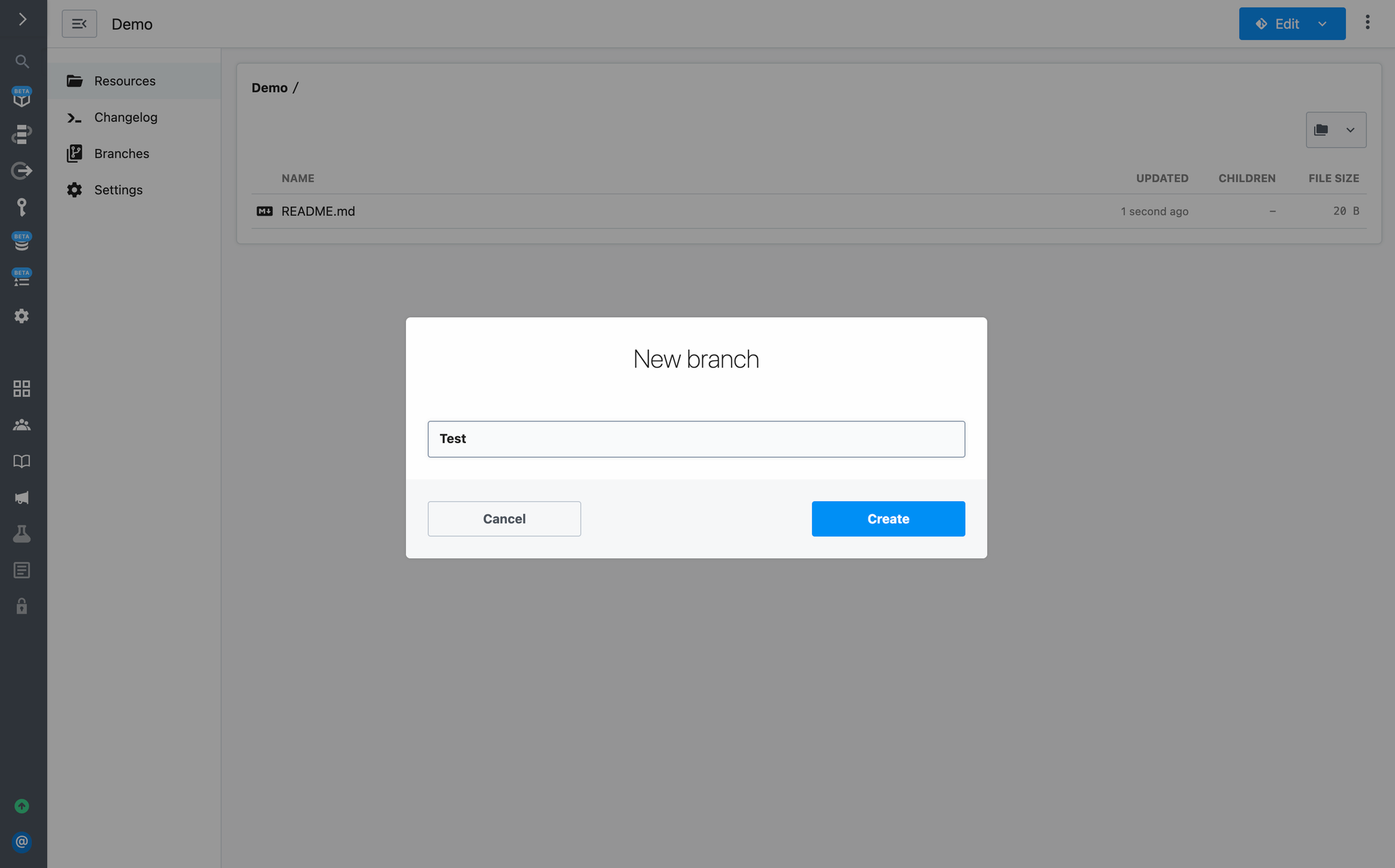
 Next, name the branch and click **Create**:
 To exit development mode without merging to production, click **Exit Development Mode**:
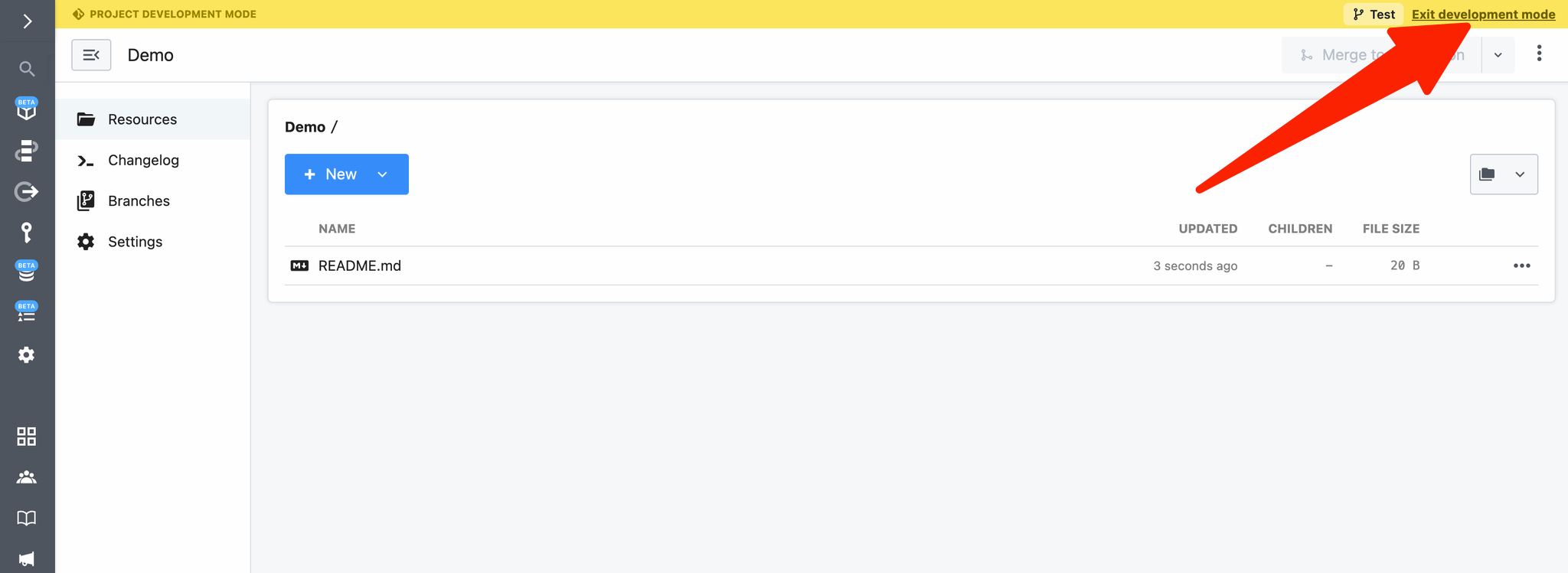 Your changes will be saved to the branch, if you choose to revisit them later.
### Merge changes to production
Once you’ve committed your changes, you can deploy your changes by merging them into the `production` branch through the Pipedream UI or GitHub.
When you merge a Git-backed project to production, all modified resources in the project will be deployed. Multiple workflows may be deployed, modified, or deleted in production through a single merge action.
#### Merge via the Pipedream UI
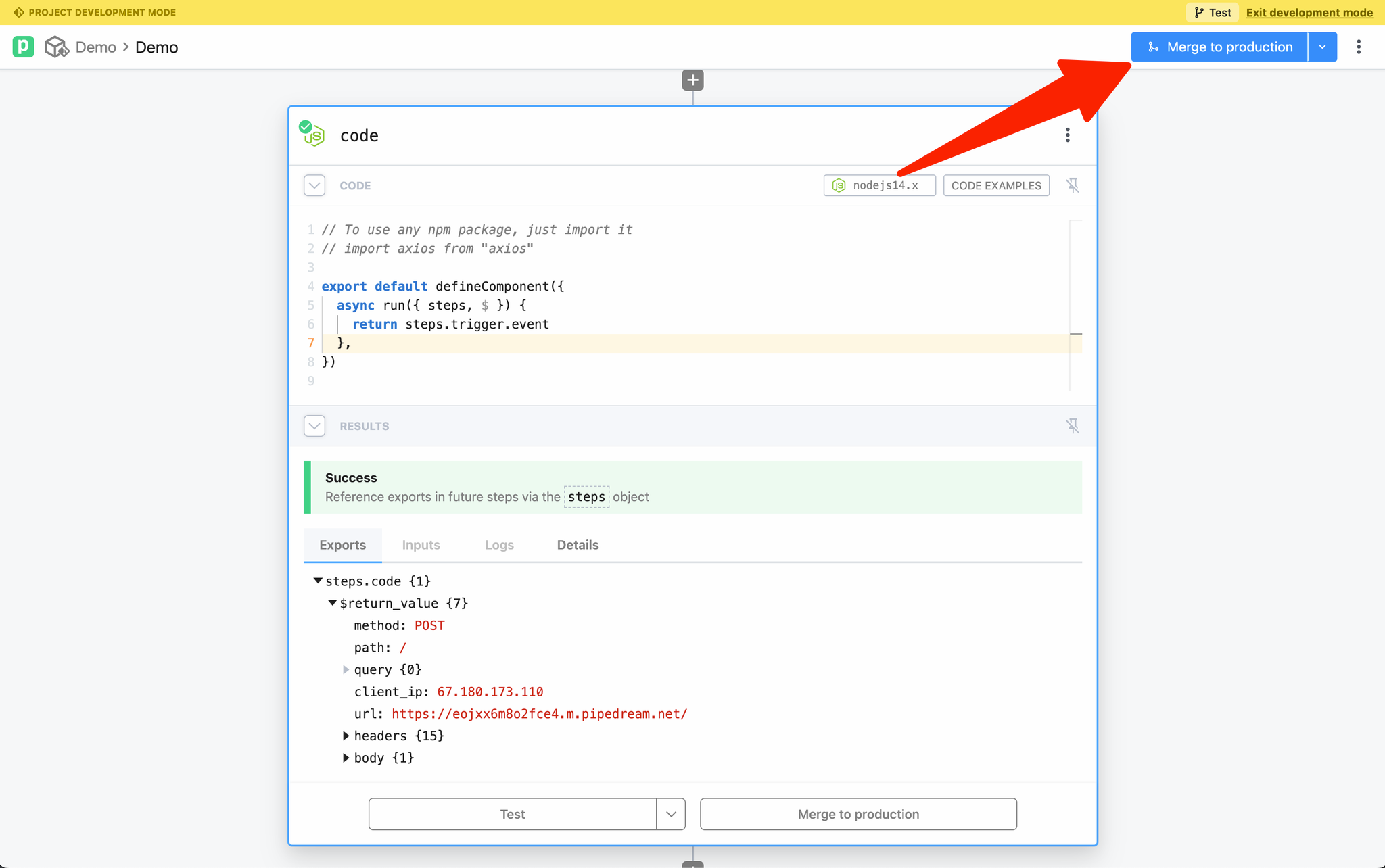
To merge changes to production, click on **Merge to production:**
Your changes will be saved to the branch, if you choose to revisit them later.
### Merge changes to production
Once you’ve committed your changes, you can deploy your changes by merging them into the `production` branch through the Pipedream UI or GitHub.
When you merge a Git-backed project to production, all modified resources in the project will be deployed. Multiple workflows may be deployed, modified, or deleted in production through a single merge action.
#### Merge via the Pipedream UI
To merge changes to production, click on **Merge to production:**
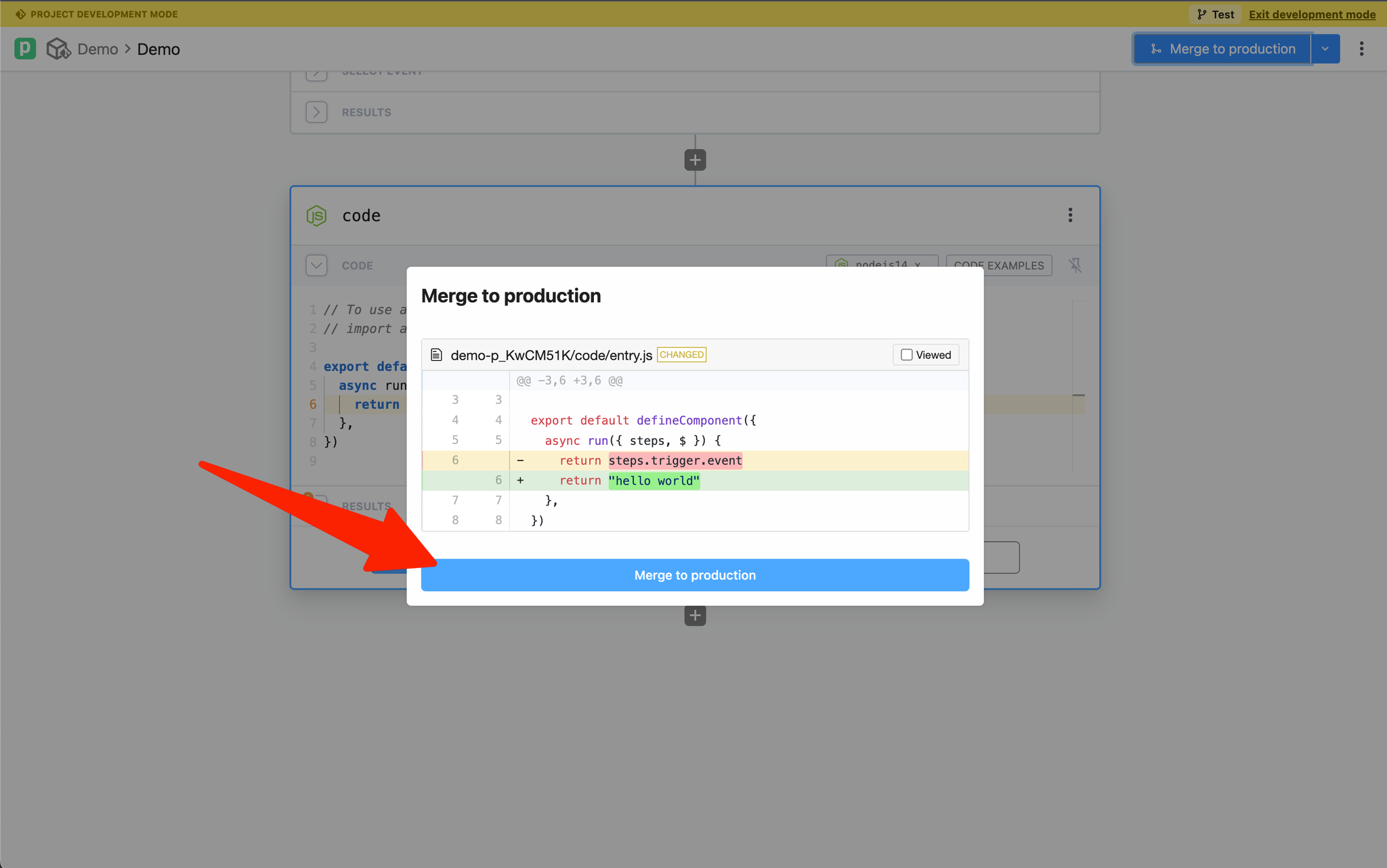
 Pipedream will present a diff between the development branch and the `production` branch. Validate your changes and click **Merge to production** to complete the merge:
 #### Create a Pull Request in GitHub
To create a pull request in GitHub, either choose **Open GitHub pull request** from the git-actions menu in Pipedream or in GitHub:
#### Create a Pull Request in GitHub
To create a pull request in GitHub, either choose **Open GitHub pull request** from the git-actions menu in Pipedream or in GitHub:
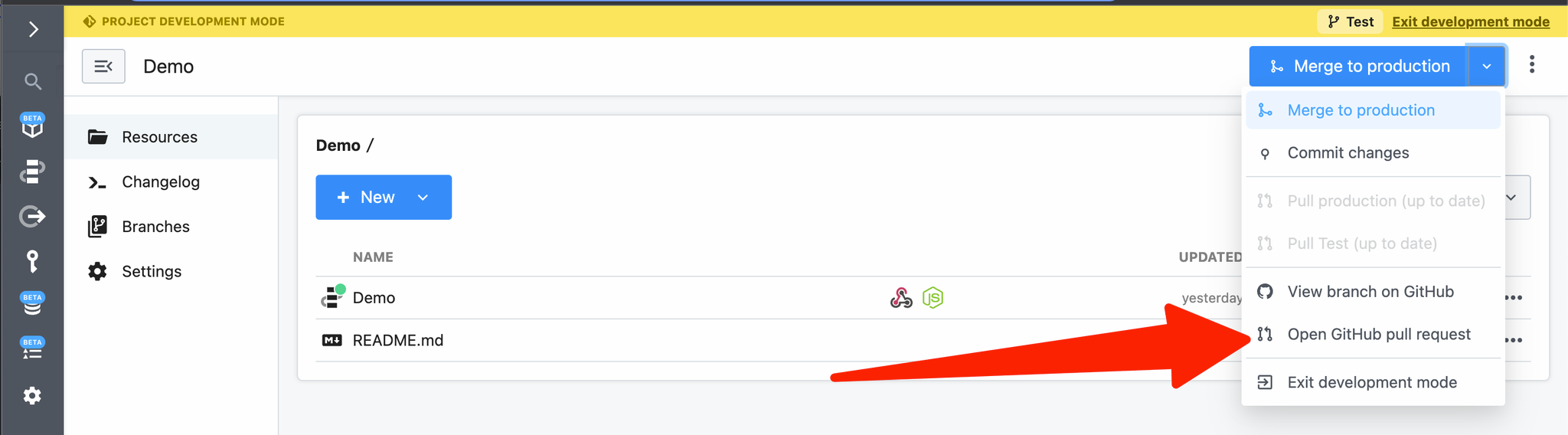 You can also review and merge changes directly from GitHub using the standard pull request process.
Pull request reviews cannot be required. That feature is on the roadmap for the Business tier.
### Commit changes
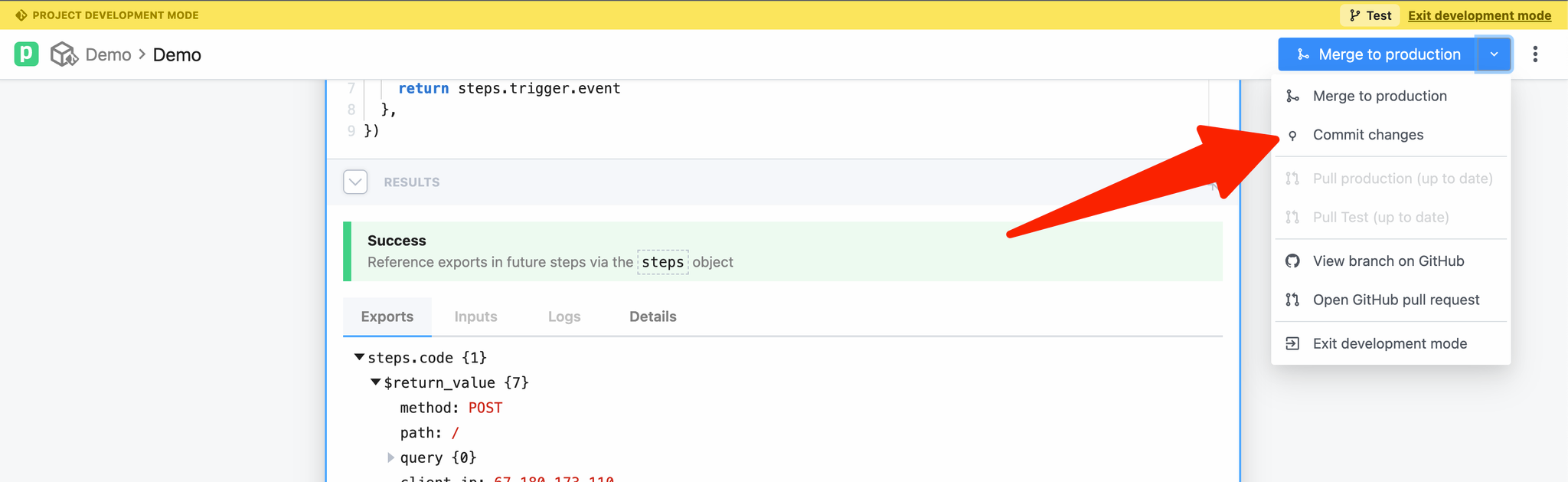
To commit changes without merging to production, select **Commit Changes** from the Git Actions menu:
You can also review and merge changes directly from GitHub using the standard pull request process.
Pull request reviews cannot be required. That feature is on the roadmap for the Business tier.
### Commit changes
To commit changes without merging to production, select **Commit Changes** from the Git Actions menu:
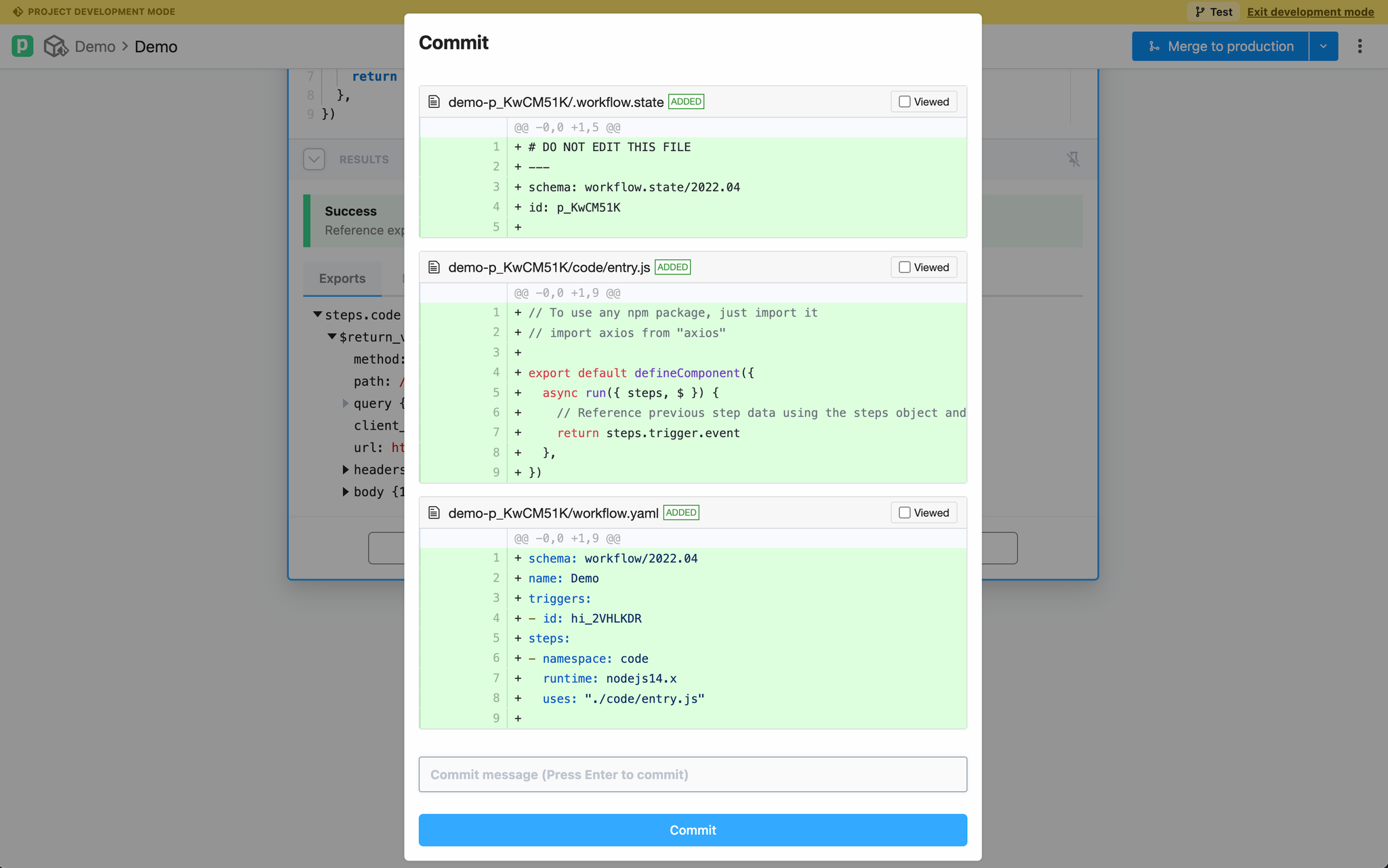
 You can review the diff and enter a commit message:
 ### Pull changes and resolve conflicts
If remote changes are detected, you’ll be prompted to pull the changes:
### Pull changes and resolve conflicts
If remote changes are detected, you’ll be prompted to pull the changes:
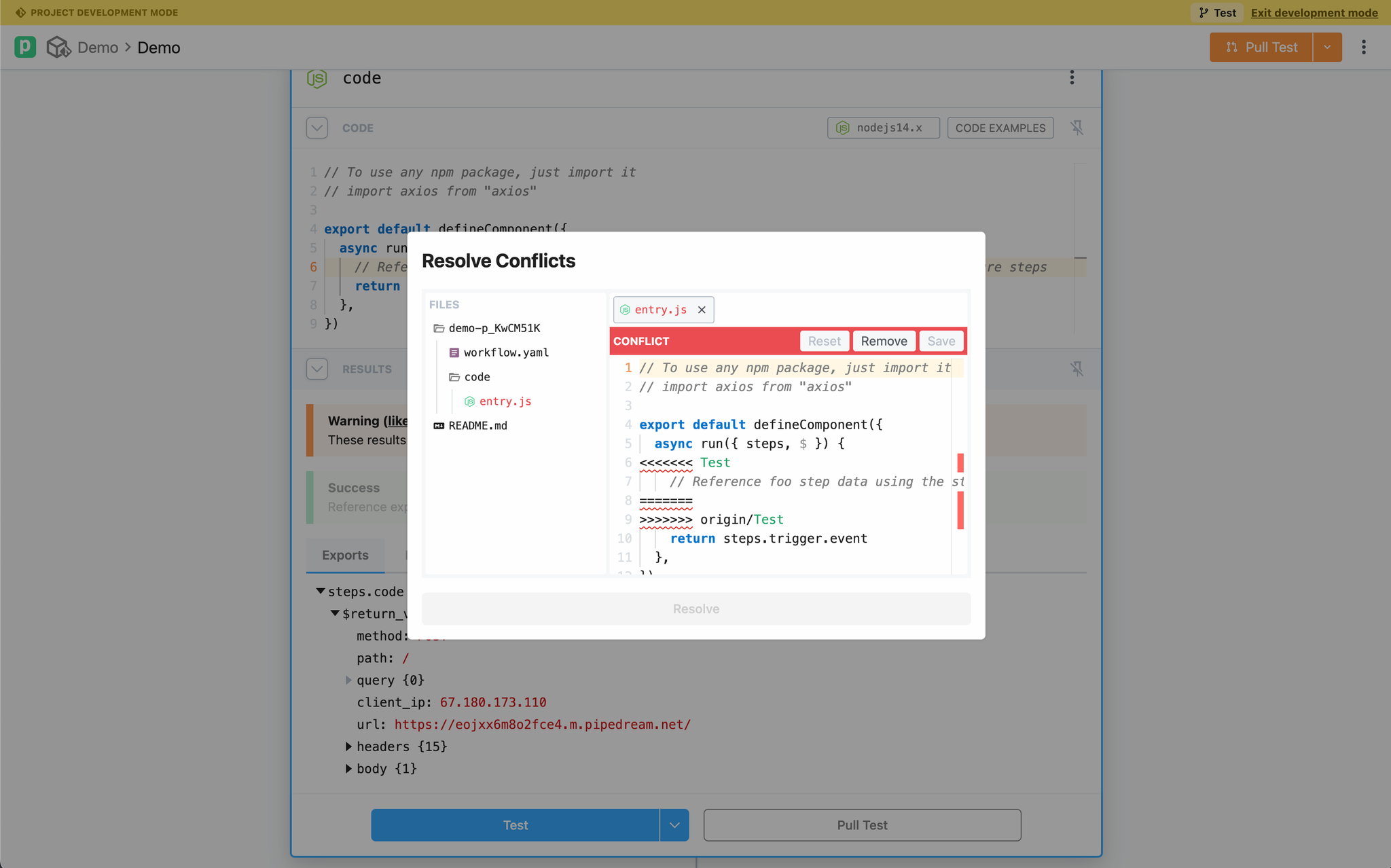
 Pipedream will attempt to automatically merge changes. If there are conflicts, you will be prompted to manually resolve it:
 ### Move existing workflows to projects
Legacy (v1) workflows are not supported in projects.
First, select the workflow(s) you want to move from the [workflows listing page](https://pipedream.com/workflows) and click **Move** in the top action menu:
### Move existing workflows to projects
Legacy (v1) workflows are not supported in projects.
First, select the workflow(s) you want to move from the [workflows listing page](https://pipedream.com/workflows) and click **Move** in the top action menu:
 Then, select the project to move the selected workflows to:
 Undeployed changes are automatically assigned a development branch
If any moved workflows have undeployed changes, those changes will staged in a branch prefixed with `undeployed-changes` (e.g., `undeployed-changes-27361`).
### Use the changelog
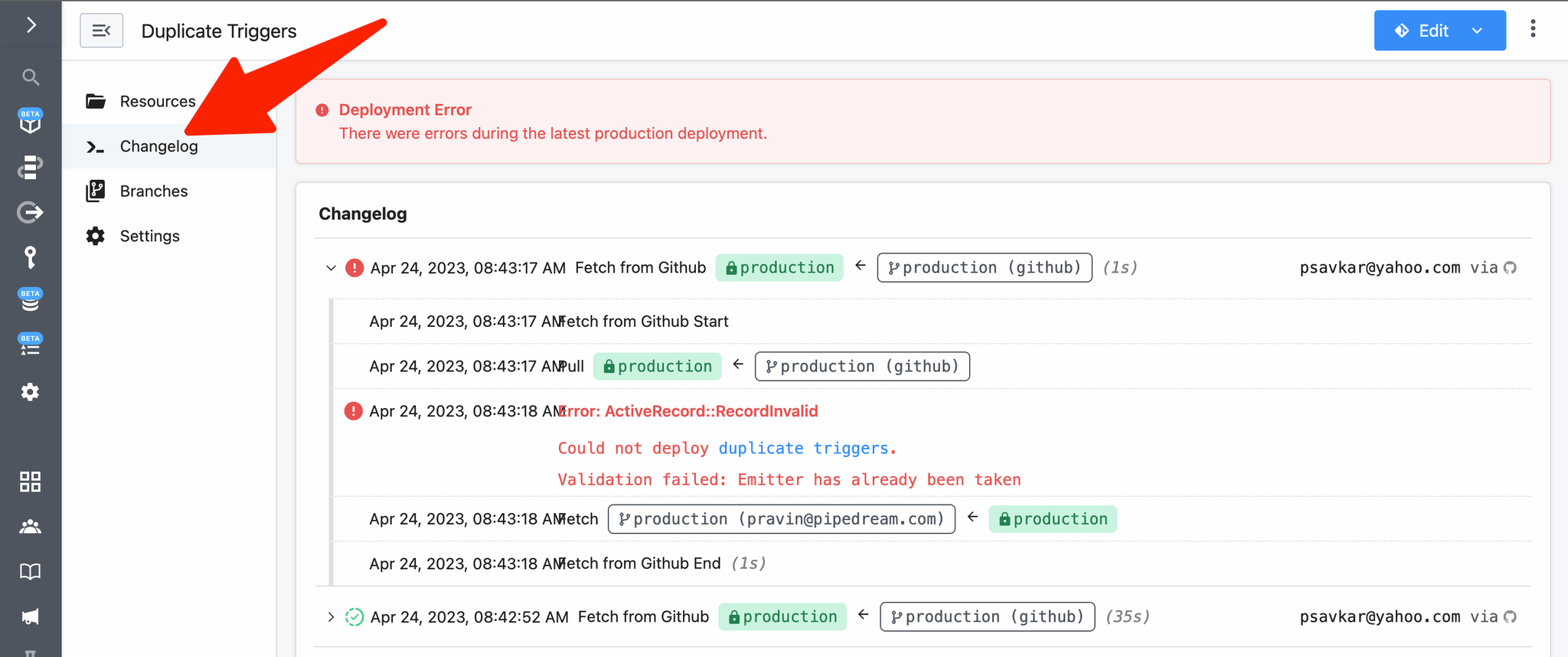
The changelog tracks all git activity (for projects with GitHub sync enabled). If you encounter an error merging your project, go to the changelog and explore the log details to help you troubleshoot issues in your workflows:
Undeployed changes are automatically assigned a development branch
If any moved workflows have undeployed changes, those changes will staged in a branch prefixed with `undeployed-changes` (e.g., `undeployed-changes-27361`).
### Use the changelog
The changelog tracks all git activity (for projects with GitHub sync enabled). If you encounter an error merging your project, go to the changelog and explore the log details to help you troubleshoot issues in your workflows:
 ### Local development
Projects that use GitHub sync may be edited outside of Pipedream. You can edit and commit directly via GitHub’s UI or clone the repo locally and use your preferred editor (e.g., VSCode).
To test external edits in Pipedream:
1. Commit and push local changes to your development branch in GitHub
2. Open the project in Pipedream’s UI and load your development branch
3. Use the Git Actions menu to pull changes from GitHub
## Known Issues
Below are a list of known issues that do not currently have solutions, but are in progress:
* Project branches on Pipedream cannot be deleted.
* If a workflow uses an action that has been deprecated, merging to production will fail.
* Legacy (v1) workflows are not supported in projects.
* Self-hosted GitHub Server instances are not yet supported. [Please contact us for help](https://pipedream.com/support).
* Workflow attachments are not supported
## GitHub Enterprise Cloud
If your repository is hosted on a GitHub Enterprise account, you can allow Pipedream’s address range to sync your project changes.
[Follow the directions here](https://docs.github.com/en/enterprise-cloud@latest/organizations/keeping-your-organization-secure/managing-security-settings-for-your-organization/managing-allowed-ip-addresses-for-your-organization) and add the following IP range:
{PD_EGRESS_IP_RANGE}
To use this public IP address and connect to GitHub Enterprise Cloud hosted repositories, you’ll need to have a Pipedream Business plan. [View our plans](https://pipedream.com/pricing).
## FAQ
### How are Pipedream workflows synchronized to GitHub?
Pipedream will serialize your project’s workflows and their configuration into a standard YAML format for storage in GitHub.
Then Pipedream will commit your changes to your connected GitHub repository.
### Do you have a definition of this YAML?
Not yet, please stay tuned!
### Can I sync multiple workflows to a single GitHub repository?
Yes, *projects* are synced to a single GitHub repository which allows you to store multiple workflows into a single GitHub repository for easier organization and management.
### Can I use this feature to develop workflows locally?
Yes, you can use the GitHub Syncing feature to develop your workflows from YAML files checked into your Pipedream connected GitHub repository.
Then pushing changes to the `production` branch will trigger a deploy for your Pipedream workflows.
### Why am I seeing the error “could not resolve step\[index].uses: component-key\@version” when merging to production?
This error occurs when a workflow references a [private component](/components/contributing/#using-private-actions) without properly prefixing the component key with your workspace name in the `workflow.yaml` configuration file. Pipedream requires this prefix to correctly identify and resolve components specific to your workspace.
For example, if you modified a [registry action](/components/contributing/) and published it privately, the correct component key should be formatted as `@workspacename/component-key@version` (e.g., `@pipedream/github-update-issue@0.1.0`).
To resolve this error:
1. Clone your repository locally and create a development branch.
2. Locate the error in your `workflow.yaml` file where the component key is specified.
3. Add your workspace name prefix to the component key, ensuring it follows the format `@workspacename/component-key@version`.
4. Commit your changes and push them to your repository.
5. Open your project in the Pipedream UI and select your development branch.
6. Click on **Merge to Production** and verify the deployment success in the [Changelog](/workflows/git/#use-the-changelog).
7. If the issue persists, [reach out to Pipedream Support](https://pipedream.com/support) for further assistance.
### Why am I seeing an error about “private auth mismatch” when trying to merge a branch to production?
### Local development
Projects that use GitHub sync may be edited outside of Pipedream. You can edit and commit directly via GitHub’s UI or clone the repo locally and use your preferred editor (e.g., VSCode).
To test external edits in Pipedream:
1. Commit and push local changes to your development branch in GitHub
2. Open the project in Pipedream’s UI and load your development branch
3. Use the Git Actions menu to pull changes from GitHub
## Known Issues
Below are a list of known issues that do not currently have solutions, but are in progress:
* Project branches on Pipedream cannot be deleted.
* If a workflow uses an action that has been deprecated, merging to production will fail.
* Legacy (v1) workflows are not supported in projects.
* Self-hosted GitHub Server instances are not yet supported. [Please contact us for help](https://pipedream.com/support).
* Workflow attachments are not supported
## GitHub Enterprise Cloud
If your repository is hosted on a GitHub Enterprise account, you can allow Pipedream’s address range to sync your project changes.
[Follow the directions here](https://docs.github.com/en/enterprise-cloud@latest/organizations/keeping-your-organization-secure/managing-security-settings-for-your-organization/managing-allowed-ip-addresses-for-your-organization) and add the following IP range:
{PD_EGRESS_IP_RANGE}
To use this public IP address and connect to GitHub Enterprise Cloud hosted repositories, you’ll need to have a Pipedream Business plan. [View our plans](https://pipedream.com/pricing).
## FAQ
### How are Pipedream workflows synchronized to GitHub?
Pipedream will serialize your project’s workflows and their configuration into a standard YAML format for storage in GitHub.
Then Pipedream will commit your changes to your connected GitHub repository.
### Do you have a definition of this YAML?
Not yet, please stay tuned!
### Can I sync multiple workflows to a single GitHub repository?
Yes, *projects* are synced to a single GitHub repository which allows you to store multiple workflows into a single GitHub repository for easier organization and management.
### Can I use this feature to develop workflows locally?
Yes, you can use the GitHub Syncing feature to develop your workflows from YAML files checked into your Pipedream connected GitHub repository.
Then pushing changes to the `production` branch will trigger a deploy for your Pipedream workflows.
### Why am I seeing the error “could not resolve step\[index].uses: component-key\@version” when merging to production?
This error occurs when a workflow references a [private component](/components/contributing/#using-private-actions) without properly prefixing the component key with your workspace name in the `workflow.yaml` configuration file. Pipedream requires this prefix to correctly identify and resolve components specific to your workspace.
For example, if you modified a [registry action](/components/contributing/) and published it privately, the correct component key should be formatted as `@workspacename/component-key@version` (e.g., `@pipedream/github-update-issue@0.1.0`).
To resolve this error:
1. Clone your repository locally and create a development branch.
2. Locate the error in your `workflow.yaml` file where the component key is specified.
3. Add your workspace name prefix to the component key, ensuring it follows the format `@workspacename/component-key@version`.
4. Commit your changes and push them to your repository.
5. Open your project in the Pipedream UI and select your development branch.
6. Click on **Merge to Production** and verify the deployment success in the [Changelog](/workflows/git/#use-the-changelog).
7. If the issue persists, [reach out to Pipedream Support](https://pipedream.com/support) for further assistance.
### Why am I seeing an error about “private auth mismatch” when trying to merge a branch to production?
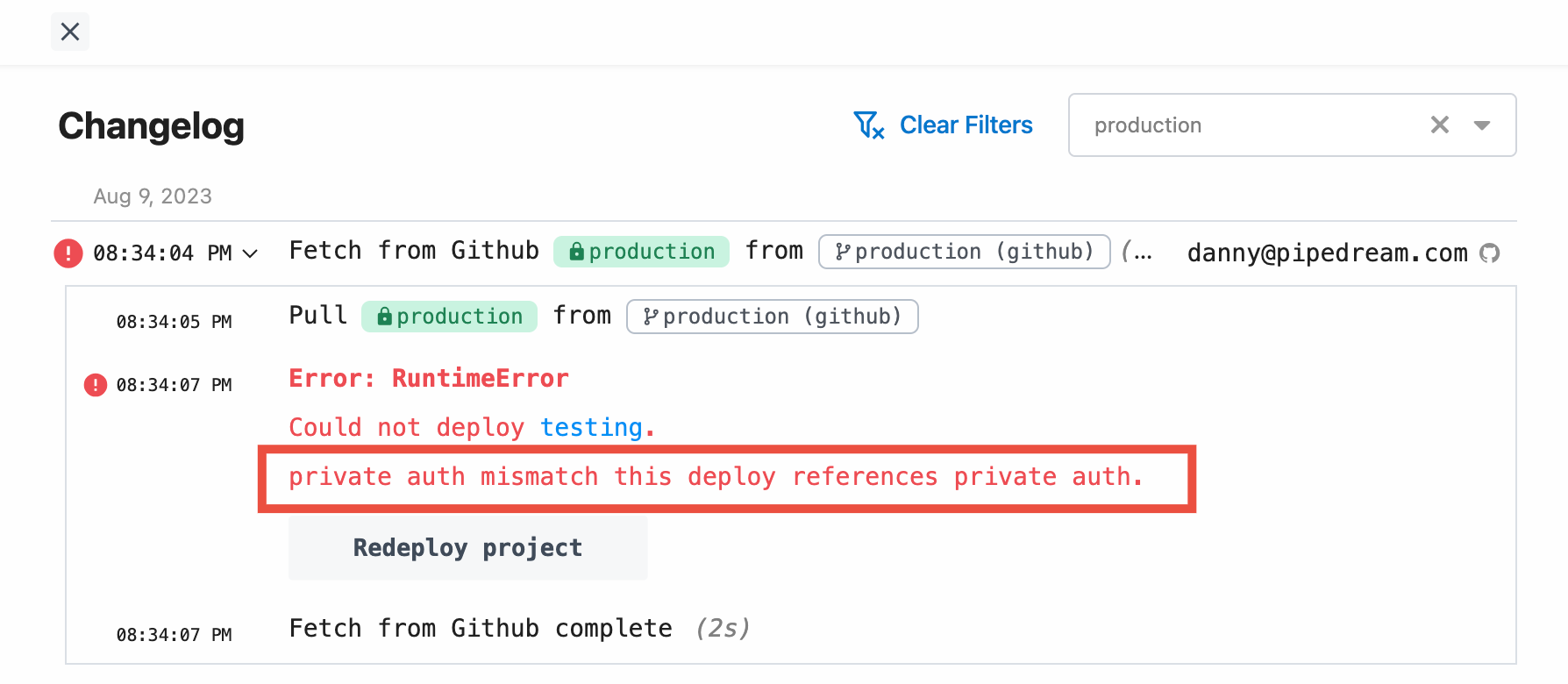 This error occurs when **both** of the below conditions are met:
1. The referenced workflow is using a connected account that’s not shared with the entire workspace
2. The change was merged from outside the Pipedream UI (via github.com or locally)
Since Pipedream can’t verify the person who merged that change should have access to use the connected account in a workflow in this case, we block these deploys.
To resolve this error:
1. Make sure all the connected accounts in the project’s workflows are [accessible to the entire workspace](/apps/connected-accounts/#access-control)
2. Re-trigger a sync with Pipedream by making a nominal change to the workflow **from outside the Pipedream UI** (via github.com or locally), then merge that change to production
### Can I sync an existing GitHub repository with workflows to a new Pipedream Project?
No, at this time it’s not possible because of how resources are connected during the bootstrapping process from the workflow YAML specification. However, this is on our roadmap, [please subscribe to this issue](https://github.com/PipedreamHQ/pipedream/issues/9255) for the latest details.
### Migrating GitHub Repositories
You can migrate Pipedream project’s GitHub repository to a new repository, while preserving history. You may want to do this when migrating a repository from a personal GitHub account to an organization account, without affecting the workflows within the Pipedream project.
#### Assumptions
* **Current GitHub repository**: `previous_github_repo`
* **New GitHub repository**: `new_github_repo`
* Basic familiarity with git and GitHub
* Access to a local terminal (e.g., Bash, Zsh, PowerShell)
* Necessary permissions to modify both the Pipedream project and associated GitHub repositories
#### Steps
1. **Access Project Settings in Pipedream:**
* Navigate to your Pipedream project.
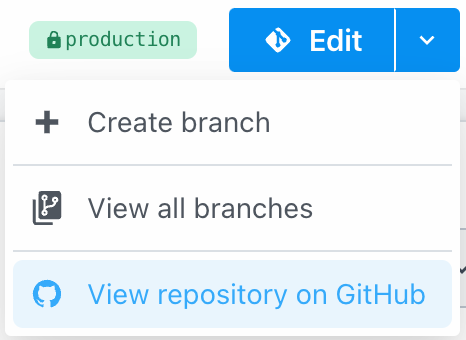
* Use the dropdown menu on the “Edit” button in the top right corner to access `previous_github_repo` in GitHub.
This error occurs when **both** of the below conditions are met:
1. The referenced workflow is using a connected account that’s not shared with the entire workspace
2. The change was merged from outside the Pipedream UI (via github.com or locally)
Since Pipedream can’t verify the person who merged that change should have access to use the connected account in a workflow in this case, we block these deploys.
To resolve this error:
1. Make sure all the connected accounts in the project’s workflows are [accessible to the entire workspace](/apps/connected-accounts/#access-control)
2. Re-trigger a sync with Pipedream by making a nominal change to the workflow **from outside the Pipedream UI** (via github.com or locally), then merge that change to production
### Can I sync an existing GitHub repository with workflows to a new Pipedream Project?
No, at this time it’s not possible because of how resources are connected during the bootstrapping process from the workflow YAML specification. However, this is on our roadmap, [please subscribe to this issue](https://github.com/PipedreamHQ/pipedream/issues/9255) for the latest details.
### Migrating GitHub Repositories
You can migrate Pipedream project’s GitHub repository to a new repository, while preserving history. You may want to do this when migrating a repository from a personal GitHub account to an organization account, without affecting the workflows within the Pipedream project.
#### Assumptions
* **Current GitHub repository**: `previous_github_repo`
* **New GitHub repository**: `new_github_repo`
* Basic familiarity with git and GitHub
* Access to a local terminal (e.g., Bash, Zsh, PowerShell)
* Necessary permissions to modify both the Pipedream project and associated GitHub repositories
#### Steps
1. **Access Project Settings in Pipedream:**
* Navigate to your Pipedream project.
* Use the dropdown menu on the “Edit” button in the top right corner to access `previous_github_repo` in GitHub.
 2. **Clone the Current Repository Locally:**
```bash theme={null}
git clone previous_github_repo_clone_url
```
3. Reset GitHub Sync in Pipedream:
* In Pipedream, go to your project settings.
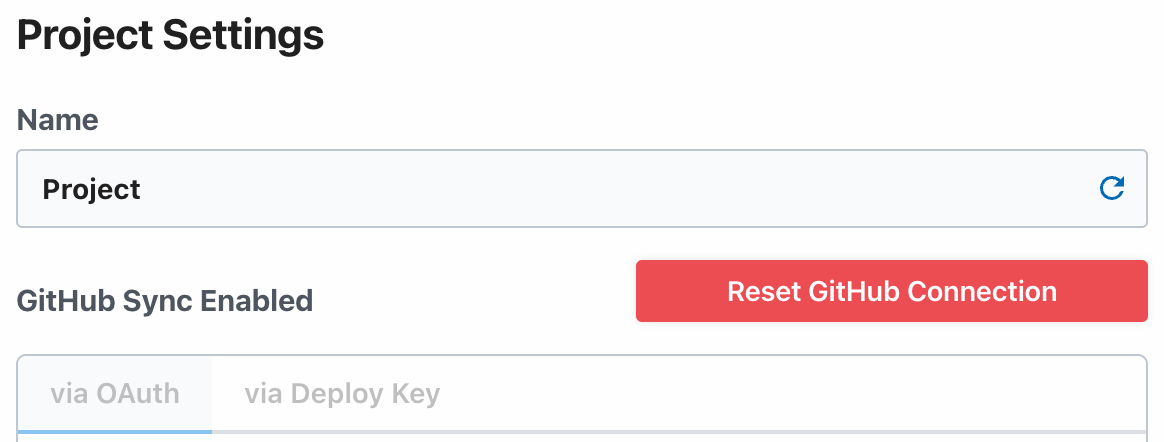
* Click on “Reset GitHub Connection”.
2. **Clone the Current Repository Locally:**
```bash theme={null}
git clone previous_github_repo_clone_url
```
3. Reset GitHub Sync in Pipedream:
* In Pipedream, go to your project settings.
* Click on “Reset GitHub Connection”.
 4. Set Up New repository connection:
* Configure the project’s GitHub repository to use `new_github_repo`.
5. Clone the new repository locally:
```bash theme={null}
git clone new_github_repo_clone_url
cd new_github_repo
```
6. Link to the old repository:
```bash theme={null}
git remote add old_github_repo previous_github_repo_clone_url
git fetch --all
```
7. Prepare for migration:
* Create and switch to a new branch for migration:
```bash theme={null}
git checkout -b migration
```
* Merge the main branch of `old_github_repo` into migration, allowing for unrelated histories:
```bash theme={null}
git merge --allow-unrelated-histories old_github_repo/production
# Resolve any conflicts, such as in README.md
git commit
```
8. Finalize the migration:
* Optionally push the `migration` branch to the remote:
```bash theme={null}
git push --set-upstream origin migration
```
* Switch to the `production` branch and merge:
```bash theme={null}
git checkout production
git merge --no-ff migration
git push
```
9. Cleanup:
* Remove the connection to the old repository:
```bash theme={null}
git remote remove old_github_repo
```
* Optionally, you may now safely delete `previous_github_repo` from GitHub.
### How does the `production` branch work?
Anything merged to the `production` branch will be deployed to your production workflows on Pipedream.
From a design perspective, we want to let you manage any branching strategy on your end, since you may be making commits to the repo outside of Pipedream. Once we support managing Pipedream workflows in a monorepo, where you may have other changes, we wanted to use a branch that didn’t conflict with a conventional main branch (like `main` or `master`).
In the future, we also plan to support you changing the default branch name.
4. Set Up New repository connection:
* Configure the project’s GitHub repository to use `new_github_repo`.
5. Clone the new repository locally:
```bash theme={null}
git clone new_github_repo_clone_url
cd new_github_repo
```
6. Link to the old repository:
```bash theme={null}
git remote add old_github_repo previous_github_repo_clone_url
git fetch --all
```
7. Prepare for migration:
* Create and switch to a new branch for migration:
```bash theme={null}
git checkout -b migration
```
* Merge the main branch of `old_github_repo` into migration, allowing for unrelated histories:
```bash theme={null}
git merge --allow-unrelated-histories old_github_repo/production
# Resolve any conflicts, such as in README.md
git commit
```
8. Finalize the migration:
* Optionally push the `migration` branch to the remote:
```bash theme={null}
git push --set-upstream origin migration
```
* Switch to the `production` branch and merge:
```bash theme={null}
git checkout production
git merge --no-ff migration
git push
```
9. Cleanup:
* Remove the connection to the old repository:
```bash theme={null}
git remote remove old_github_repo
```
* Optionally, you may now safely delete `previous_github_repo` from GitHub.
### How does the `production` branch work?
Anything merged to the `production` branch will be deployed to your production workflows on Pipedream.
From a design perspective, we want to let you manage any branching strategy on your end, since you may be making commits to the repo outside of Pipedream. Once we support managing Pipedream workflows in a monorepo, where you may have other changes, we wanted to use a branch that didn’t conflict with a conventional main branch (like `main` or `master`).
In the future, we also plan to support you changing the default branch name.