> ## Documentation Index
> Fetch the complete documentation index at: https://pipedream.com/docs/llms.txt
> Use this file to discover all available pages before exploring further.
# Custom Domains
export const ENDPOINT_BASE_URL = '*.m.pipedream.net';
By default, all new [Pipedream HTTP endpoints](/workflows/building-workflows/triggers/#http) are hosted on the {ENDPOINT_BASE_URL} domain. But you can configure any domain you want: instead of `https://endpoint.m.pipedream.net`, the endpoint would be available on `https://endpoint.example.com`.
## Configuring a new custom domain
### 1. Choose your domain
You can configure any domain you own to work with Pipedream HTTP endpoints. For example, you can host Pipedream HTTP endpoints on a dedicated subdomain on your core domain, like `*.eng.example.com` or `*.marketing.example.com`. This can be any domain or subdomain you own.
In this example, endpoints would look like:
```txt theme={null}
[endpoint_id].eng.example.com
[endpoint_id_1].eng.example.com
...
```
where `[endpoint_id]` is a uniquely-generated hostname specific to your Pipedream HTTP endpoint.
If you own a domain that you want to *completely* redirect to Pipedream, you can also configure `*.example.com` to point to Pipedream. In this example, endpoints would look like:
```txt theme={null}
[endpoint_id].example.com
[endpoint_id_1].example.com
...
```
Since all traffic on `*.example.com` points to Pipedream, we can assign hosts on the root domain. This also means that **you cannot use other hosts like [www.example.com](http://www.example.com)** without conflicting with Pipedream endpoints. Choose this option only if you’re serving all traffic from `example.com` from Pipedream.
Before you move on, make sure you have access to manage DNS records for your domain. If you don’t, please coordinate with the team at your company that manages DNS records, and feel free to [reach out to our Support team](https://pipedream.com/support) with any questions.
#### A note on domain wildcards
Note that the records referenced above use the wildcard (`*`) for the host portion of the domain. When you configure DNS records in [step 3](/workflows/domains/#3-add-your-dns-records), this allows you to point all traffic for a specific domain to Pipedream and create any number of Pipedream HTTP endpoints that will work with your domain.
### 2. Reach out to Pipedream Support
Once you’ve chosen your domain and are in an [eligible plan](https://pipedream.com/pricing), [reach out to Pipedream Support](https://pipedream.com/support) and let us know what domain you’d like to configure for your workspace. We’ll configure a TLS/SSL certificate for that domain, and give you two DNS CNAME records to add for that domain in [step 3](/workflows/domains/#3-add-your-dns-records).
### 3. Add your DNS records
Once we configure your domain, we’ll ask you to create two DNS CNAME records:
* [One record to prove ownership of your domain](/workflows/domains/#add-the-cname-validation-record) (a `CNAME` record)
* [Another record to point traffic on your domain to Pipedream](/workflows/domains/#add-the-dns-cname-wildcard-record) (a `CNAME` record)
#### Add the CNAME validation record
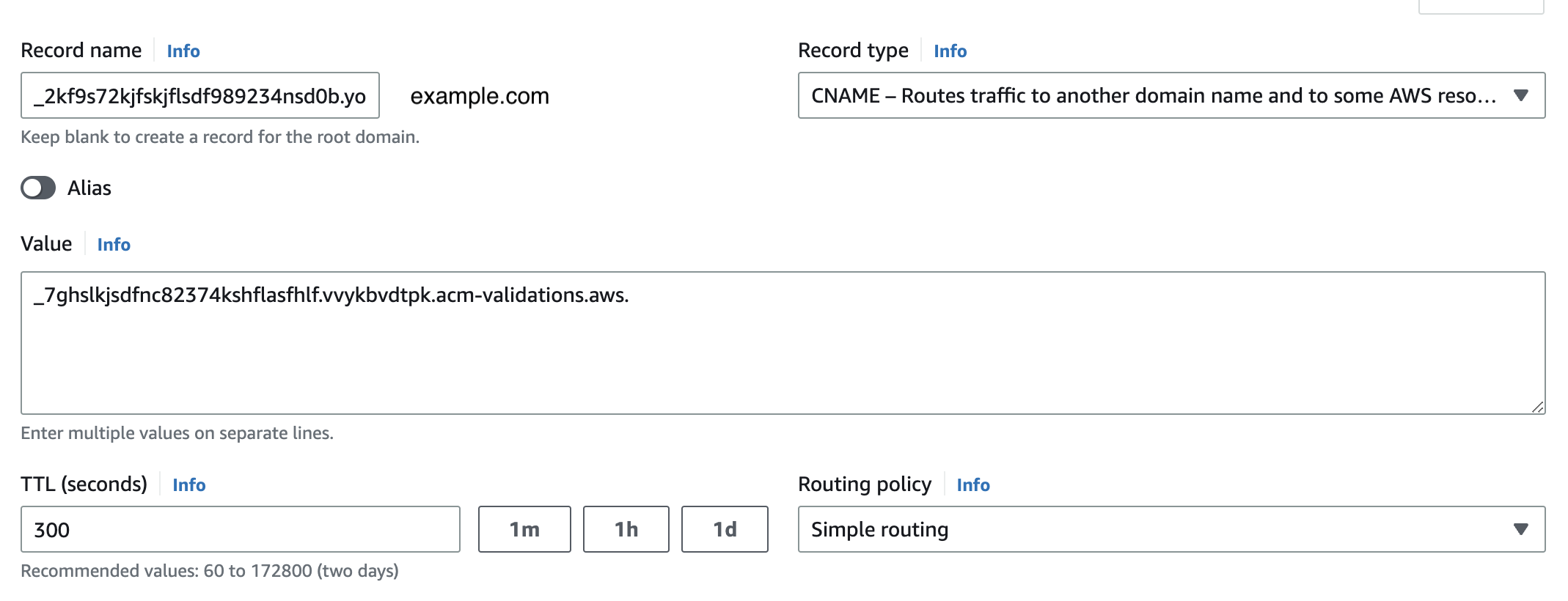
Pipedream uses [AWS Certificate Manager](https://aws.amazon.com/certificate-manager/) to create the TLS certificate for your domain. To validate the certificate, you need to add a specific DNS record provided by Certificate Manager. Pipedream will provide the name and value.
For example, if you requested `*.eng.example.com` as your custom domain, Pipedream will provide the details of the record, like in this example:
* **Type**: `CNAME`
* **Name**: `_2kf9s72kjfskjflsdf989234nsd0b.eng.example.com`
* **Value**: `_7ghslkjsdfnc82374kshflasfhlf.vvykbvdtpk.acm-validations.aws.`
* **TTL (seconds)**: 300
Consult the docs for your DNS service for more information on adding CNAME records. Here’s an example configuration using AWS’s Route53 service:
 #### Add the DNS CNAME wildcard record
Now you’ll need to add the wildcard record that points all traffic for your domain to Pipedream. Pipedream will also provide the details of this record, like in this example:
* **Type**: `CNAME`
* **Name**: `*.eng.example.com`
* **Value**: `id123.cd.pdrm.net.`
* **TTL (seconds)**: 300
Once you’ve finished adding these DNS records, please **reach out to the Pipedream team**. We’ll validate the records and finalize the configuration for your domain.
### 4. Send a test request to your custom domain
Any traffic to existing
#### Add the DNS CNAME wildcard record
Now you’ll need to add the wildcard record that points all traffic for your domain to Pipedream. Pipedream will also provide the details of this record, like in this example:
* **Type**: `CNAME`
* **Name**: `*.eng.example.com`
* **Value**: `id123.cd.pdrm.net.`
* **TTL (seconds)**: 300
Once you’ve finished adding these DNS records, please **reach out to the Pipedream team**. We’ll validate the records and finalize the configuration for your domain.
### 4. Send a test request to your custom domain
Any traffic to existing {ENDPOINT_BASE_URL} endpoints will continue to work uninterrupted.
To confirm traffic to your new domain works, take any Pipedream endpoint URL and replace the {ENDPOINT_BASE_URL} with your custom domain. For example, if you configured a custom domain of `pipedream.example.com` and have an existing endpoint at
```txt theme={null}
https://[endpoint_id].m.pipedream.net
```
Try making a test request to
```txt theme={null}
https://[endpoint_id].eng.example.com
```
## Security
### How Pipedream manages the TLS/SSL certificate
See our [TLS/SSL security docs](/privacy-and-security/#encryption-of-data-in-transit-tls-ssl-certificates) for more detail on how we create and manage the certificates for custom domains.
### Requests to custom domains are allowed only for your endpoints
Custom domains are mapped directly to customer endpoints. This means no other customer can send requests to their endpoints on *your* custom domain. Requests to `example.com` are restricted specifically to HTTP endpoints in your Pipedream workspace.