> ## Documentation Index
> Fetch the complete documentation index at: https://pipedream.com/docs/llms.txt
> Use this file to discover all available pages before exploring further.
# File Stores
In Preview
File Stores are available in Preview. There may be changes to allowed limits in the future.
If you have any feedback on File Stores, please let us know in our [community](https://pipedream.com/support).
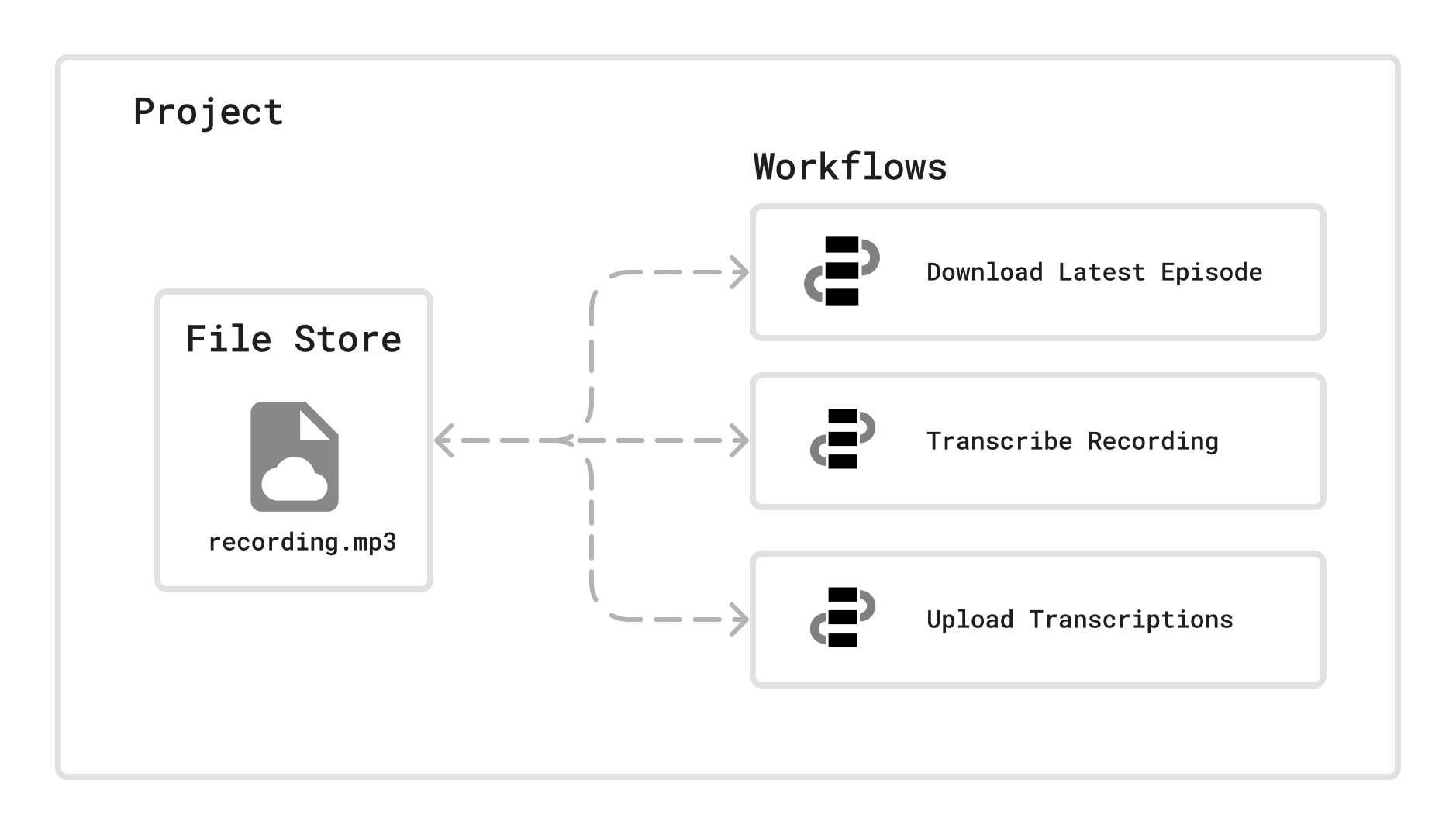
File Stores are a filesystem that are scoped to a Project. All workflows within the same Project have access to the File Stores.
You can interact with these files through the Pipedream Dashboard or programmatically through your Project’s workflows.
Unlike files stored within a workflow’s `/tmp` directory which are subject to deletion between executions, File Stores are separate cloud storage. Files within a File Store can be long term storage accessible by your workflows.
 ## Managing File Stores from the Dashboard
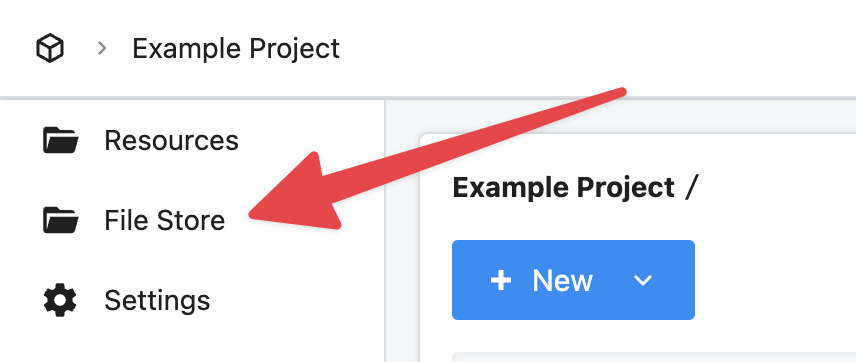
You can access a File Store by opening the Project and selecting the *File Store* on the left hand navigation menu.
## Managing File Stores from the Dashboard
You can access a File Store by opening the Project and selecting the *File Store* on the left hand navigation menu.
 ### Uploading files to the File Store
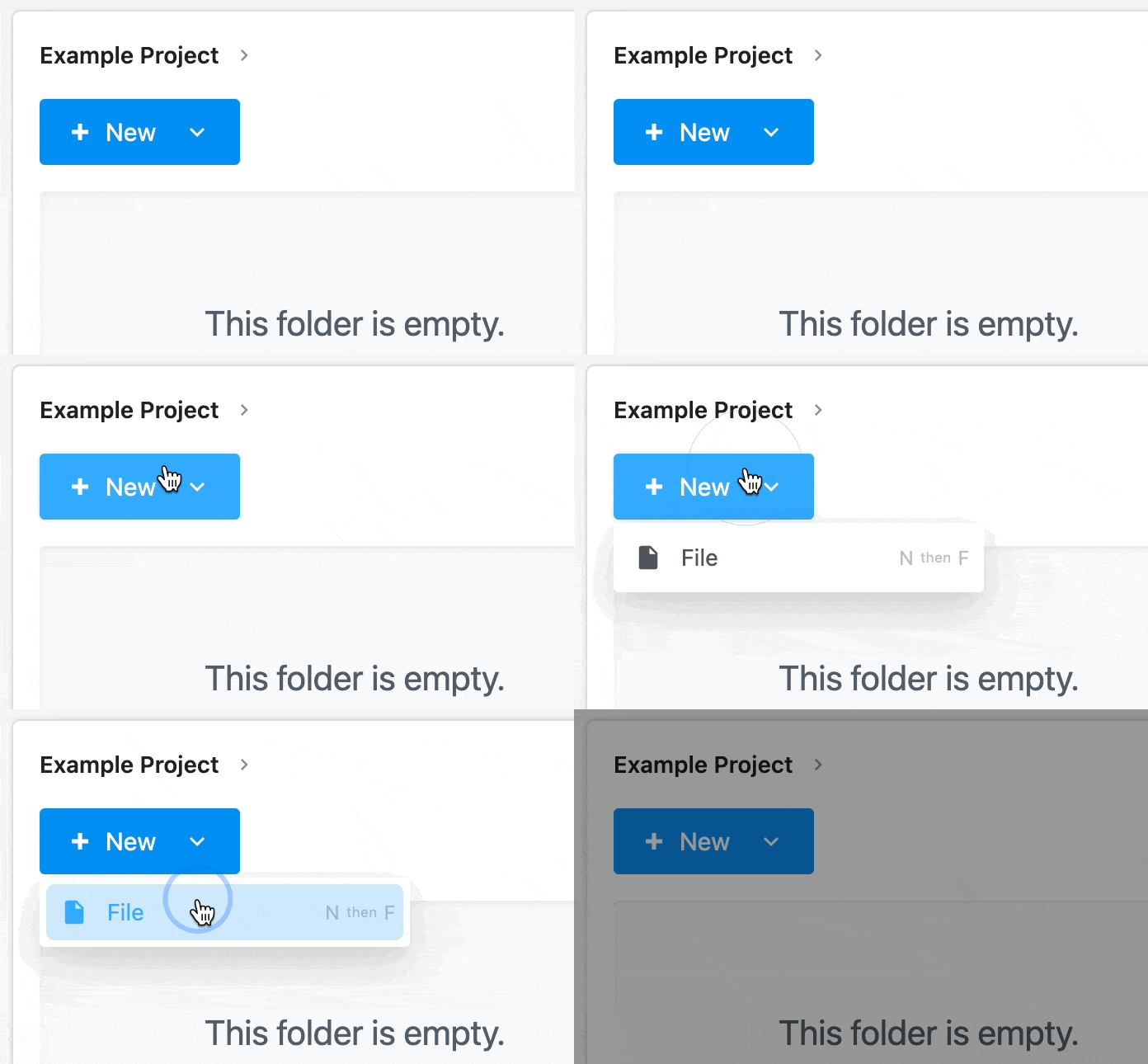
To upload a file, select *New* then select *File*:
### Uploading files to the File Store
To upload a file, select *New* then select *File*:
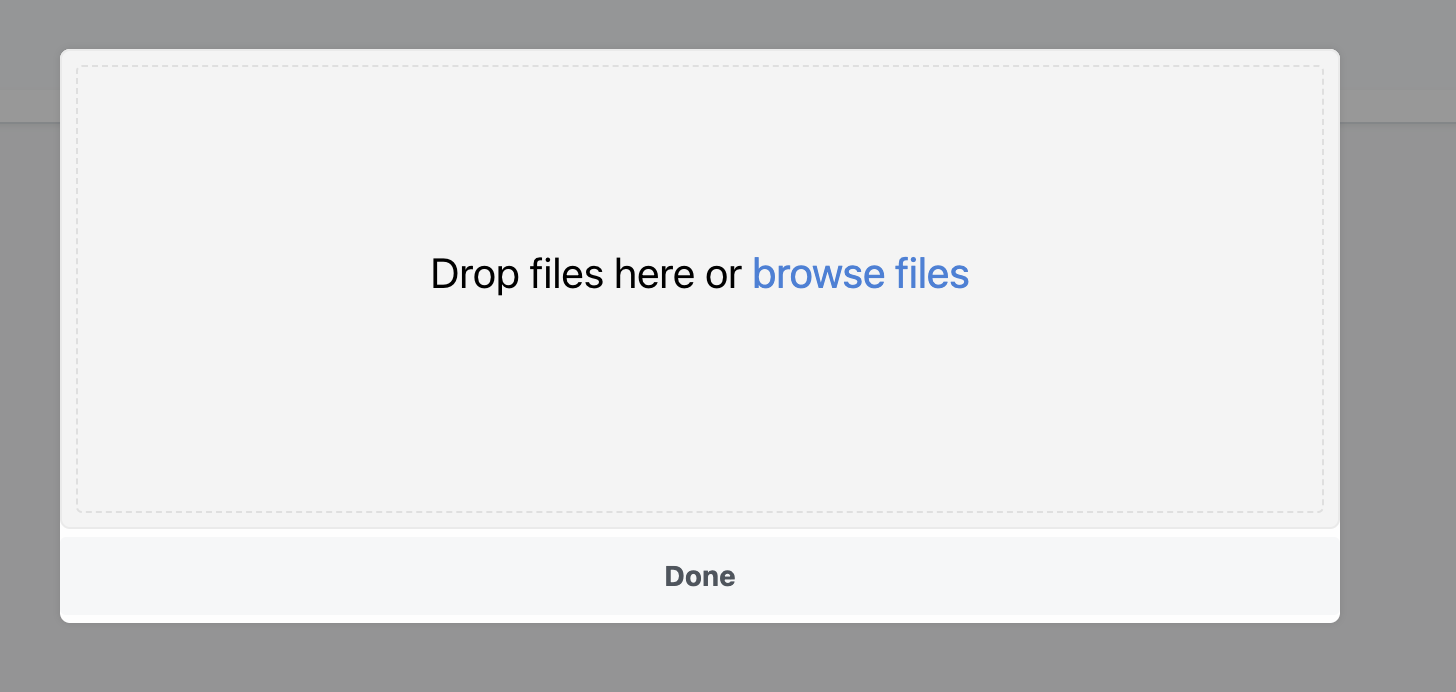
 Then in the new pop-up, you can either drag and drop or browser your computer to stage a file for uploading:
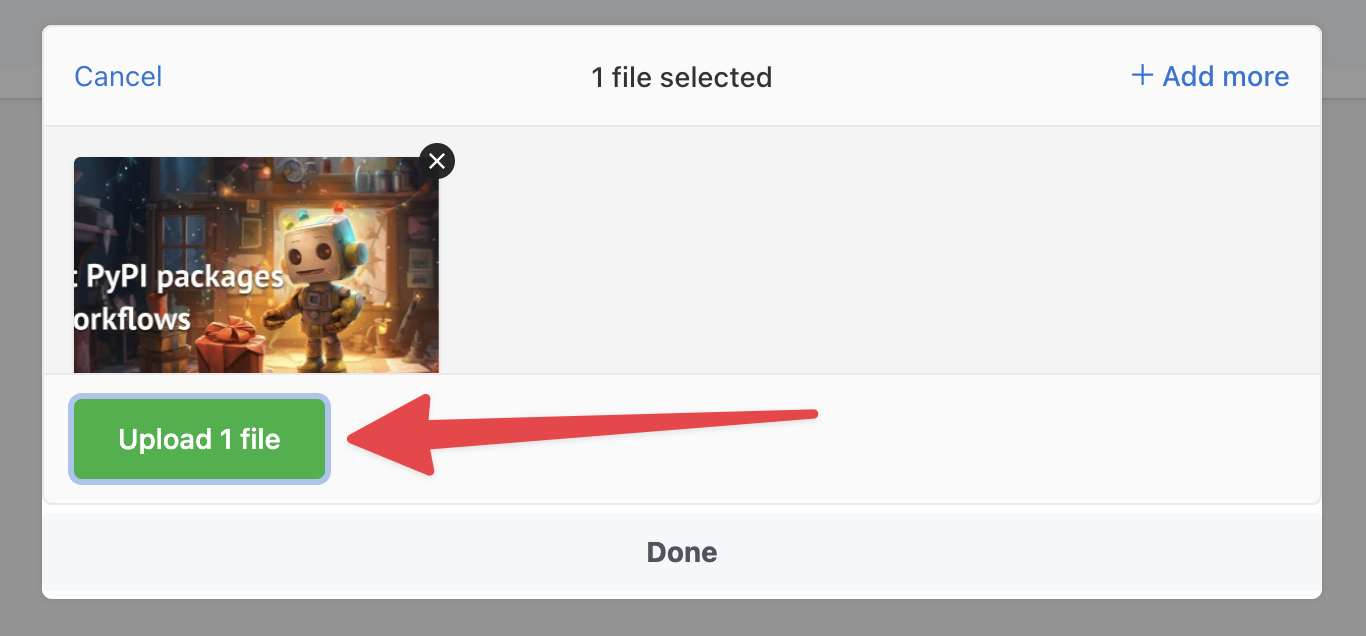
 Now that the file(s) are staged for uploaded. Click *Upload* to upload them:
 Finally, click *Done* to close the upload pop-up:
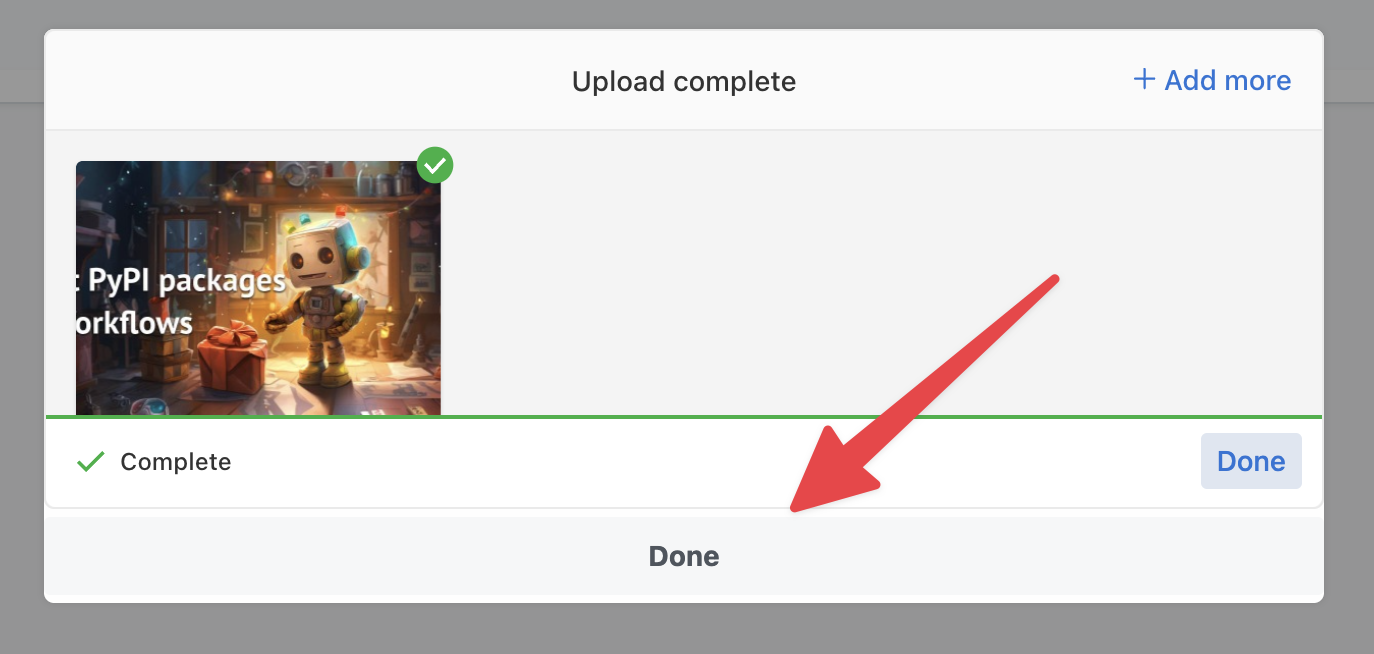 You should now see your file is uploaded and available for use within your Project:
 ### Deleting files from the File Store
You can delete individual files from a File Store by clicking the three dot menu on the far right of the file and selecting *Delete*.
### Deleting files from the File Store
You can delete individual files from a File Store by clicking the three dot menu on the far right of the file and selecting *Delete*.
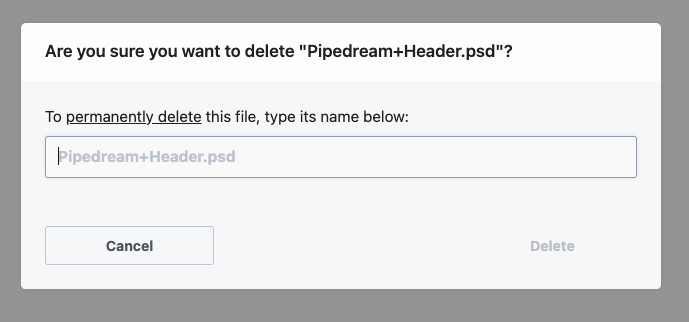 After confirming that you want to delete the file, it will be permanently deleted.
File deletion is permanent
Once a file is deleted, it’s not possible to recover it. Please take care when deleting files from File Stores.
## Managing File Stores from Workflows
Files uploaded to a File Store are accessible by workflows within that same project.
You can access these files programmatically using the `$.files` helper within Node.js code steps.
File Stores are scoped to Projects
Only workflows within the same project as the File Store can access the files. Workflows outside of the project will not be able to access that project’s File Store.
### Listing files in the File Store
The `$.files.dir()` method allows you to list files and directories within the Project’s File Store. By default it will list the files at the root directory.
Here’s an example of how to iterate over the files in the root directory and open them as `File` instances:
```javascript theme={null}
export default defineComponent({
async run({ steps, $ }) {
// list all contents of the root File Stores directory in this project
const dirs = $.files.dir();
let files = [];
for await(const dir of dirs) {
// if this is a file, let's open it
if(dir.isFile()) {
files.push(dir.path)
}
}
return files
},
})
```
### Opening files
To interact with a file uploaded to the File Store, you’ll first need to open it.
Given there’s a file in the File Store called `example.png`, you can open it using the `$.files.open()` method:
```javascript theme={null}
export default defineComponent({
async run({ steps, $ }) {
// Open the file by it's path in the File Store
const file = $.files.open('example.png')
// Log the S3 url to access the file publicly
return await file.toUrl()
},
})
```
Once the file has been opened, you can [read, write, delete the file and more](/workflows/data-management/file-stores/reference/).
### Uploading files to File Stores
You can upload files using Node.js code in your workflows, either from URLs, from the `/tmp` directory in your workflows or directly from streams for high memory efficiency.
#### Uploading files from URLs
`File.fromUrl()` can upload a file from a public URL to the File Store.
First open a new file at a specific path in the File Store, and then pass a URL to the `fromUrl` method on that new file:
```javascript theme={null}
export default defineComponent({
async run({ steps, $ }) {
// Upload a file to the File Store by a URL
const file = await $.files.open('pipedream.png').fromUrl('https://res.cloudinary.com/pipedreamin/image/upload/t_logo48x48/v1597038956/HzP2Yhq8_400x400_1_sqhs70.jpg')
// display the uploaded file's URL from the File Store:
console.log(await file.toUrl())
},
})
```
#### Uploading files from the workflow’s `/tmp` directory
`File.fromFile()` can upload a file stored within the workflow’s `/tmp` directory to the File Store.
First open a new file at a specific path in the File Store, and then pass a URL to the `fromFile` method on that new file:
```javascript theme={null}
export default defineComponent({
async run({ steps, $ }) {
// Upload a file to the File Store from the local /tmp/ directory
const file = await $.files.open('recording.mp3').fromFile('/tmp/recording.mp3')
// Display the URL to the File Store hosted file
console.log(await file.toUrl())
},
})
```
#### Uploading files using streams
File Stores also support streaming to write large files. `File.createWriteStream()` creates a write stream for the file to upload to. Then you can pair this stream with a download stream from another remote location:
```javascript theme={null}
import { pipeline } from 'stream/promises';
import got from 'got'
export default defineComponent({
async run({ steps, $ }) {
const writeStream = await $.files.open('logo.png').createWriteStream()
const readStream = got.stream('https://pdrm.co/logo')
await pipeline(readStream, writeStream);
},
})
```
Additionally, you can pass a `ReadableStream` instance directly to a File instance:
```javascript theme={null}
import got from 'got'
export default defineComponent({
async run({ steps, $ }) {
// Start a new read stream
const readStream = got.stream('https://pdrm.co/logo')
// Populate the file's content from the read stream
await $.files.open("logo.png").fromReadableStream(readStream)
},
})
```
(Recommended) Pass the contentLength if possible
If possible, pass a `contentLength` argument, then File Store will be able to efficiently stream to use less memory. Without a `contentLength` argument, the entire file will need to be downloaded to `/tmp/` until it can be uploaded to the File store.
### Downloading files
File Stores live in cloud storage by default, but files can be downloaded to your workflows individually.
#### Downloading files to the workflow’s `/tmp` directory
First open a new file at a specific path in the File Store, and then call the `toFile()` method to download the file to the given path:
```javascript theme={null}
import fs from 'fs';
export default defineComponent({
async run({ steps, $ }) {
// Download a file from the File Store to the local /tmp/ directory
const file = await $.files.open('recording.mp3').toFile('/tmp/README.md')
// read the file version of the file stored in /tmp
return (await fs.promises.readFile('/tmp/README.md')).toString()
},
})
```
Only the `/tmp/` directory is readable and writable
Make sure that your path to `toFile(path)` includes
### Passing files between steps
Files can be passed between steps. Pipedream will automatically serialize the file as a JSON *description* of the file. Then when you access the file as a step export as a prop in a Node.js code step, then you can interact with the `File` instance directly.
For example, if you have a file stored at the path `logo.png` within your File Store, then within a Node.js code step you can open it:
```javascript theme={null}
// "open_file" Node.js code step
export default defineComponent({
async run({ steps, $ }) {
// Return data to use it in future steps
const file = $.files.open('logo.png')
return file
},
})
```
Then in a downstream code step, you can use it via the `steps` path:
```javascript theme={null}
// "get_file_url" Node.js code step
export default defineComponent({
async run({ steps, $ }) {
// steps.open_file.$return_value is automatically parsed back into a File instance:
return await steps.open_file.$return_value.toUrl()
},
})
```
Files descriptions are compatible with other workflow helpers
Files can also be used with `$.flow.suspend()` and `$.flow.delay()`.
#### Handling lists of files
One limitation of the automatic parsing of files between steps is that it currently doesn’t automatically handle lists of files between steps.
For example, if you have a step that returns an array of `File` instances:
```javascript theme={null}
// "open_files" Node.js code step
export default defineComponent({
async run({ steps, $ }) {
// Return data to use it in future steps
const file1 = $.files.open('vue-logo.svg')
const file2 = $.files.open('react-logo.svg')
return [file1, file]
},
})
```
Then you’ll need to use `$.files.openDescriptor` to parse the JSON definition of the files back into `File` instances:
```typescript theme={null}
// "parse_files" Node.js code step
export default defineComponent({
async run({ steps, $ }) {
const files = steps.open_files.$return_value.map(object => $.files.openDescriptor(object))
// log the URL to the first File
console.log(await files[0].toUrl());
},
})
```
### Deleting files
You can call `delete()` on the file to delete it from the File Store.
```javascript theme={null}
export default defineComponent({
async run({ steps, $ }) {
// Open the file and delete it
const file = await $.files.open('example.png').delete()
console.log('File deleted.')
},
})
```
Deleting files is irreversible
It’s not possible to restore deleted files. Please take care when deleting files.
## FAQ
### Are there size limits for files within File Stores?
At this time no, but File Stores are in preview and are subject to change.
### Are helpers available for Python to download, upload and manage files?
At this time no, only Node.js includes a helper to interact with the File Store programmatically within workflows.
### Are File Stores generally available?
At this time File Stores are only available to Advanced plan and above subscribed workspaces. You can change your plan within the [pricing page](https://pipedream.com/pricing).
After confirming that you want to delete the file, it will be permanently deleted.
File deletion is permanent
Once a file is deleted, it’s not possible to recover it. Please take care when deleting files from File Stores.
## Managing File Stores from Workflows
Files uploaded to a File Store are accessible by workflows within that same project.
You can access these files programmatically using the `$.files` helper within Node.js code steps.
File Stores are scoped to Projects
Only workflows within the same project as the File Store can access the files. Workflows outside of the project will not be able to access that project’s File Store.
### Listing files in the File Store
The `$.files.dir()` method allows you to list files and directories within the Project’s File Store. By default it will list the files at the root directory.
Here’s an example of how to iterate over the files in the root directory and open them as `File` instances:
```javascript theme={null}
export default defineComponent({
async run({ steps, $ }) {
// list all contents of the root File Stores directory in this project
const dirs = $.files.dir();
let files = [];
for await(const dir of dirs) {
// if this is a file, let's open it
if(dir.isFile()) {
files.push(dir.path)
}
}
return files
},
})
```
### Opening files
To interact with a file uploaded to the File Store, you’ll first need to open it.
Given there’s a file in the File Store called `example.png`, you can open it using the `$.files.open()` method:
```javascript theme={null}
export default defineComponent({
async run({ steps, $ }) {
// Open the file by it's path in the File Store
const file = $.files.open('example.png')
// Log the S3 url to access the file publicly
return await file.toUrl()
},
})
```
Once the file has been opened, you can [read, write, delete the file and more](/workflows/data-management/file-stores/reference/).
### Uploading files to File Stores
You can upload files using Node.js code in your workflows, either from URLs, from the `/tmp` directory in your workflows or directly from streams for high memory efficiency.
#### Uploading files from URLs
`File.fromUrl()` can upload a file from a public URL to the File Store.
First open a new file at a specific path in the File Store, and then pass a URL to the `fromUrl` method on that new file:
```javascript theme={null}
export default defineComponent({
async run({ steps, $ }) {
// Upload a file to the File Store by a URL
const file = await $.files.open('pipedream.png').fromUrl('https://res.cloudinary.com/pipedreamin/image/upload/t_logo48x48/v1597038956/HzP2Yhq8_400x400_1_sqhs70.jpg')
// display the uploaded file's URL from the File Store:
console.log(await file.toUrl())
},
})
```
#### Uploading files from the workflow’s `/tmp` directory
`File.fromFile()` can upload a file stored within the workflow’s `/tmp` directory to the File Store.
First open a new file at a specific path in the File Store, and then pass a URL to the `fromFile` method on that new file:
```javascript theme={null}
export default defineComponent({
async run({ steps, $ }) {
// Upload a file to the File Store from the local /tmp/ directory
const file = await $.files.open('recording.mp3').fromFile('/tmp/recording.mp3')
// Display the URL to the File Store hosted file
console.log(await file.toUrl())
},
})
```
#### Uploading files using streams
File Stores also support streaming to write large files. `File.createWriteStream()` creates a write stream for the file to upload to. Then you can pair this stream with a download stream from another remote location:
```javascript theme={null}
import { pipeline } from 'stream/promises';
import got from 'got'
export default defineComponent({
async run({ steps, $ }) {
const writeStream = await $.files.open('logo.png').createWriteStream()
const readStream = got.stream('https://pdrm.co/logo')
await pipeline(readStream, writeStream);
},
})
```
Additionally, you can pass a `ReadableStream` instance directly to a File instance:
```javascript theme={null}
import got from 'got'
export default defineComponent({
async run({ steps, $ }) {
// Start a new read stream
const readStream = got.stream('https://pdrm.co/logo')
// Populate the file's content from the read stream
await $.files.open("logo.png").fromReadableStream(readStream)
},
})
```
(Recommended) Pass the contentLength if possible
If possible, pass a `contentLength` argument, then File Store will be able to efficiently stream to use less memory. Without a `contentLength` argument, the entire file will need to be downloaded to `/tmp/` until it can be uploaded to the File store.
### Downloading files
File Stores live in cloud storage by default, but files can be downloaded to your workflows individually.
#### Downloading files to the workflow’s `/tmp` directory
First open a new file at a specific path in the File Store, and then call the `toFile()` method to download the file to the given path:
```javascript theme={null}
import fs from 'fs';
export default defineComponent({
async run({ steps, $ }) {
// Download a file from the File Store to the local /tmp/ directory
const file = await $.files.open('recording.mp3').toFile('/tmp/README.md')
// read the file version of the file stored in /tmp
return (await fs.promises.readFile('/tmp/README.md')).toString()
},
})
```
Only the `/tmp/` directory is readable and writable
Make sure that your path to `toFile(path)` includes
### Passing files between steps
Files can be passed between steps. Pipedream will automatically serialize the file as a JSON *description* of the file. Then when you access the file as a step export as a prop in a Node.js code step, then you can interact with the `File` instance directly.
For example, if you have a file stored at the path `logo.png` within your File Store, then within a Node.js code step you can open it:
```javascript theme={null}
// "open_file" Node.js code step
export default defineComponent({
async run({ steps, $ }) {
// Return data to use it in future steps
const file = $.files.open('logo.png')
return file
},
})
```
Then in a downstream code step, you can use it via the `steps` path:
```javascript theme={null}
// "get_file_url" Node.js code step
export default defineComponent({
async run({ steps, $ }) {
// steps.open_file.$return_value is automatically parsed back into a File instance:
return await steps.open_file.$return_value.toUrl()
},
})
```
Files descriptions are compatible with other workflow helpers
Files can also be used with `$.flow.suspend()` and `$.flow.delay()`.
#### Handling lists of files
One limitation of the automatic parsing of files between steps is that it currently doesn’t automatically handle lists of files between steps.
For example, if you have a step that returns an array of `File` instances:
```javascript theme={null}
// "open_files" Node.js code step
export default defineComponent({
async run({ steps, $ }) {
// Return data to use it in future steps
const file1 = $.files.open('vue-logo.svg')
const file2 = $.files.open('react-logo.svg')
return [file1, file]
},
})
```
Then you’ll need to use `$.files.openDescriptor` to parse the JSON definition of the files back into `File` instances:
```typescript theme={null}
// "parse_files" Node.js code step
export default defineComponent({
async run({ steps, $ }) {
const files = steps.open_files.$return_value.map(object => $.files.openDescriptor(object))
// log the URL to the first File
console.log(await files[0].toUrl());
},
})
```
### Deleting files
You can call `delete()` on the file to delete it from the File Store.
```javascript theme={null}
export default defineComponent({
async run({ steps, $ }) {
// Open the file and delete it
const file = await $.files.open('example.png').delete()
console.log('File deleted.')
},
})
```
Deleting files is irreversible
It’s not possible to restore deleted files. Please take care when deleting files.
## FAQ
### Are there size limits for files within File Stores?
At this time no, but File Stores are in preview and are subject to change.
### Are helpers available for Python to download, upload and manage files?
At this time no, only Node.js includes a helper to interact with the File Store programmatically within workflows.
### Are File Stores generally available?
At this time File Stores are only available to Advanced plan and above subscribed workspaces. You can change your plan within the [pricing page](https://pipedream.com/pricing).