> ## Documentation Index
> Fetch the complete documentation index at: https://pipedream.com/docs/llms.txt
> Use this file to discover all available pages before exploring further.
# Working with SQL
Pipedream makes it easy to interact with SQL databases within your workflows. You can securely connect to your database and use either pre-built no-code triggers and actions to interact with your database, or execute custom SQL queries.
## SQL Editor
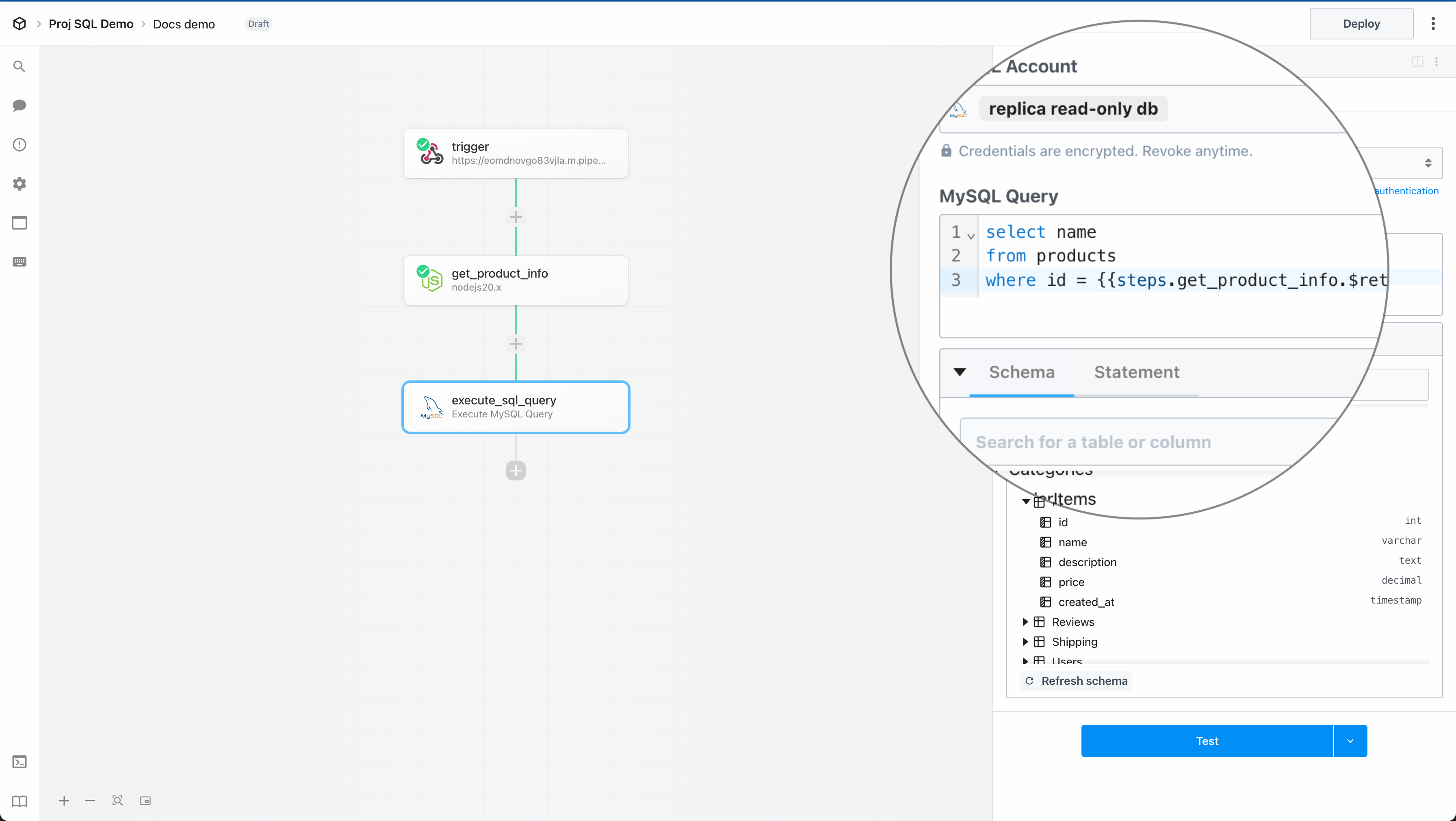
With the built-in SQL editor, you access linting and auto-complete features typical of modern SQL editors.
 ## Schema Explorer
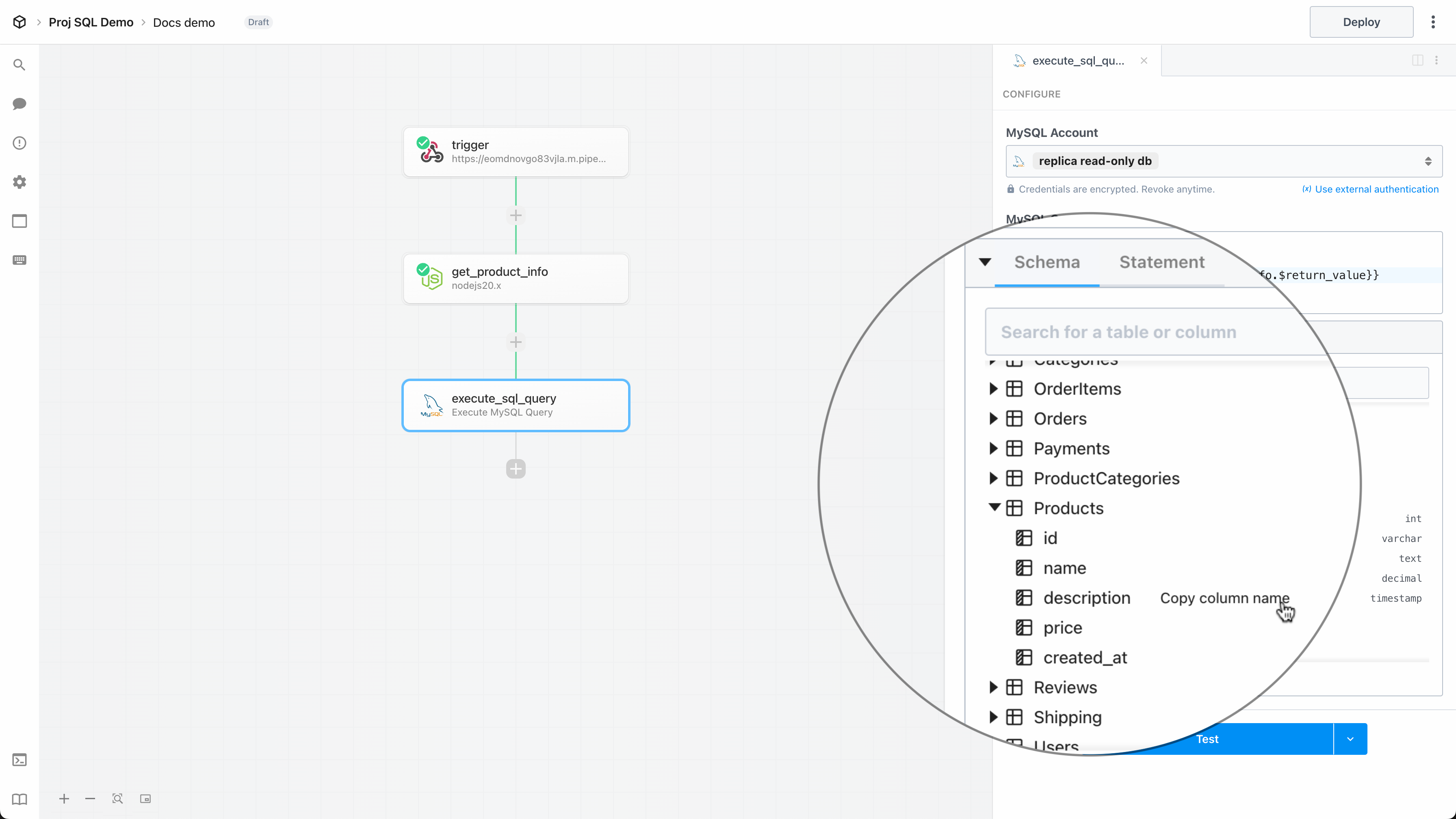
When querying a database, you need to understand the schema of the tables you’re working with. The schema explorer provides a visual interface to explore the tables in your database, view their columns, and understand the relationships between them.
* Once you connect your account with one of the [supported database apps](/workflows/data-management/databases/working-with-sql/#supported-databases), we automatically fetch and display the details of the database schema below
* You can **view the columns of a table**, their data types, and relationships between tables
* You can also **search and filter** the set of tables that are listed in your schema based on table or column name
## Schema Explorer
When querying a database, you need to understand the schema of the tables you’re working with. The schema explorer provides a visual interface to explore the tables in your database, view their columns, and understand the relationships between them.
* Once you connect your account with one of the [supported database apps](/workflows/data-management/databases/working-with-sql/#supported-databases), we automatically fetch and display the details of the database schema below
* You can **view the columns of a table**, their data types, and relationships between tables
* You can also **search and filter** the set of tables that are listed in your schema based on table or column name
 ## Prepared Statements
Prepared statements let you safely execute SQL queries with dynamic inputs that are automatically defined as parameters, in order to help prevent SQL injection attacks.
To reference dynamic data in a SQL query, simply use the standard `{{ }}` notation just like any other code step in Pipedream. For example,
```sql theme={null}
select *
from products
where name = {{steps.get_product_info.$return_value.name}}
and created_at > {{steps.get_product_info.$return_value.created_at}}
```
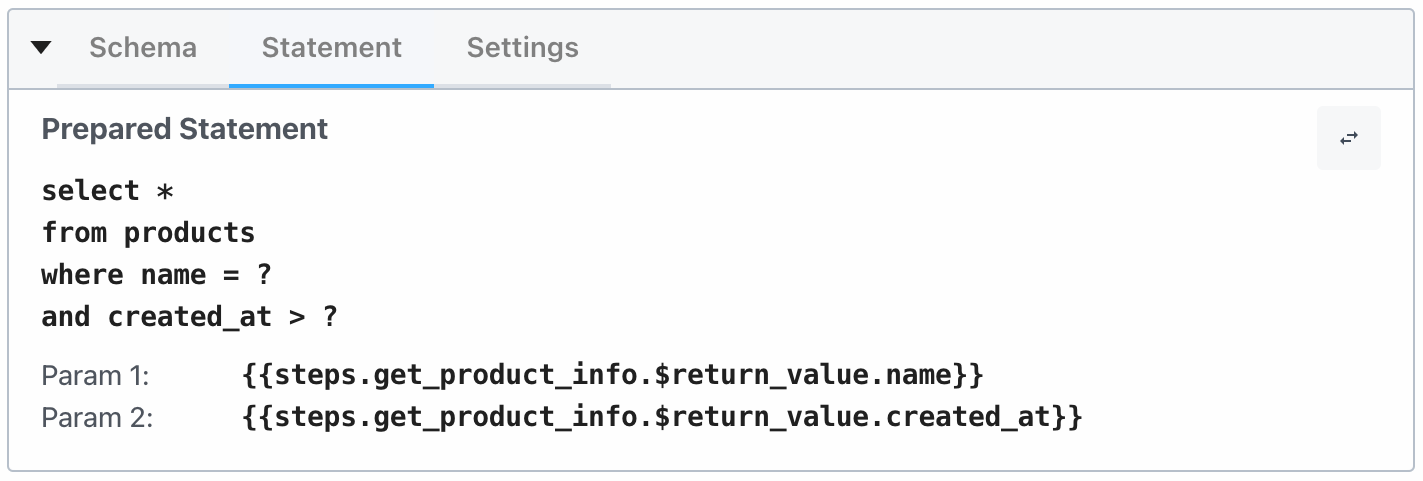
**Prepared statement:**
## Prepared Statements
Prepared statements let you safely execute SQL queries with dynamic inputs that are automatically defined as parameters, in order to help prevent SQL injection attacks.
To reference dynamic data in a SQL query, simply use the standard `{{ }}` notation just like any other code step in Pipedream. For example,
```sql theme={null}
select *
from products
where name = {{steps.get_product_info.$return_value.name}}
and created_at > {{steps.get_product_info.$return_value.created_at}}
```
**Prepared statement:**
 **Computed statement:**
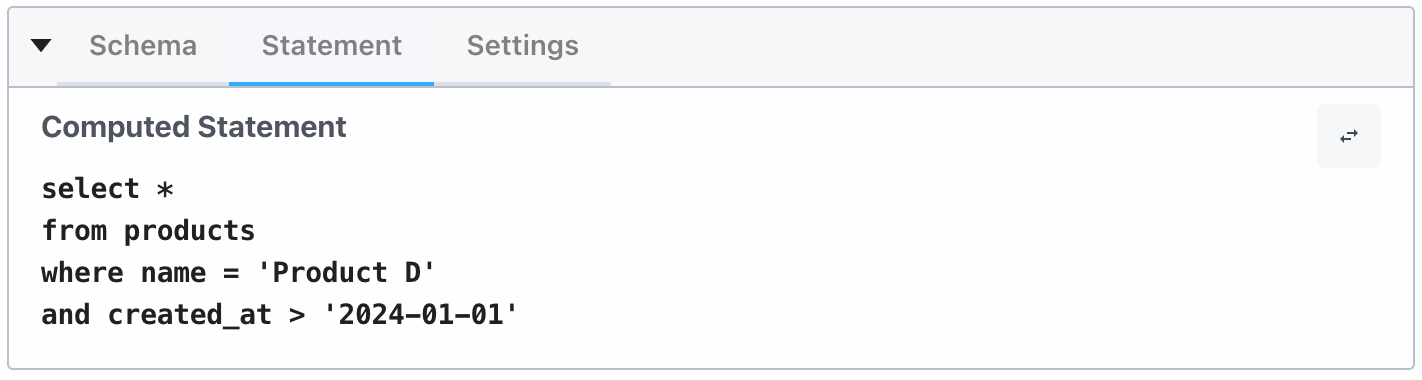 When you include step references in your SQL query, Pipedream automatically converts your query to a prepared statement using placeholders with an array of params.
Below your query input, you can toggle between the computed and prepared statements:
When you include step references in your SQL query, Pipedream automatically converts your query to a prepared statement using placeholders with an array of params.
Below your query input, you can toggle between the computed and prepared statements:
## Getting Started
* From the step selector in the builder, select the **Query a Database** action for the [relevant database app](/workflows/data-management/databases/working-with-sql/#supported-databases)
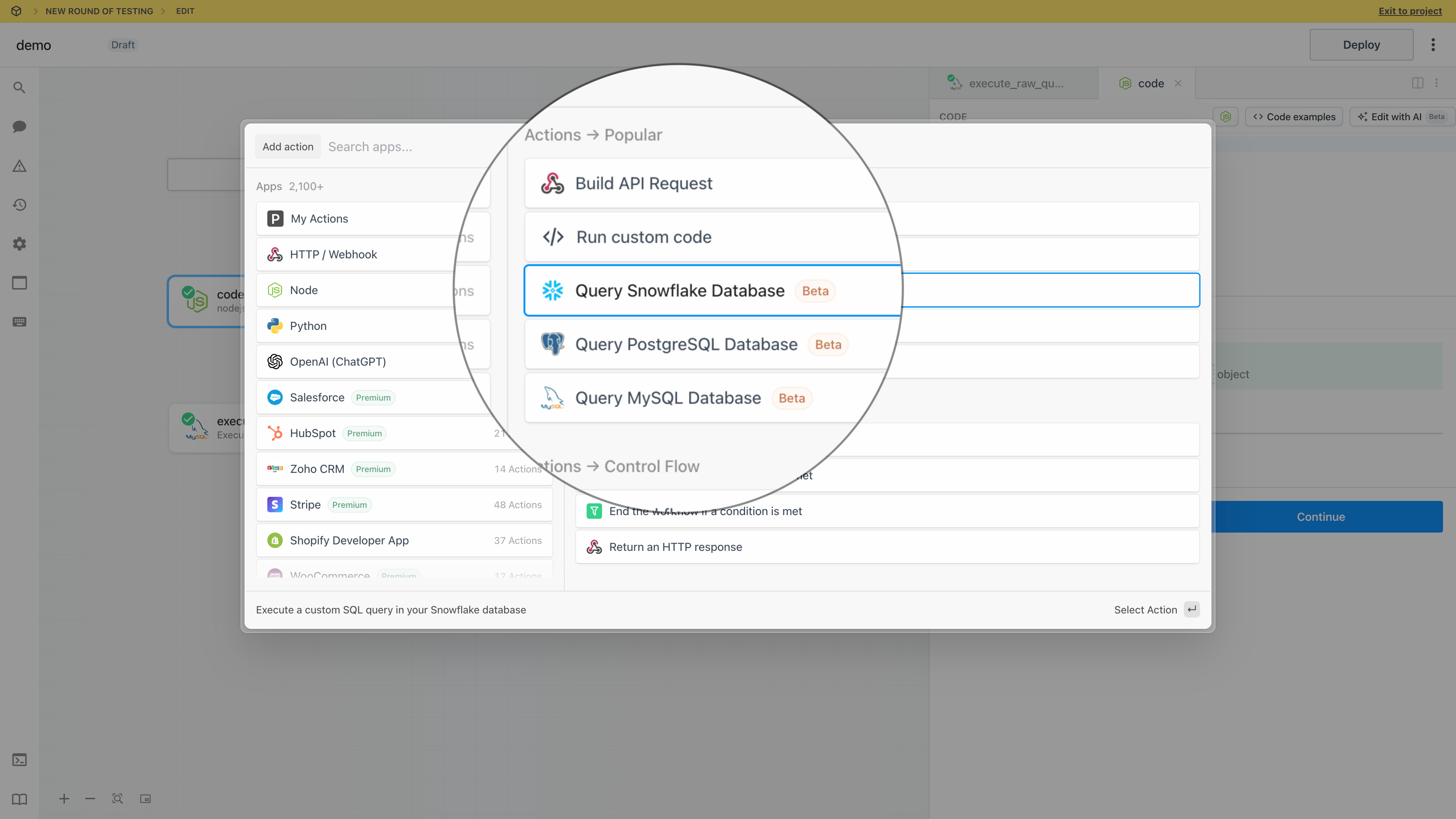 * If you already have a connected account, select it from the dropdown. Otherwise, click **Connect Account** to configure the database connection.
* Follow the prompts to connect your account, then click **Test connection** to ensure Pipedream can successfully connect to your database
* If you already have a connected account, select it from the dropdown. Otherwise, click **Connect Account** to configure the database connection.
* Follow the prompts to connect your account, then click **Test connection** to ensure Pipedream can successfully connect to your database
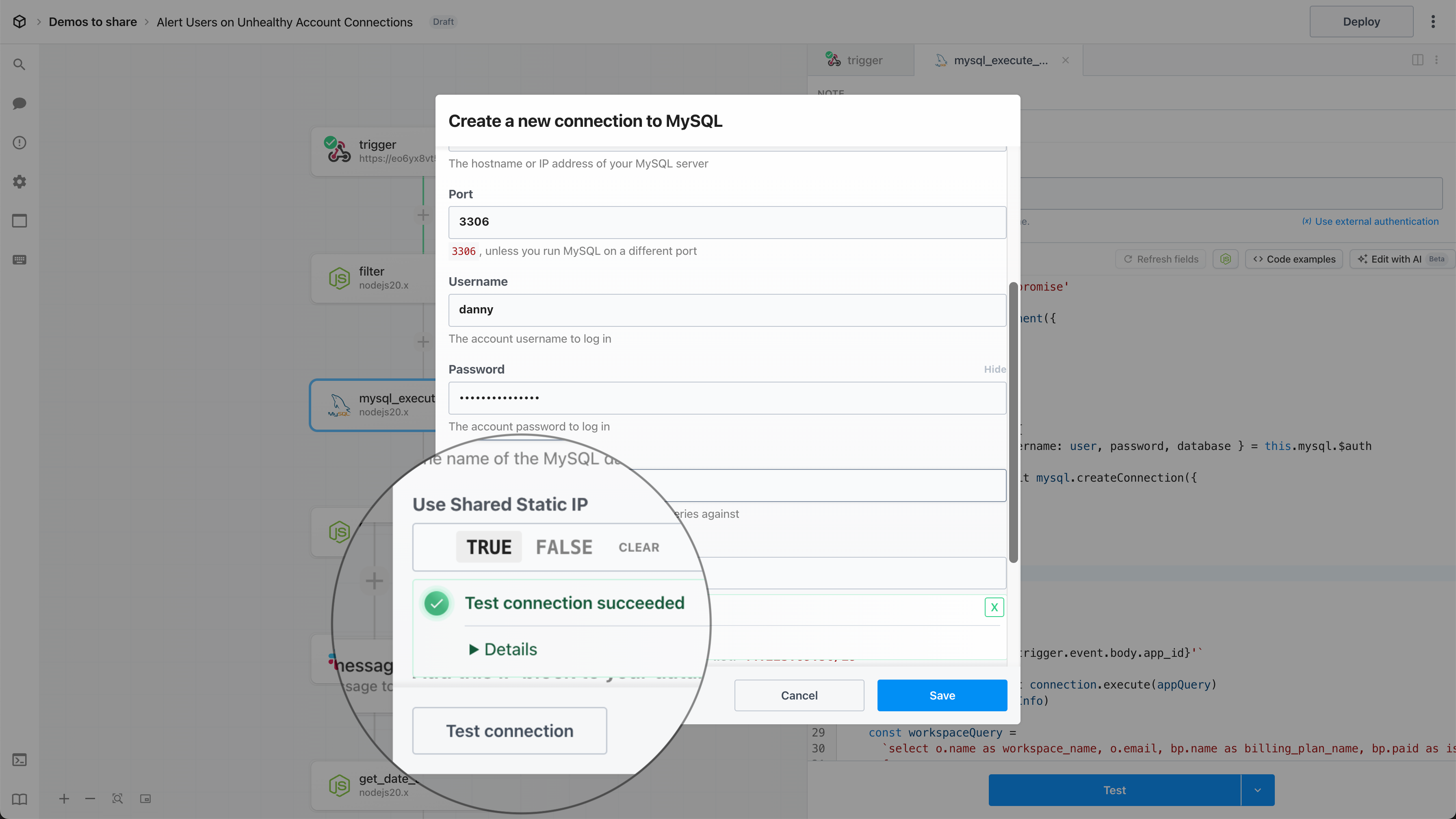 * Once you’ve successfully connected your account, you can explore the [database schema](/workflows/data-management/databases/working-with-sql/#schema-explorer) to understand the tables and columns in your database
* Write your SQL query in the editor — read more about [prepared statements](/workflows/data-management/databases/working-with-sql/#prepared-statements) above to reference dynamic data in your query
### Supported Databases
The [SQL editor](/workflows/data-management/databases/working-with-sql/#sql-editor), [schema explorer](/workflows/data-management/databases/working-with-sql/#schema-explorer), and support for [prepared statements](/workflows/data-management/databases/working-with-sql/#prepared-statements) are currently supported for these database apps:
* [MySQL](https://pipedream.com/apps/mysql)
* [PostgreSQL](https://pipedream.com/apps/postgresql)
* [Snowflake](https://pipedream.com/apps/snowflake)
Need to query a different database type? Let us know!
* Once you’ve successfully connected your account, you can explore the [database schema](/workflows/data-management/databases/working-with-sql/#schema-explorer) to understand the tables and columns in your database
* Write your SQL query in the editor — read more about [prepared statements](/workflows/data-management/databases/working-with-sql/#prepared-statements) above to reference dynamic data in your query
### Supported Databases
The [SQL editor](/workflows/data-management/databases/working-with-sql/#sql-editor), [schema explorer](/workflows/data-management/databases/working-with-sql/#schema-explorer), and support for [prepared statements](/workflows/data-management/databases/working-with-sql/#prepared-statements) are currently supported for these database apps:
* [MySQL](https://pipedream.com/apps/mysql)
* [PostgreSQL](https://pipedream.com/apps/postgresql)
* [Snowflake](https://pipedream.com/apps/snowflake)
Need to query a different database type? Let us know!