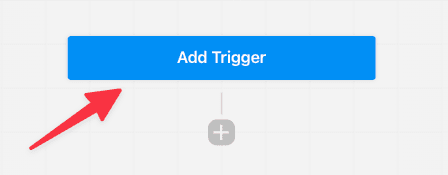
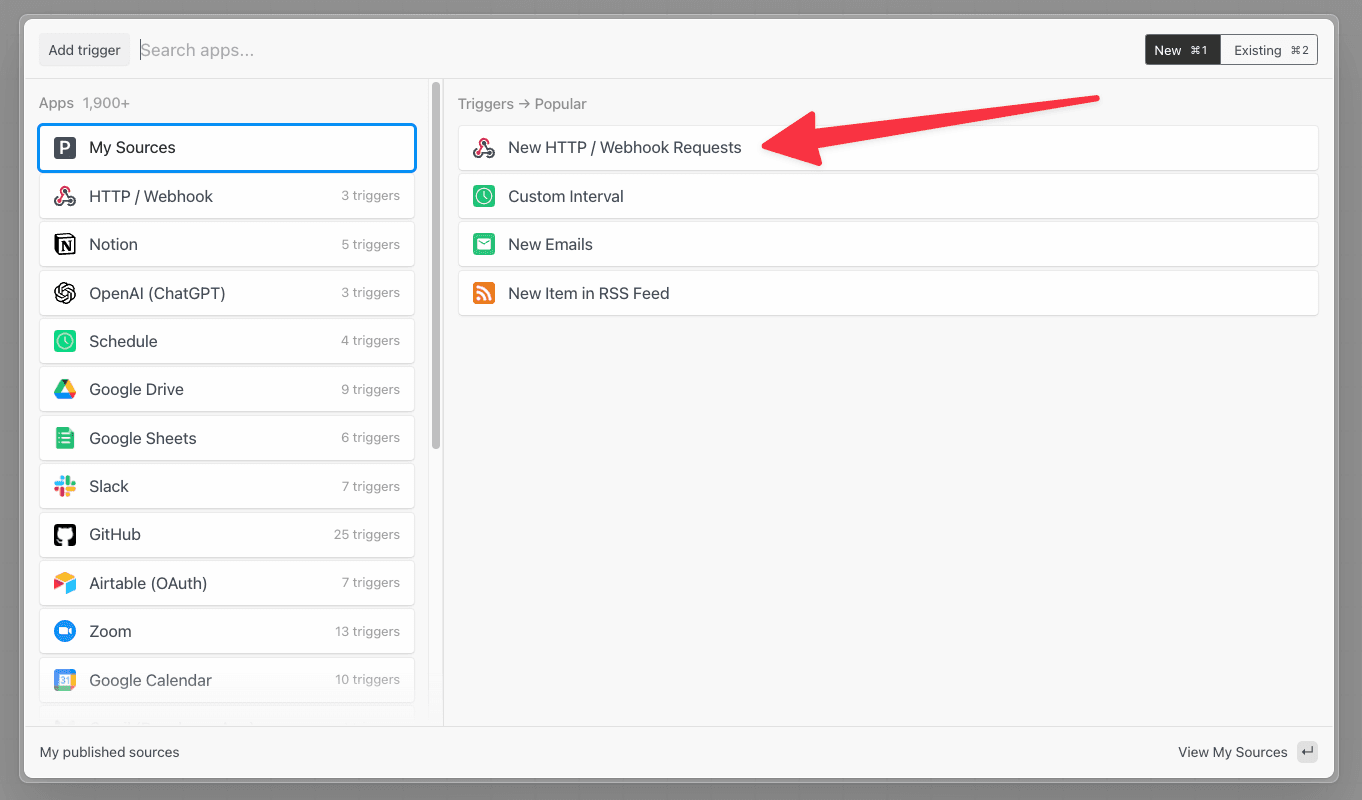
 This will open a new menu to search and choose a trigger for your workflow:
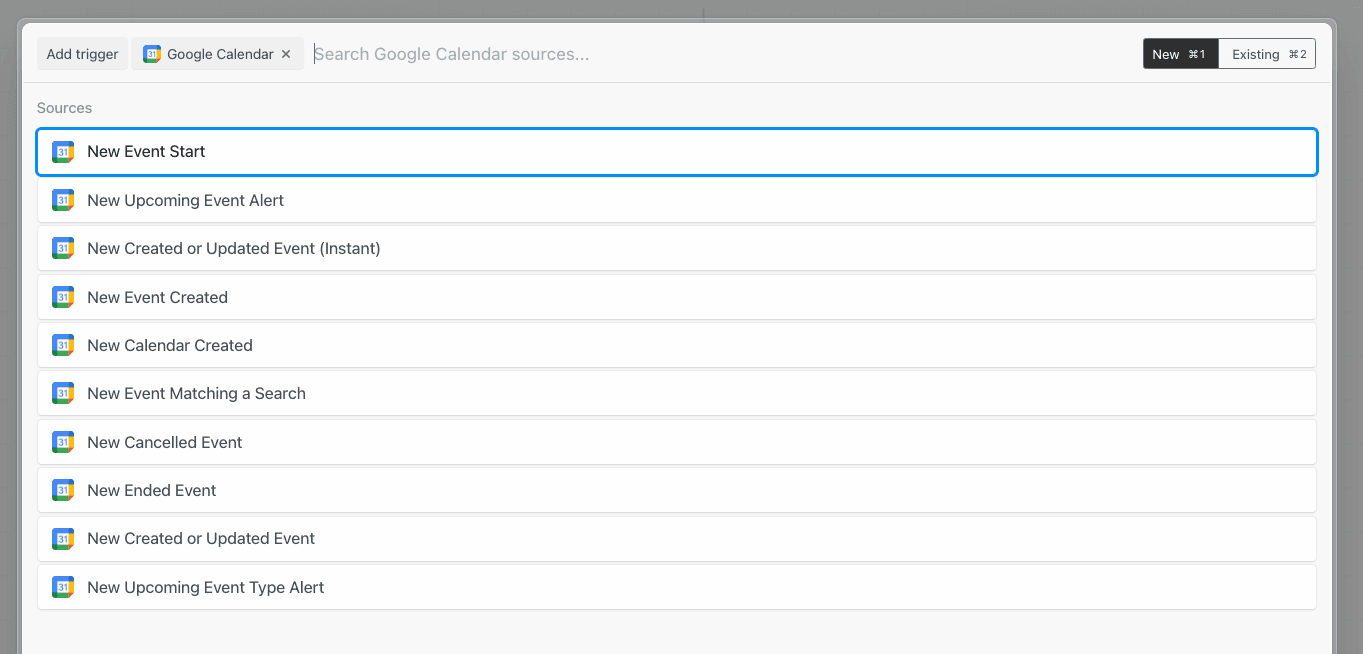
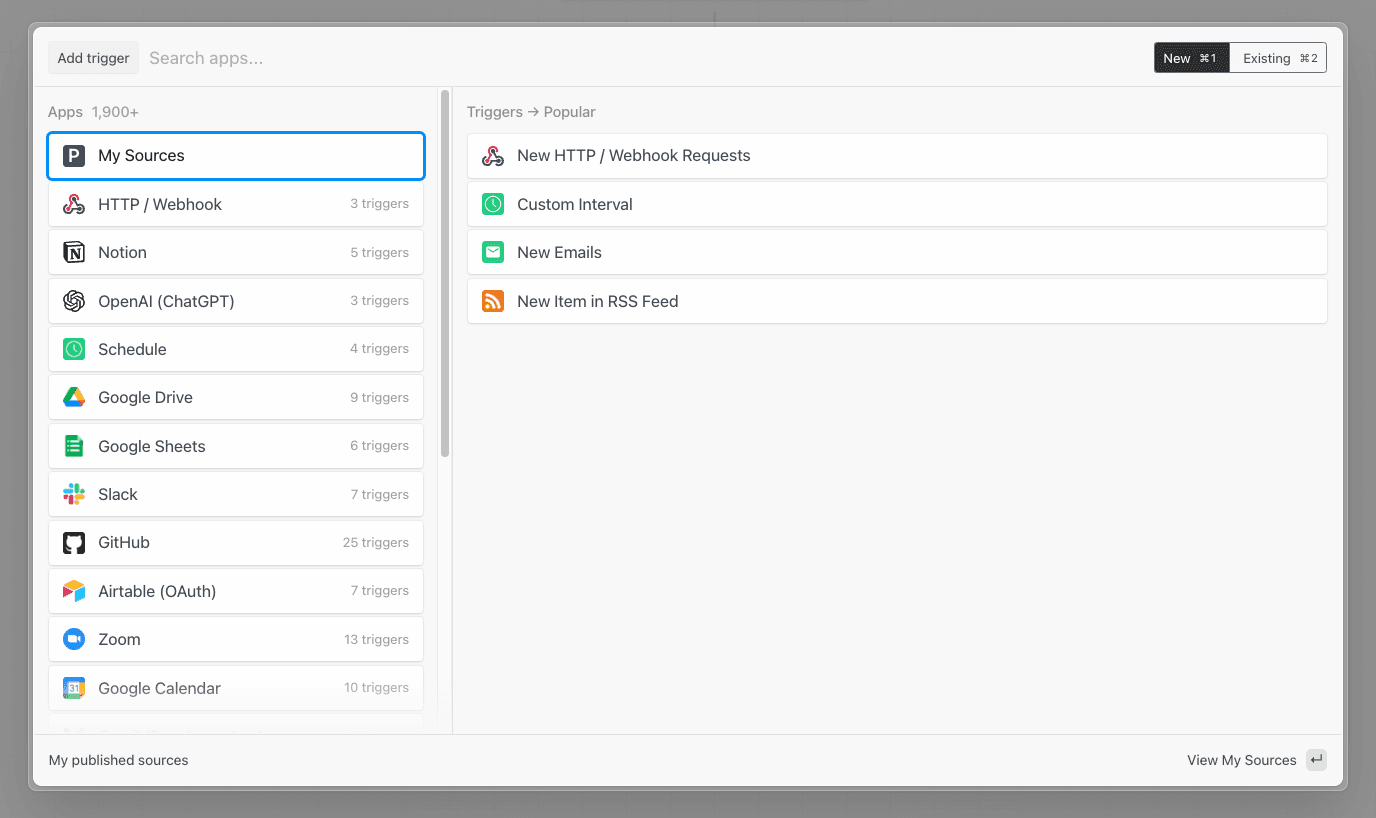 Search by **app name** to find triggers associated with your app. For Google Calendar, for example, you can run your workflow every time a new event is **added** to your calendar, each time an event **starts**, **ends**, and more:
 Once you select your trigger, you’ll be asked to connect any necessary accounts (for example, Google Calendar sources require you authorize Pipedream access to your Google account), and enter the values for any configuration settings.
Some sources are configured to retrieve an initial set of events when they’re created. Others require you to generate events in the app to trigger your workflow. If your source generates an initial set of events, you’ll see them appear in the **Select events** dropdown in the **Select Event** step:
Once you select your trigger, you’ll be asked to connect any necessary accounts (for example, Google Calendar sources require you authorize Pipedream access to your Google account), and enter the values for any configuration settings.
Some sources are configured to retrieve an initial set of events when they’re created. Others require you to generate events in the app to trigger your workflow. If your source generates an initial set of events, you’ll see them appear in the **Select events** dropdown in the **Select Event** step:
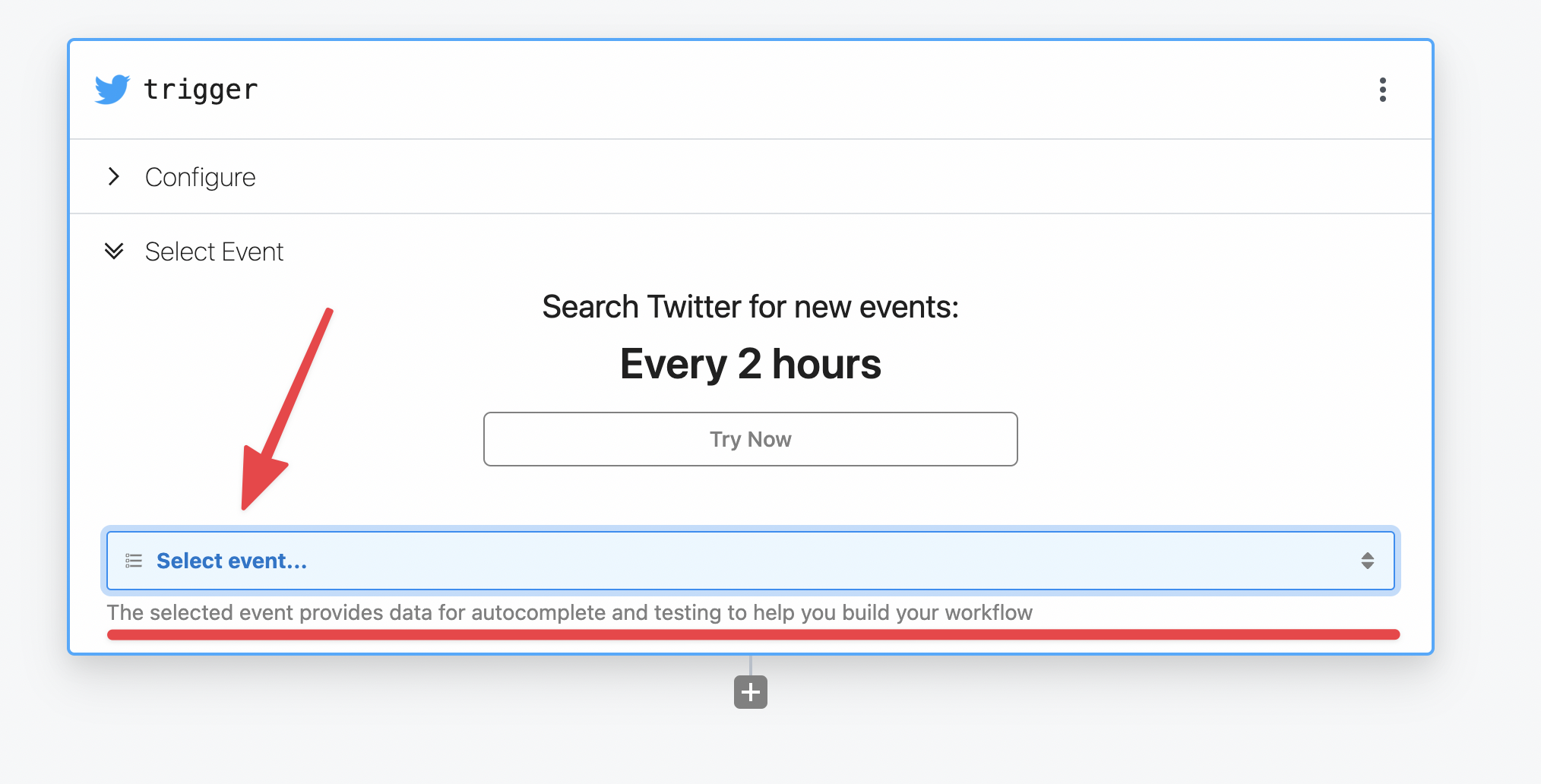 Then you can select a specific test event and manually trigger your workflow with that event data by clicking **Send Test Event**. Now you’re ready to build your workflow with the selected test event.
### What’s the difference between an event source and a trigger?
You’ll notice the docs use the terms **event source** and **trigger** interchangeably above. It’s useful to clarify the distinction in the context of workflows.
[Event sources](/workflows/building-workflows/triggers/) run code that collects events from some app or service and emits events as the source produces them. An event source can be used to **trigger** any number of workflows.
For example, you might create a single source to listen for new Twitter mentions for a keyword, then trigger multiple workflows each time a new tweet is found: one to [send new tweets to Slack](https://pipedream.com/@pravin/twitter-mentions-slack-p_dDCA5e/edit), another to [save those tweets to an Amazon S3 bucket](https://pipedream.com/@dylan/twitter-to-s3-p_KwCZGA/readme), etc.
**This model allows you to separate the data produced by a service (the event source) from the logic to process those events in different contexts (the workflow)**.
Moreover, you can access events emitted by sources using Pipedream’s [SSE](/workflows/data-management/destinations/sse/) and [REST APIs](/rest-api/). This allows you to access these events in your own app, outside Pipedream’s platform.
### Can I add multiple triggers to a workflow?
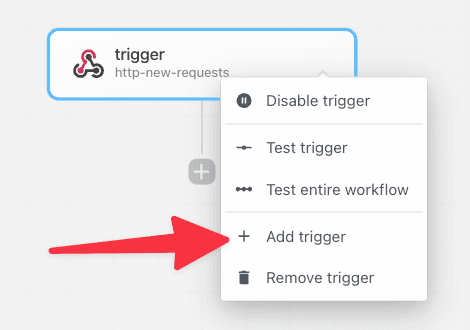
Yes, you can add any number of triggers to a workflow. Click the top right menu in the trigger step and select **Add trigger**.
Then you can select a specific test event and manually trigger your workflow with that event data by clicking **Send Test Event**. Now you’re ready to build your workflow with the selected test event.
### What’s the difference between an event source and a trigger?
You’ll notice the docs use the terms **event source** and **trigger** interchangeably above. It’s useful to clarify the distinction in the context of workflows.
[Event sources](/workflows/building-workflows/triggers/) run code that collects events from some app or service and emits events as the source produces them. An event source can be used to **trigger** any number of workflows.
For example, you might create a single source to listen for new Twitter mentions for a keyword, then trigger multiple workflows each time a new tweet is found: one to [send new tweets to Slack](https://pipedream.com/@pravin/twitter-mentions-slack-p_dDCA5e/edit), another to [save those tweets to an Amazon S3 bucket](https://pipedream.com/@dylan/twitter-to-s3-p_KwCZGA/readme), etc.
**This model allows you to separate the data produced by a service (the event source) from the logic to process those events in different contexts (the workflow)**.
Moreover, you can access events emitted by sources using Pipedream’s [SSE](/workflows/data-management/destinations/sse/) and [REST APIs](/rest-api/). This allows you to access these events in your own app, outside Pipedream’s platform.
### Can I add multiple triggers to a workflow?
Yes, you can add any number of triggers to a workflow. Click the top right menu in the trigger step and select **Add trigger**.
 ### Shape of the `steps.trigger.event` object
In all workflows, you have access to [event data](/workflows/building-workflows/triggers/#event-format) using the variable `steps.trigger.event`.
The shape of the event is specific to the source. For example, RSS sources produce events with a `url` and `title` property representing the data provided by new items from a feed. Google Calendar sources produce events with a meeting title, start date, etc.
## HTTP
When you select the **HTTP** trigger:
### Shape of the `steps.trigger.event` object
In all workflows, you have access to [event data](/workflows/building-workflows/triggers/#event-format) using the variable `steps.trigger.event`.
The shape of the event is specific to the source. For example, RSS sources produce events with a `url` and `title` property representing the data provided by new items from a feed. Google Calendar sources produce events with a meeting title, start date, etc.
## HTTP
When you select the **HTTP** trigger:
 Pipedream creates a URL endpoint specific to your workflow:
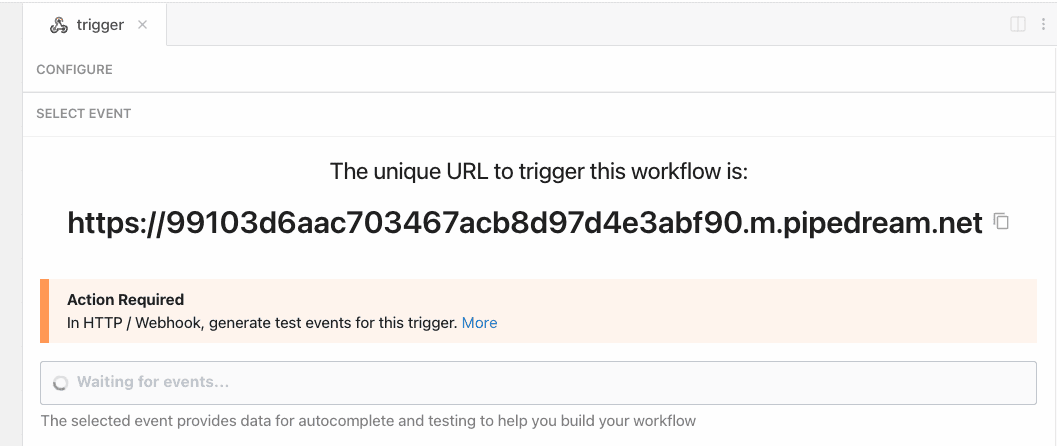 You can send any HTTP requests to this endpoint, from anywhere on the web. You can configure the endpoint as the destination URL for a webhook or send HTTP traffic from your application - we’ll accept any [valid HTTP request](/workflows/building-workflows/triggers/#valid-requests).
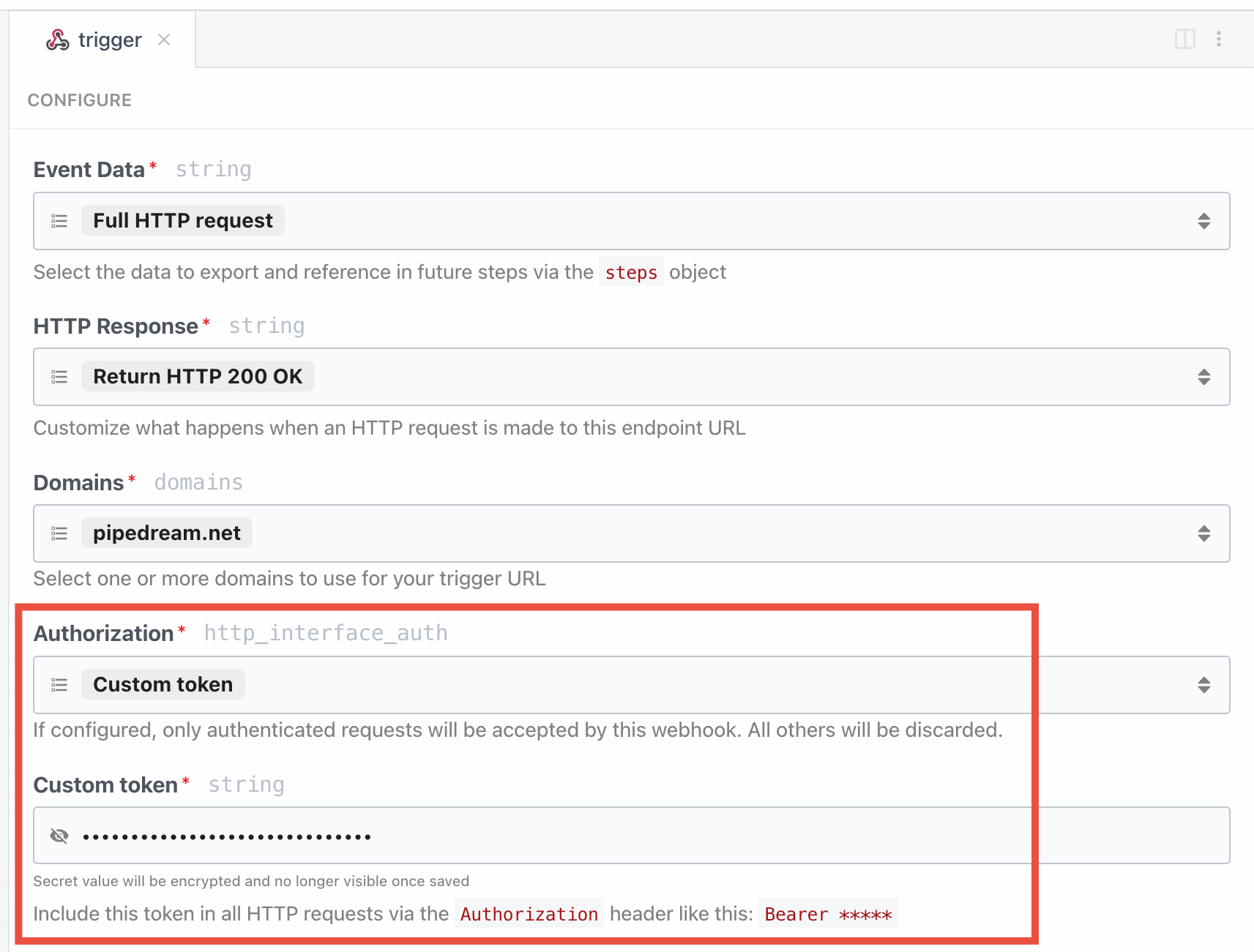 When making HTTP requests, pass the custom token as a `Bearer` token in the `Authorization` header:
```bash theme={null}
curl -H 'Authorization: Bearer
When making HTTP requests, pass the custom token as a `Bearer` token in the `Authorization` header:
```bash theme={null}
curl -H 'Authorization: Bearer 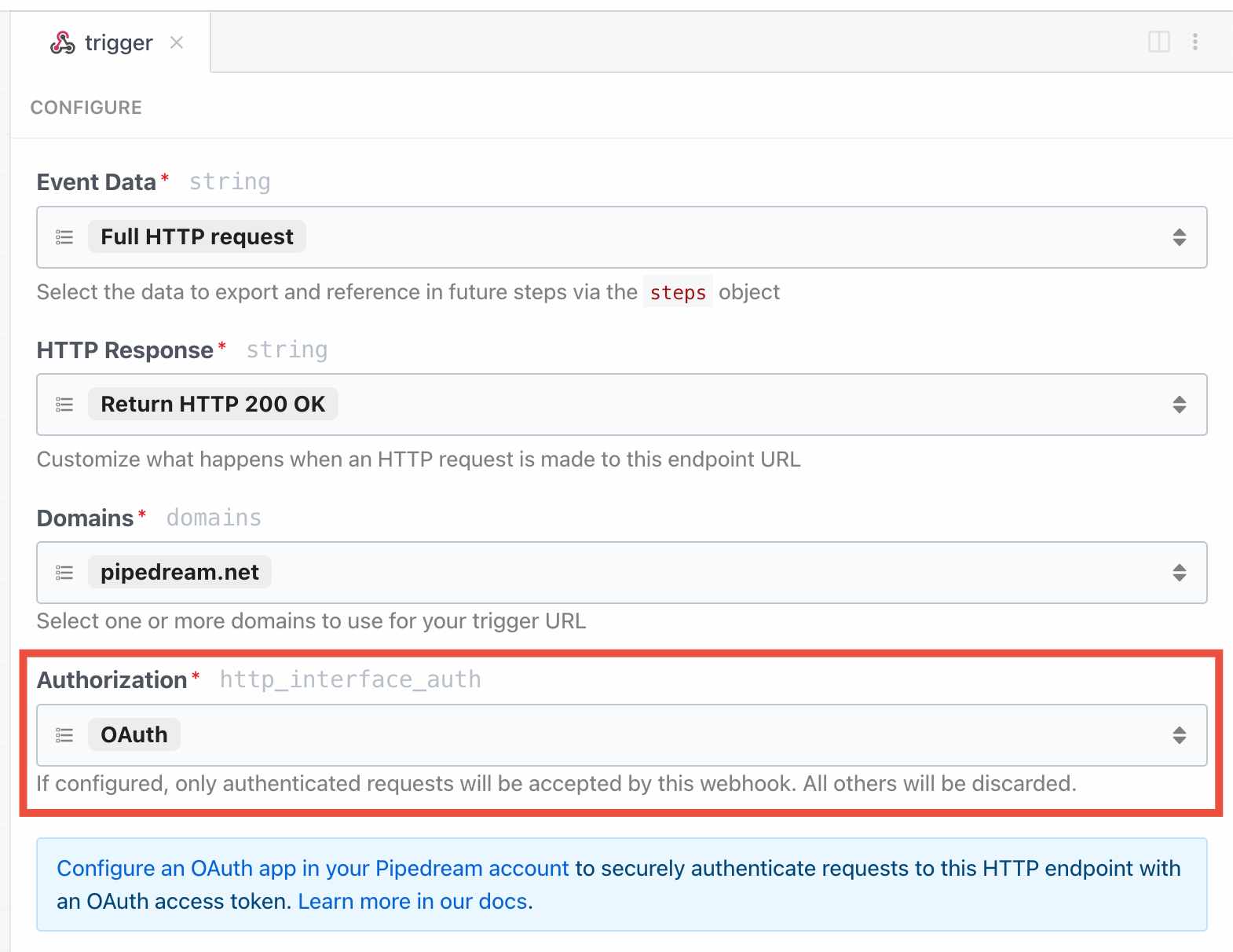 Next, you’ll need to [generate an OAuth access token](/rest-api/auth/#how-to-get-an-access-token).
When making HTTP requests, pass the OAuth access token as a `Bearer` token in the `Authorization` header:
```bash theme={null}
curl -H 'Authorization: Bearer
Next, you’ll need to [generate an OAuth access token](/rest-api/auth/#how-to-get-an-access-token).
When making HTTP requests, pass the OAuth access token as a `Bearer` token in the `Authorization` header:
```bash theme={null}
curl -H 'Authorization: Bearer 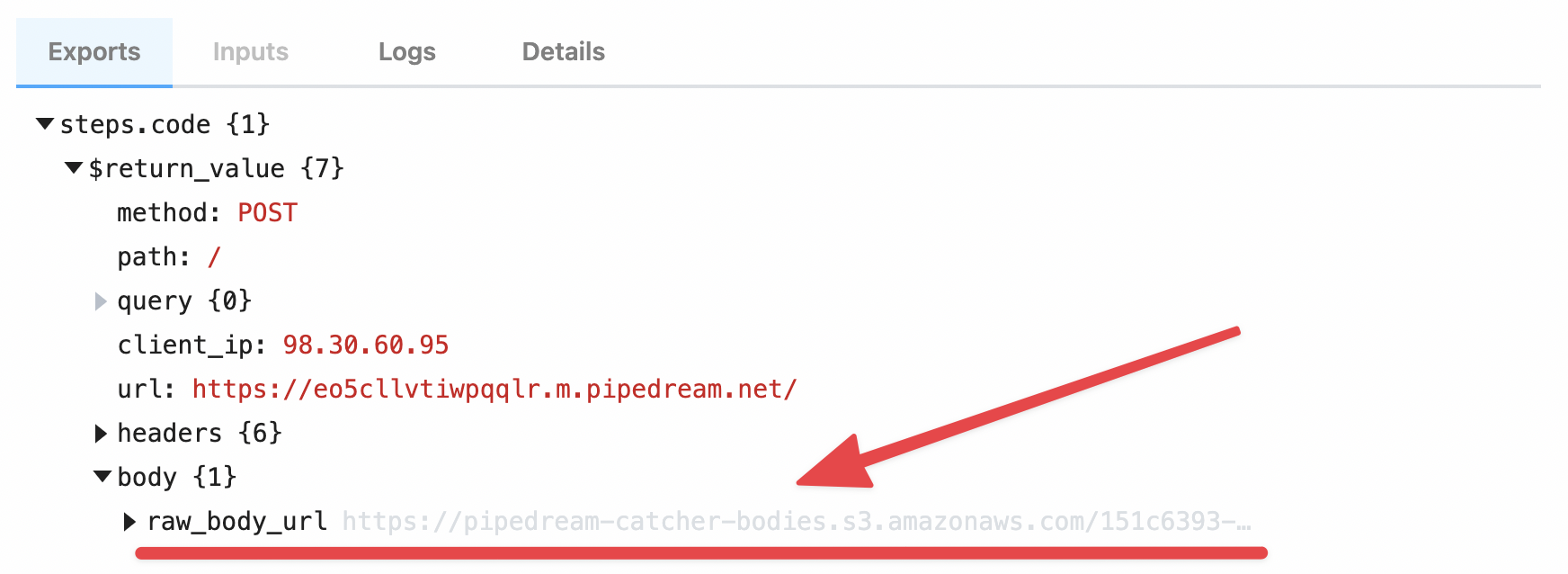 Within your workflow, you can download the contents of this data using the **Send HTTP Request** action, or [by saving the data as a file to the `/tmp` directory](/workflows/building-workflows/code/nodejs/working-with-files/).
#### Example: Download the HTTP payload using the Send HTTP Request action
*Note: you can only download payloads at most {FUNCTION_PAYLOAD_LIMIT} in size using this method. Otherwise, you may encounter a [Function Payload Limit Exceeded](/troubleshooting/#function-payload-limit-exceeded) error.*
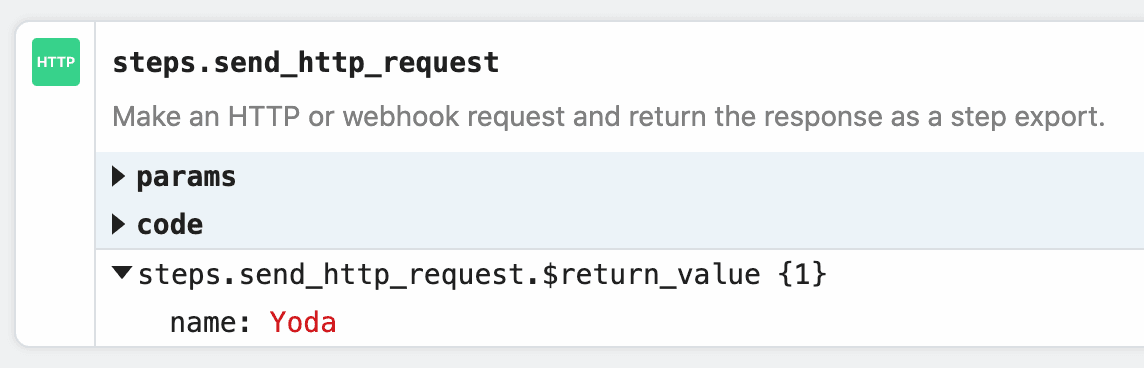
You can download the large HTTP payload using the **Send HTTP Request** action. [Copy this workflow to see how this works](https://pipedream.com/new?h=tch_egfAby).
The payload from the trigger of the workflow is exported to the variable `steps.retrieve_large_payload.$return_value`:
Within your workflow, you can download the contents of this data using the **Send HTTP Request** action, or [by saving the data as a file to the `/tmp` directory](/workflows/building-workflows/code/nodejs/working-with-files/).
#### Example: Download the HTTP payload using the Send HTTP Request action
*Note: you can only download payloads at most {FUNCTION_PAYLOAD_LIMIT} in size using this method. Otherwise, you may encounter a [Function Payload Limit Exceeded](/troubleshooting/#function-payload-limit-exceeded) error.*
You can download the large HTTP payload using the **Send HTTP Request** action. [Copy this workflow to see how this works](https://pipedream.com/new?h=tch_egfAby).
The payload from the trigger of the workflow is exported to the variable `steps.retrieve_large_payload.$return_value`:
 #### Example: Download the HTTP payload to the `/tmp` directory
[This workflow](https://pipedream.com/new?h=tch_5ofXkX) downloads the HTTP payload, saving it as a file to the [`/tmp` directory](/workflows/building-workflows/code/nodejs/working-with-files/#the-tmp-directory).
```javascript theme={null}
import stream from "stream";
import { promisify } from "util";
import fs from "fs";
import got from "got";
export default defineComponent({
async run({ steps, $ }) {
const pipeline = promisify(stream.pipeline);
await pipeline(
got.stream(steps.trigger.event.body.raw_body_url),
fs.createWriteStream(`/tmp/raw_body`)
);
},
})
```
You can [read this file](/workflows/building-workflows/code/nodejs/working-with-files/#reading-a-file-from-tmp) in subsequent steps of your workflow.
#### How the payload data is saved
Your raw payload is saved to a Pipedream-owned [Amazon S3 bucket](https://aws.amazon.com/s3/). Pipedream generates a [signed URL](https://docs.aws.amazon.com/AmazonS3/latest/dev/ShareObjectPreSignedURL.html) that allows you to access to that file for up to 30 minutes. After 30 minutes, the signed URL will be invalidated, and the file will be deleted.
#### Limits
**You can upload payloads up to 5TB in size**. However, payloads that large may trigger [other Pipedream limits](/workflows/limits/). Please [reach out](https://pipedream.com/support/) with any specific questions or issues.
### Large File Support
*This interface is best used for uploading large files, like images or videos. If you’re sending JSON or other data directly in the HTTP payload, and encountering a **Request Entity Too Large** error, review the section above for [sending large payloads](/workflows/building-workflows/triggers/#sending-large-payloads)*.
You can upload any file to a [workflow](/workflows/building-workflows/) or an [event source](/workflows/building-workflows/triggers/) by making a `multipart/form-data` HTTP request with the file as one of the form parts. **Pipedream saves that file to a Pipedream-owned [Amazon S3 bucket](https://aws.amazon.com/s3/), generating a [signed URL](https://docs.aws.amazon.com/AmazonS3/latest/dev/ShareObjectPreSignedURL.html) that allows you to access to that file for up to 30 minutes**. After 30 minutes, the signed URL will be invalidated, and the file will be deleted.
In workflows, these file URLs are provided in the `steps.trigger.event.body` variable, so you can download the file using the URL within your workflow, or pass the URL on to another third-party system for it to process.
#### Example: Download the HTTP payload to the `/tmp` directory
[This workflow](https://pipedream.com/new?h=tch_5ofXkX) downloads the HTTP payload, saving it as a file to the [`/tmp` directory](/workflows/building-workflows/code/nodejs/working-with-files/#the-tmp-directory).
```javascript theme={null}
import stream from "stream";
import { promisify } from "util";
import fs from "fs";
import got from "got";
export default defineComponent({
async run({ steps, $ }) {
const pipeline = promisify(stream.pipeline);
await pipeline(
got.stream(steps.trigger.event.body.raw_body_url),
fs.createWriteStream(`/tmp/raw_body`)
);
},
})
```
You can [read this file](/workflows/building-workflows/code/nodejs/working-with-files/#reading-a-file-from-tmp) in subsequent steps of your workflow.
#### How the payload data is saved
Your raw payload is saved to a Pipedream-owned [Amazon S3 bucket](https://aws.amazon.com/s3/). Pipedream generates a [signed URL](https://docs.aws.amazon.com/AmazonS3/latest/dev/ShareObjectPreSignedURL.html) that allows you to access to that file for up to 30 minutes. After 30 minutes, the signed URL will be invalidated, and the file will be deleted.
#### Limits
**You can upload payloads up to 5TB in size**. However, payloads that large may trigger [other Pipedream limits](/workflows/limits/). Please [reach out](https://pipedream.com/support/) with any specific questions or issues.
### Large File Support
*This interface is best used for uploading large files, like images or videos. If you’re sending JSON or other data directly in the HTTP payload, and encountering a **Request Entity Too Large** error, review the section above for [sending large payloads](/workflows/building-workflows/triggers/#sending-large-payloads)*.
You can upload any file to a [workflow](/workflows/building-workflows/) or an [event source](/workflows/building-workflows/triggers/) by making a `multipart/form-data` HTTP request with the file as one of the form parts. **Pipedream saves that file to a Pipedream-owned [Amazon S3 bucket](https://aws.amazon.com/s3/), generating a [signed URL](https://docs.aws.amazon.com/AmazonS3/latest/dev/ShareObjectPreSignedURL.html) that allows you to access to that file for up to 30 minutes**. After 30 minutes, the signed URL will be invalidated, and the file will be deleted.
In workflows, these file URLs are provided in the `steps.trigger.event.body` variable, so you can download the file using the URL within your workflow, or pass the URL on to another third-party system for it to process.
 Within your workflow, you can download the contents of this data using the **Send HTTP Request** action, or [by saving the data as a file to the `/tmp` directory](/workflows/building-workflows/code/nodejs/working-with-files/).
#### Example: upload a file using `cURL`
For example, you can upload an image to a workflow using `cURL`:
```bash theme={null}
curl -F 'image=@my_image.png' https://myendpoint.m.pipedream.net
```
The `-F` tells `cURL` we’re sending form data, with a single “part”: a field named `image`, with the content of the image as the value (the `@` allows `cURL` to reference a local file).
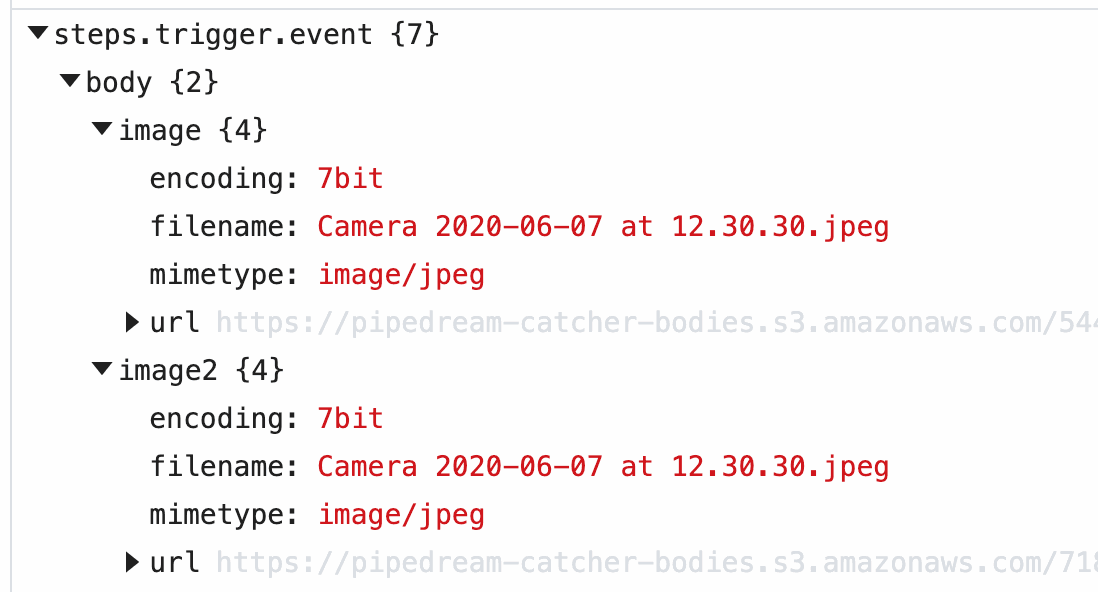
When you send this image to a workflow, Pipedream [parses the form data](/workflows/building-workflows/triggers/#how-pipedream-handles-multipartform-data) and converts it to a JavaScript object, `event.body`. Select the event from the [inspector](/workflows/building-workflows/inspect/#the-inspector), and you’ll see the `image` property under `event.body`:
Within your workflow, you can download the contents of this data using the **Send HTTP Request** action, or [by saving the data as a file to the `/tmp` directory](/workflows/building-workflows/code/nodejs/working-with-files/).
#### Example: upload a file using `cURL`
For example, you can upload an image to a workflow using `cURL`:
```bash theme={null}
curl -F 'image=@my_image.png' https://myendpoint.m.pipedream.net
```
The `-F` tells `cURL` we’re sending form data, with a single “part”: a field named `image`, with the content of the image as the value (the `@` allows `cURL` to reference a local file).
When you send this image to a workflow, Pipedream [parses the form data](/workflows/building-workflows/triggers/#how-pipedream-handles-multipartform-data) and converts it to a JavaScript object, `event.body`. Select the event from the [inspector](/workflows/building-workflows/inspect/#the-inspector), and you’ll see the `image` property under `event.body`:
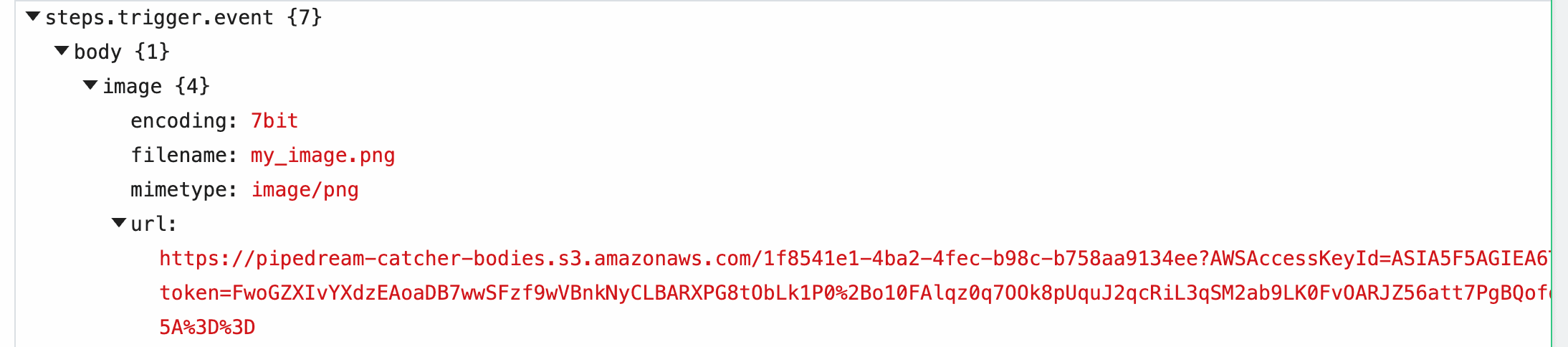 When you upload a file as a part of the form request, Pipedream saves it to a Pipedream-owned [Amazon S3 bucket](https://aws.amazon.com/s3/), generating a [signed URL](https://docs.aws.amazon.com/AmazonS3/latest/dev/ShareObjectPreSignedURL.html) that allows you to access to that file for up to 30 minutes. After 30 minutes, the signed URL will be invalidated, and the file will be deleted.
Within the `image` property of `event.body`, you’ll see the value of this URL in the `url` property, along with the `filename` and `mimetype` of the file. Within your workflow, you can download the file, or pass the URL to a third party system to handle, and more.
#### Example: Download this file to the `/tmp` directory
[This workflow](https://pipedream.com/@dylburger/example-download-an-image-to-tmp-p_KwC2Ad/edit) downloads an image passed in the `image` field in the form request, saving it to the [`/tmp` directory](/workflows/building-workflows/code/nodejs/working-with-files/#the-tmp-directory).
```javascript theme={null}
import stream from "stream";
import { promisify } from "util";
import fs from "fs";
import got from "got";
const pipeline = promisify(stream.pipeline);
await pipeline(
got.stream(steps.trigger.event.body.image.url),
fs.createWriteStream(`/tmp/${steps.trigger.event.body.image.filename}`)
);
```
#### Example: Upload image to your own Amazon S3 bucket
[This workflow](https://pipedream.com/@dylburger/example-save-uploaded-file-to-amazon-s3-p_o7Cm9z/edit) streams the uploaded file to an Amazon S3 bucket you specify, allowing you to save the file to long-term storage.
#### Limits
Since large files are uploaded using a `Content-Type` of `multipart/form-data`, the limits that apply to [form data](/workflows/building-workflows/triggers/#how-pipedream-handles-multipartform-data) also apply here.
The content of the file itself does not contribute to the HTTP payload limit imposed for forms. **You can upload files up to 5TB in size**. However, files that large may trigger [other Pipedream limits](/workflows/limits/). Please [reach out](https://pipedream.com/support/) with any specific questions or issues.
### Cross-Origin HTTP Requests
We return the following headers on HTTP `OPTIONS` requests:
```http theme={null}
Access-Control-Allow-Origin: *
Access-Control-Allow-Methods: GET,HEAD,PUT,PATCH,POST,DELETE
```
Thus, your endpoint will accept [cross-origin HTTP requests](https://developer.mozilla.org/en-US/Web/HTTP/CORS) from any domain, using any standard HTTP method.
### HTTP Responses
#### Default HTTP response
By default, when you send a [valid HTTP request](/workflows/building-workflows/triggers/#valid-requests) to your endpoint URL, you should expect to receive a `200 OK` status code with the following payload:
```html theme={null}
When you upload a file as a part of the form request, Pipedream saves it to a Pipedream-owned [Amazon S3 bucket](https://aws.amazon.com/s3/), generating a [signed URL](https://docs.aws.amazon.com/AmazonS3/latest/dev/ShareObjectPreSignedURL.html) that allows you to access to that file for up to 30 minutes. After 30 minutes, the signed URL will be invalidated, and the file will be deleted.
Within the `image` property of `event.body`, you’ll see the value of this URL in the `url` property, along with the `filename` and `mimetype` of the file. Within your workflow, you can download the file, or pass the URL to a third party system to handle, and more.
#### Example: Download this file to the `/tmp` directory
[This workflow](https://pipedream.com/@dylburger/example-download-an-image-to-tmp-p_KwC2Ad/edit) downloads an image passed in the `image` field in the form request, saving it to the [`/tmp` directory](/workflows/building-workflows/code/nodejs/working-with-files/#the-tmp-directory).
```javascript theme={null}
import stream from "stream";
import { promisify } from "util";
import fs from "fs";
import got from "got";
const pipeline = promisify(stream.pipeline);
await pipeline(
got.stream(steps.trigger.event.body.image.url),
fs.createWriteStream(`/tmp/${steps.trigger.event.body.image.filename}`)
);
```
#### Example: Upload image to your own Amazon S3 bucket
[This workflow](https://pipedream.com/@dylburger/example-save-uploaded-file-to-amazon-s3-p_o7Cm9z/edit) streams the uploaded file to an Amazon S3 bucket you specify, allowing you to save the file to long-term storage.
#### Limits
Since large files are uploaded using a `Content-Type` of `multipart/form-data`, the limits that apply to [form data](/workflows/building-workflows/triggers/#how-pipedream-handles-multipartform-data) also apply here.
The content of the file itself does not contribute to the HTTP payload limit imposed for forms. **You can upload files up to 5TB in size**. However, files that large may trigger [other Pipedream limits](/workflows/limits/). Please [reach out](https://pipedream.com/support/) with any specific questions or issues.
### Cross-Origin HTTP Requests
We return the following headers on HTTP `OPTIONS` requests:
```http theme={null}
Access-Control-Allow-Origin: *
Access-Control-Allow-Methods: GET,HEAD,PUT,PATCH,POST,DELETE
```
Thus, your endpoint will accept [cross-origin HTTP requests](https://developer.mozilla.org/en-US/Web/HTTP/CORS) from any domain, using any standard HTTP method.
### HTTP Responses
#### Default HTTP response
By default, when you send a [valid HTTP request](/workflows/building-workflows/triggers/#valid-requests) to your endpoint URL, you should expect to receive a `200 OK` status code with the following payload:
```html theme={null}
Success!
To customize this response, check out our docs here
``` When you’re processing HTTP requests, you often don’t need to issue any special response to the client. We issue this default response so you don’t have to write any code to do it yourself.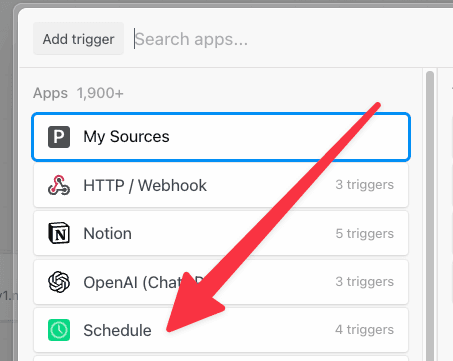 By default, your trigger will be turned **Off**. **To enable it, select either of the scheduling options**:
* **Every** : run the job every N days, hours, minutes (e.g. every 1 day, every 3 hours).
* **Cron Expression** : schedule your job using a cron expression. For example, the expression `0 0 * * *` will run the job every day at midnight. Cron expressions can be tied to any timezone.
### Testing a scheduled job
If you’re running a scheduled job once a day, you probably don’t want to wait until the next day’s run to test your new code. You can manually run the workflow associated with a scheduled job at any time by pressing the **Run Now** button.
### Job History
You’ll see the history of job executions under the **Job History** section of the [Inspector](/workflows/building-workflows/inspect/).
Clicking on a specific job shows the execution details for that job — all the logs and observability associated with that run of the workflow.
### Trigger a notification to an external service (email, Slack, etc.)
You can send yourself a notification — for example, an email or a Slack message — at any point in a workflow by using the relevant [Action](/components/contributing/#actions) or [Destination](/workflows/data-management/destinations/).
If you’d like to email yourself when a job finishes successfully, you can use the [Email Destination](/workflows/data-management/destinations/email/). You can send yourself a Slack message using the Slack Action, or trigger an [HTTP request](/workflows/data-management/destinations/http/) to an external service.
You can also [write code](/workflows/building-workflows/code/) to trigger any complex notification logic you’d like.
### Troubleshooting your scheduled jobs
When you run a scheduled job, you may need to troubleshoot errors or other execution issues. Pipedream offers built-in, step-level logs that show you detailed execution information that should aid troubleshooting.
Any time a scheduled job runs, you’ll see a new execution appear in the [Inspector](/workflows/building-workflows/inspect/). This shows you when the job ran, how long it took to run, and any errors that might have occurred. **Click on any of these lines in the Inspector to view the details for a given run**.
Code steps show [logs](/workflows/building-workflows/code/nodejs/#logs) below the step itself. Any time you run `console.log()` or other functions that print output, you should see the logs appear directly below the step where the code ran.
[Actions](/components/contributing/#actions) and [Destinations](/workflows/data-management/destinations/) also show execution details relevant to the specific Action or Destination. For example, when you use the [HTTP Destination](/workflows/data-management/destinations/http/) to make an HTTP request, you’ll see the HTTP request and response details tied to that Destination step:
## Email
When you select the **Email** trigger:
By default, your trigger will be turned **Off**. **To enable it, select either of the scheduling options**:
* **Every** : run the job every N days, hours, minutes (e.g. every 1 day, every 3 hours).
* **Cron Expression** : schedule your job using a cron expression. For example, the expression `0 0 * * *` will run the job every day at midnight. Cron expressions can be tied to any timezone.
### Testing a scheduled job
If you’re running a scheduled job once a day, you probably don’t want to wait until the next day’s run to test your new code. You can manually run the workflow associated with a scheduled job at any time by pressing the **Run Now** button.
### Job History
You’ll see the history of job executions under the **Job History** section of the [Inspector](/workflows/building-workflows/inspect/).
Clicking on a specific job shows the execution details for that job — all the logs and observability associated with that run of the workflow.
### Trigger a notification to an external service (email, Slack, etc.)
You can send yourself a notification — for example, an email or a Slack message — at any point in a workflow by using the relevant [Action](/components/contributing/#actions) or [Destination](/workflows/data-management/destinations/).
If you’d like to email yourself when a job finishes successfully, you can use the [Email Destination](/workflows/data-management/destinations/email/). You can send yourself a Slack message using the Slack Action, or trigger an [HTTP request](/workflows/data-management/destinations/http/) to an external service.
You can also [write code](/workflows/building-workflows/code/) to trigger any complex notification logic you’d like.
### Troubleshooting your scheduled jobs
When you run a scheduled job, you may need to troubleshoot errors or other execution issues. Pipedream offers built-in, step-level logs that show you detailed execution information that should aid troubleshooting.
Any time a scheduled job runs, you’ll see a new execution appear in the [Inspector](/workflows/building-workflows/inspect/). This shows you when the job ran, how long it took to run, and any errors that might have occurred. **Click on any of these lines in the Inspector to view the details for a given run**.
Code steps show [logs](/workflows/building-workflows/code/nodejs/#logs) below the step itself. Any time you run `console.log()` or other functions that print output, you should see the logs appear directly below the step where the code ran.
[Actions](/components/contributing/#actions) and [Destinations](/workflows/data-management/destinations/) also show execution details relevant to the specific Action or Destination. For example, when you use the [HTTP Destination](/workflows/data-management/destinations/http/) to make an HTTP request, you’ll see the HTTP request and response details tied to that Destination step:
## Email
When you select the **Email** trigger:
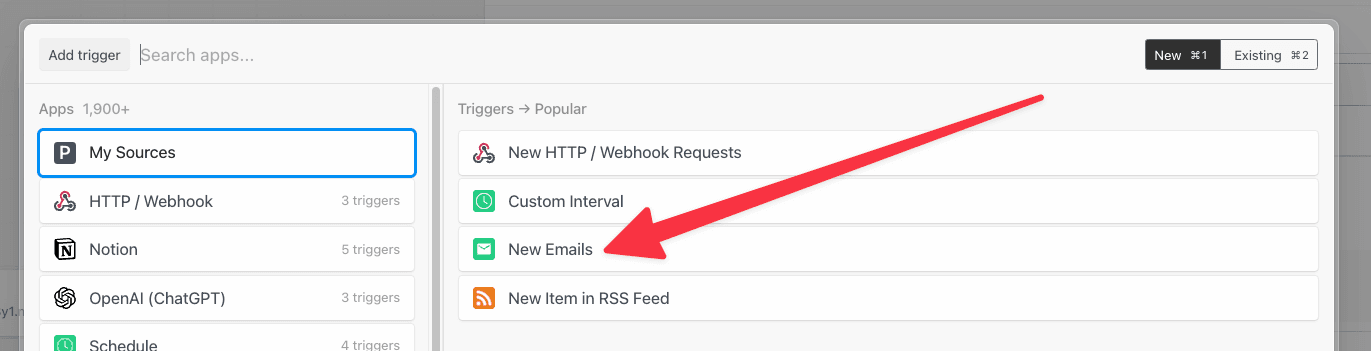 Pipedream creates an email address specific to your workflow. Any email sent to this address triggers your workflow:
 As soon as you send an email to the workflow-specific address, Pipedream parses its body, headers, and attachments into a JavaScript object it exposes in the `steps.trigger.event` variable that you can access within your workflow. This transformation can take a few seconds to perform. Once done, Pipedream will immediately trigger your workflow with the transformed payload.
[Read more about the shape of the email trigger event](/workflows/building-workflows/triggers/#email).
### Sending large emails
By default, you can send emails up to {EMAIL_PAYLOAD_SIZE_LIMIT} in total size (content, headers, attachments). Emails over this size will be rejected, and you will not see them appear in your workflow.
**You can send emails up to `{EMAIL_PAYLOAD_SIZE_LIMIT}` in size by sending emails to `[YOUR EMAIL ENDPOINT]@upload.pipedream.net`**. If your workflow-specific email address is `endpoint@pipedream.net`, your “large email address” is `endpoint@upload.pipedream.net`.
Emails delivered to this address are uploaded to a private URL you have access to within your workflow, at the variable `steps.trigger.event.mail.content_url`. You can download and parse the email within your workflow using that URL. This content contains the *raw* email. Unlike the standard email interface, you must parse this email on your own - see the examples below.
#### Example: Download the email using the Send HTTP Request action
*Note: you can only download emails at most {FUNCTION_PAYLOAD_LIMIT} in size using this method. Otherwise, you may encounter a [Function Payload Limit Exceeded](/troubleshooting/#function-payload-limit-exceeded) error.*
You can download the email using the **Send HTTP Request** action. [Copy this workflow to see how this works](https://pipedream.com/new?h=tch_1AfMyl).
This workflow also parses the contents of the email and exposes it as a JavaScript object using the [`mailparser` library](https://nodemailer.com/extras/mailparser/):
```javascript theme={null}
import { simpleParser } from "mailparser";
export default defineComponent({
async run({ steps, $ }) {
return await simpleParser(steps.get_large_email_content.$return_value);
},
});
```
#### Example: Download the email to the `/tmp` directory, read it and parse it
[This workflow](https://pipedream.com/new?h=tch_jPfaEJ) downloads the email, saving it as a file to the [`/tmp` directory](/workflows/building-workflows/code/nodejs/working-with-files/#the-tmp-directory). Then it reads the same file (as an example), and parses it using the [`mailparser` library](https://nodemailer.com/extras/mailparser/):
```javascript theme={null}
import stream from "stream";
import { promisify } from "util";
import fs from "fs";
import got from "got";
import { simpleParser } from "mailparser";
// To use previous step data, pass the `steps` object to the run() function
export default defineComponent({
async run({ steps, $ }) {
const pipeline = promisify(stream.pipeline);
await pipeline(
got.stream(steps.trigger.event.mail.content_url),
fs.createWriteStream(`/tmp/raw_email`)
);
// Now read the file and parse its contents into the `parsed` variable
// See https://nodemailer.com/extras/mailparser/ for parsing options
const f = fs.readFileSync(`/tmp/raw_email`);
return await simpleParser(f);
},
});
```
#### How the email is saved
Your email is saved to a Pipedream-owned [Amazon S3 bucket](https://aws.amazon.com/s3/). Pipedream generates a [signed URL](https://docs.aws.amazon.com/AmazonS3/latest/dev/ShareObjectPreSignedURL.html) that allows you to access to that file for up to 30 minutes. After 30 minutes, the signed URL will be invalidated, and the file will be deleted.
### Email attachments
You can attach any files to your email, up to [the total email size limit](/workflows/limits/#email-triggers).
Attachments are stored in `steps.trigger.event.attachments`, which provides an array of attachment objects. Each attachment in that array exposes key properties:
* `contentUrl`: a URL that hosts your attachment. You can [download this file to the `/tmp` directory](/workflows/building-workflows/code/nodejs/http-requests/#download-a-file-to-the-tmp-directory) and process it in your workflow.
* `content`: If the attachment contains text-based content, Pipedream renders the attachment in `content`, up to 10,000 bytes.
* `contentTruncated`: `true` if the attachment contained text-based content larger than 10,000 bytes. If `true`, the data in `content` will be truncated, and you should fetch the full attachment from `contentUrl`.
### Appending metadata to the incoming email address with `+data`
Pipedream provides a way to append metadata to incoming emails by adding a `+` sign to the incoming email key, followed by any arbitrary string:
```txt theme={null}
myemailaddr+test@pipedream.net
```
Any emails sent to your workflow-specific email address will resolve to that address, triggering your workflow, no matter the data you add after the `+` sign. Sending an email to both of these addresses triggers the workflow with the address `myemailaddr@pipedream.net`:
```txt theme={null}
myemailaddr+test@pipedream.net
myemailaddr+unsubscribe@pipedream.net
```
This allows you implement conditional logic in your workflow based on the data in that string.
### Troubleshooting
#### I’m receiving an `Expired Token` error when trying to read an email attachment
Email attachments are saved to S3, and are accessible in your workflows over [pre-signed URLs](https://docs.aws.amazon.com/AmazonS3/latest/userguide/ShareObjectPreSignedURL.html).
If the presigned URL for the attachment has expired, then you’ll need to send another email to create a brand new pre-signed URL.
If you’re using email attachments in combination with [`$.flow.delay`](/workflows/building-workflows/code/nodejs/delay/) or [`$.flow.rerun`](/workflows/building-workflows/code/nodejs/rerun/) which introduces a gap of time between steps in your workflow, then there’s a chance the email attachment’s URL will expire.
To overcome this, we suggest uploading your email attachments to your Project’s [File Store](/workflows/data-management/file-stores/) for persistent storage.
## RSS
Choose the RSS trigger to watch an RSS feed for new items:
As soon as you send an email to the workflow-specific address, Pipedream parses its body, headers, and attachments into a JavaScript object it exposes in the `steps.trigger.event` variable that you can access within your workflow. This transformation can take a few seconds to perform. Once done, Pipedream will immediately trigger your workflow with the transformed payload.
[Read more about the shape of the email trigger event](/workflows/building-workflows/triggers/#email).
### Sending large emails
By default, you can send emails up to {EMAIL_PAYLOAD_SIZE_LIMIT} in total size (content, headers, attachments). Emails over this size will be rejected, and you will not see them appear in your workflow.
**You can send emails up to `{EMAIL_PAYLOAD_SIZE_LIMIT}` in size by sending emails to `[YOUR EMAIL ENDPOINT]@upload.pipedream.net`**. If your workflow-specific email address is `endpoint@pipedream.net`, your “large email address” is `endpoint@upload.pipedream.net`.
Emails delivered to this address are uploaded to a private URL you have access to within your workflow, at the variable `steps.trigger.event.mail.content_url`. You can download and parse the email within your workflow using that URL. This content contains the *raw* email. Unlike the standard email interface, you must parse this email on your own - see the examples below.
#### Example: Download the email using the Send HTTP Request action
*Note: you can only download emails at most {FUNCTION_PAYLOAD_LIMIT} in size using this method. Otherwise, you may encounter a [Function Payload Limit Exceeded](/troubleshooting/#function-payload-limit-exceeded) error.*
You can download the email using the **Send HTTP Request** action. [Copy this workflow to see how this works](https://pipedream.com/new?h=tch_1AfMyl).
This workflow also parses the contents of the email and exposes it as a JavaScript object using the [`mailparser` library](https://nodemailer.com/extras/mailparser/):
```javascript theme={null}
import { simpleParser } from "mailparser";
export default defineComponent({
async run({ steps, $ }) {
return await simpleParser(steps.get_large_email_content.$return_value);
},
});
```
#### Example: Download the email to the `/tmp` directory, read it and parse it
[This workflow](https://pipedream.com/new?h=tch_jPfaEJ) downloads the email, saving it as a file to the [`/tmp` directory](/workflows/building-workflows/code/nodejs/working-with-files/#the-tmp-directory). Then it reads the same file (as an example), and parses it using the [`mailparser` library](https://nodemailer.com/extras/mailparser/):
```javascript theme={null}
import stream from "stream";
import { promisify } from "util";
import fs from "fs";
import got from "got";
import { simpleParser } from "mailparser";
// To use previous step data, pass the `steps` object to the run() function
export default defineComponent({
async run({ steps, $ }) {
const pipeline = promisify(stream.pipeline);
await pipeline(
got.stream(steps.trigger.event.mail.content_url),
fs.createWriteStream(`/tmp/raw_email`)
);
// Now read the file and parse its contents into the `parsed` variable
// See https://nodemailer.com/extras/mailparser/ for parsing options
const f = fs.readFileSync(`/tmp/raw_email`);
return await simpleParser(f);
},
});
```
#### How the email is saved
Your email is saved to a Pipedream-owned [Amazon S3 bucket](https://aws.amazon.com/s3/). Pipedream generates a [signed URL](https://docs.aws.amazon.com/AmazonS3/latest/dev/ShareObjectPreSignedURL.html) that allows you to access to that file for up to 30 minutes. After 30 minutes, the signed URL will be invalidated, and the file will be deleted.
### Email attachments
You can attach any files to your email, up to [the total email size limit](/workflows/limits/#email-triggers).
Attachments are stored in `steps.trigger.event.attachments`, which provides an array of attachment objects. Each attachment in that array exposes key properties:
* `contentUrl`: a URL that hosts your attachment. You can [download this file to the `/tmp` directory](/workflows/building-workflows/code/nodejs/http-requests/#download-a-file-to-the-tmp-directory) and process it in your workflow.
* `content`: If the attachment contains text-based content, Pipedream renders the attachment in `content`, up to 10,000 bytes.
* `contentTruncated`: `true` if the attachment contained text-based content larger than 10,000 bytes. If `true`, the data in `content` will be truncated, and you should fetch the full attachment from `contentUrl`.
### Appending metadata to the incoming email address with `+data`
Pipedream provides a way to append metadata to incoming emails by adding a `+` sign to the incoming email key, followed by any arbitrary string:
```txt theme={null}
myemailaddr+test@pipedream.net
```
Any emails sent to your workflow-specific email address will resolve to that address, triggering your workflow, no matter the data you add after the `+` sign. Sending an email to both of these addresses triggers the workflow with the address `myemailaddr@pipedream.net`:
```txt theme={null}
myemailaddr+test@pipedream.net
myemailaddr+unsubscribe@pipedream.net
```
This allows you implement conditional logic in your workflow based on the data in that string.
### Troubleshooting
#### I’m receiving an `Expired Token` error when trying to read an email attachment
Email attachments are saved to S3, and are accessible in your workflows over [pre-signed URLs](https://docs.aws.amazon.com/AmazonS3/latest/userguide/ShareObjectPreSignedURL.html).
If the presigned URL for the attachment has expired, then you’ll need to send another email to create a brand new pre-signed URL.
If you’re using email attachments in combination with [`$.flow.delay`](/workflows/building-workflows/code/nodejs/delay/) or [`$.flow.rerun`](/workflows/building-workflows/code/nodejs/rerun/) which introduces a gap of time between steps in your workflow, then there’s a chance the email attachment’s URL will expire.
To overcome this, we suggest uploading your email attachments to your Project’s [File Store](/workflows/data-management/file-stores/) for persistent storage.
## RSS
Choose the RSS trigger to watch an RSS feed for new items:
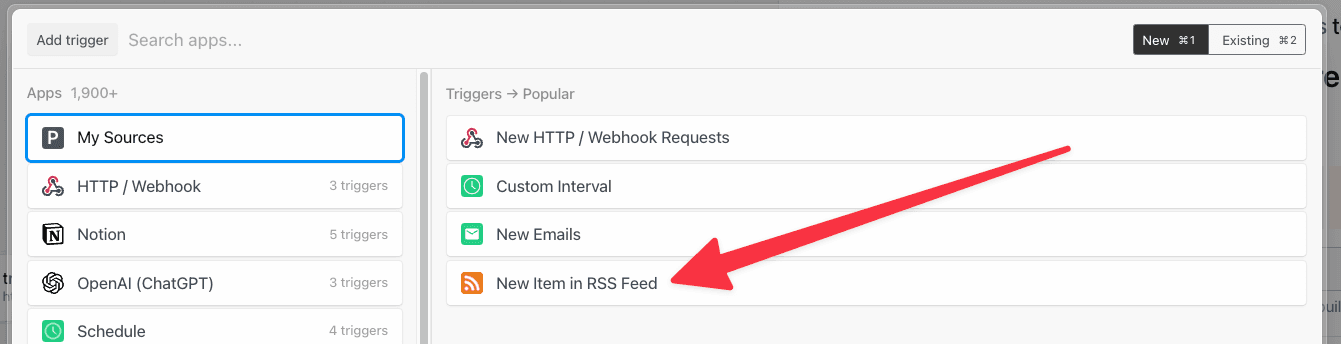 This will create an RSS [event source](/workflows/building-workflows/triggers/) that polls the feed for new items on the schedule you select. Every time a new item is found, your workflow will run.
## Events
Events trigger workflow executions. The event that triggers your workflow depends on the trigger you select for your workflow:
* [HTTP triggers](/workflows/building-workflows/triggers/#http) invoke your workflow on HTTP requests.
* [Cron triggers](/workflows/building-workflows/triggers/#schedule) invoke your workflow on a time schedule (e.g., on an interval).
* [Email triggers](/workflows/building-workflows/triggers/#email) invoke your workflow on inbound emails.
* [Event sources](/workflows/building-workflows/triggers/#app-based-triggers) invoke your workflow on events from apps like Twitter, Google Calendar, and more.
### Selecting a test event
When you test any step in your workflow, Pipedream passes the test event you select in the trigger step:
This will create an RSS [event source](/workflows/building-workflows/triggers/) that polls the feed for new items on the schedule you select. Every time a new item is found, your workflow will run.
## Events
Events trigger workflow executions. The event that triggers your workflow depends on the trigger you select for your workflow:
* [HTTP triggers](/workflows/building-workflows/triggers/#http) invoke your workflow on HTTP requests.
* [Cron triggers](/workflows/building-workflows/triggers/#schedule) invoke your workflow on a time schedule (e.g., on an interval).
* [Email triggers](/workflows/building-workflows/triggers/#email) invoke your workflow on inbound emails.
* [Event sources](/workflows/building-workflows/triggers/#app-based-triggers) invoke your workflow on events from apps like Twitter, Google Calendar, and more.
### Selecting a test event
When you test any step in your workflow, Pipedream passes the test event you select in the trigger step:
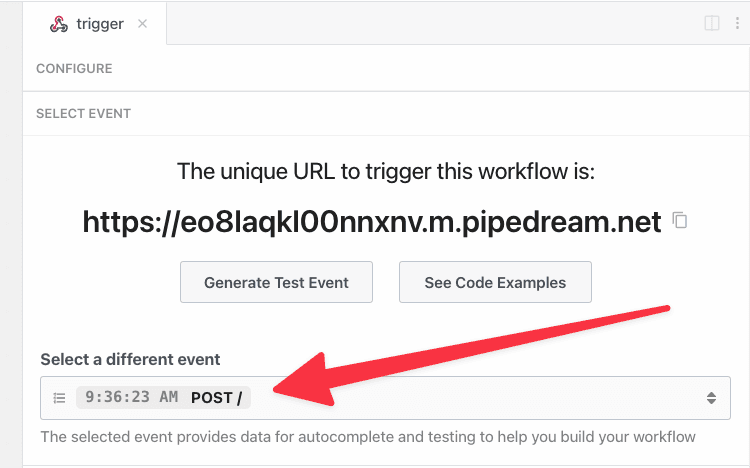 You can select any event you’ve previously sent to your trigger as your test event, or send a new one.
### Examining event data
When you select an event, you’ll see [the incoming event data](/workflows/building-workflows/triggers/#event-format) and the [event context](/workflows/building-workflows/triggers/#stepstriggercontext) for that event:
You can select any event you’ve previously sent to your trigger as your test event, or send a new one.
### Examining event data
When you select an event, you’ll see [the incoming event data](/workflows/building-workflows/triggers/#event-format) and the [event context](/workflows/building-workflows/triggers/#stepstriggercontext) for that event:
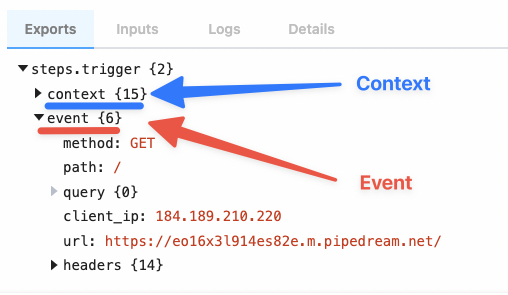 Pipedream parses your incoming data and exposes it in the variable [`steps.trigger.event`](/workflows/building-workflows/triggers/#event-format), which you can access in any [workflow step](/workflows/#steps).
### Copying references to event data
When you’re [examining event data](/workflows/building-workflows/triggers/#examining-event-data), you’ll commonly want to copy the name of the variable that points to the data you need to reference in another step.
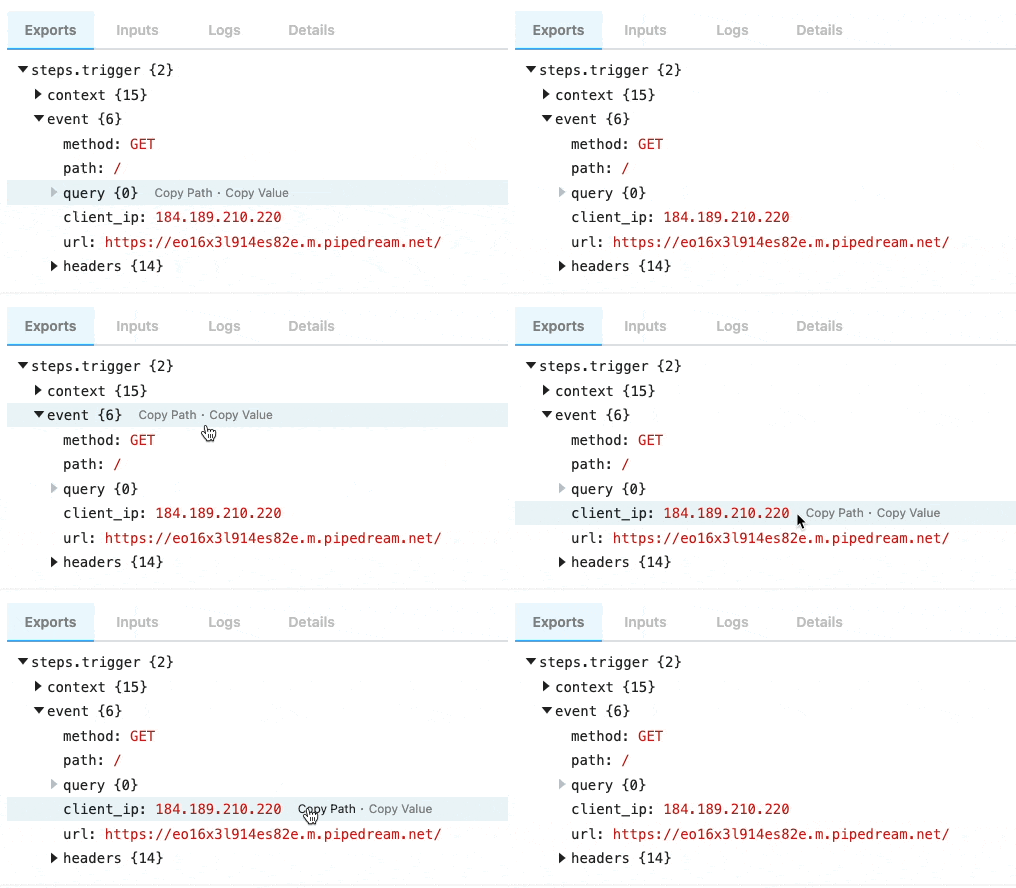
Hover over the property whose data you want to reference, and click the **Copy Path** button to its right:
Pipedream parses your incoming data and exposes it in the variable [`steps.trigger.event`](/workflows/building-workflows/triggers/#event-format), which you can access in any [workflow step](/workflows/#steps).
### Copying references to event data
When you’re [examining event data](/workflows/building-workflows/triggers/#examining-event-data), you’ll commonly want to copy the name of the variable that points to the data you need to reference in another step.
Hover over the property whose data you want to reference, and click the **Copy Path** button to its right:
 ### Copying the values of event data
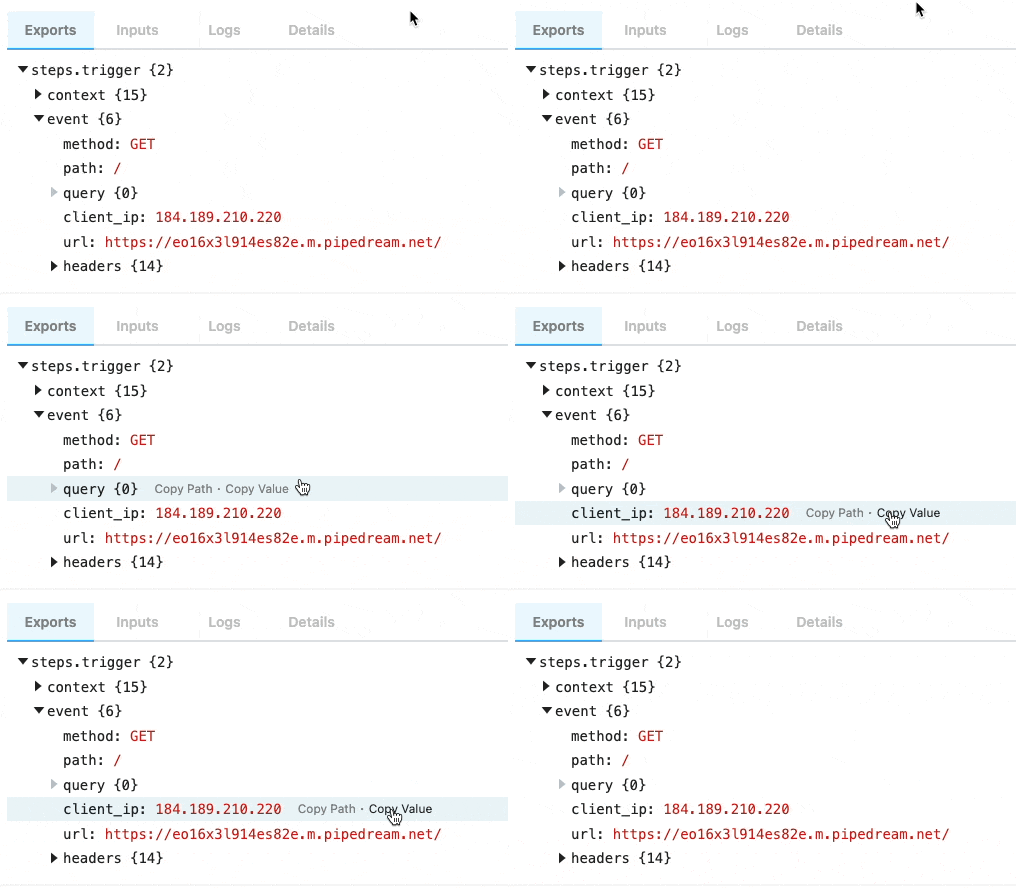
You can also copy the value of specific properties of your event data. Hover over the property whose data you want to copy, and click the **Copy Value** button to its right:
### Copying the values of event data
You can also copy the value of specific properties of your event data. Hover over the property whose data you want to copy, and click the **Copy Value** button to its right:
 ### Event format
When you send an event to your workflow, Pipedream takes the trigger data — for example, the HTTP payload, headers, etc. — and adds our own Pipedream metadata to it.
**This data is exposed in the `steps.trigger.event` variable. You can reference this variable in any step of your workflow**.
You can reference your event data in any [code](/workflows/building-workflows/code/) or [action](/components/contributing/#actions) step. See those docs or the general [docs on passing data between steps](/workflows/#steps) for more information.
The specific shape of `steps.trigger.event` depends on the trigger type:
#### HTTP
| Property | Description |
| ----------- | ----------------------------------------------------- |
| `body` | A string or object representation of the HTTP payload |
| `client_ip` | IP address of the client that made the request |
| `headers` | HTTP headers, represented as an object |
| `method` | HTTP method |
| `path` | HTTP request path |
| `query` | Query string |
| `url` | Request host + path |
#### Cron Scheduler
| Property | Description |
| --------------------- | ----------------------------------------------------------------------------------------------- |
| `interval_seconds` | The number of seconds between scheduled executions |
| `cron` | When you’ve configured a custom cron schedule, the cron string |
| `timestamp` | The epoch timestamp when the workflow ran |
| `timezone_configured` | An object with formatted datetime data for the given execution, tied to the schedule’s timezone |
| `timezone_utc` | An object with formatted datetime data for the given execution, tied to the UTC timezone |
#### Email
We use Amazon SES to receive emails for the email trigger. You can find the shape of the event in the [SES docs](https://docs.aws.amazon.com/ses/latest/DeveloperGuide/receiving-email-notifications-contents.html).
### `steps.trigger.context`
`steps.trigger.event` contain your event’s **data**. `steps.trigger.context` contains *metadata* about the workflow and the execution tied to this event.
You can use the data in `steps.trigger.context` to uniquely identify the Pipedream event ID, the timestamp at which the event invoked the workflow, and more:
| Property | Description |
| ------------------ | ------------------------------------------------------------------------------------------------------------------------------------------------------------------------------------------- |
| `deployment_id` | A globally-unique string representing the current version of the workflow |
| `emitter_id` | The ID of the workflow trigger that emitted this event, e.g. the [event source](/workflows/building-workflows/triggers/) ID. |
| `id` | A unique, Pipedream-provided identifier for the event that triggered this workflow |
| `owner_id` | The Pipedream-assigned [workspace ID](/workspaces/#finding-your-workspaces-id) that owns the workflow |
| `platform_version` | The version of the Pipedream execution environment this event ran on |
| `replay` | A boolean, whether the event was replayed via the UI |
| `trace_id` | Holds the same value for all executions tied to an original event. [See below for more details](/workflows/building-workflows/triggers/#how-do-i-retrieve-the-execution-id-for-a-workflow). |
| `ts` | The ISO 8601 timestamp at which the event invoked the workflow |
| `workflow_id` | The workflow ID |
| `workflow_name` | The workflow name |
#### How do I retrieve the execution ID for a workflow?
Pipedream exposes two identifies for workflow executions: one for the execution, and one for the “trace”.
`steps.trigger.context.id` should be unique for every execution of a workflow.
`steps.trigger.context.trace_id` will hold the same value for all executions tied to the same original event, e.g. if you have auto-retry enabled and it retries a workflow three times, the `id` will change, but the `trace_id` will remain the same. For example, if you call `$.flow.suspend()` on a workflow, we run a new execution after the suspend, so you’d see two total executions: `id` will be unique before and after the suspend, but `trace_id` will be the same.
You may notice other properties in `context`. These are used internally by Pipedream, and are subject to change.
### Event retention
On the Free and Basic plans, each workflow retains at most 100 events or 7 days of history.
* After 100 events have been processed, Pipedream will delete the oldest event data as new events arrive, keeping only the last 100 events.
* Or if an event is older than 7 days, Pipedream will delete the event data.
Other paid plans have longer retention. [See the pricing page](https://pipedream.com/pricing) for details.
Events are also stored in [event history](/workflows/event-history/) for up to 30 days, depending on your plan. [See the pricing page](https://pipedream.com/pricing) for the retention on your plan.
Events that are [delayed](/workflows/building-workflows/control-flow/delay/) or [suspended](/glossary/#suspend) are retained for the duration of the delay. After the delay, the workflow is executed, and the event data is retained according to the rules above.
### Event format
When you send an event to your workflow, Pipedream takes the trigger data — for example, the HTTP payload, headers, etc. — and adds our own Pipedream metadata to it.
**This data is exposed in the `steps.trigger.event` variable. You can reference this variable in any step of your workflow**.
You can reference your event data in any [code](/workflows/building-workflows/code/) or [action](/components/contributing/#actions) step. See those docs or the general [docs on passing data between steps](/workflows/#steps) for more information.
The specific shape of `steps.trigger.event` depends on the trigger type:
#### HTTP
| Property | Description |
| ----------- | ----------------------------------------------------- |
| `body` | A string or object representation of the HTTP payload |
| `client_ip` | IP address of the client that made the request |
| `headers` | HTTP headers, represented as an object |
| `method` | HTTP method |
| `path` | HTTP request path |
| `query` | Query string |
| `url` | Request host + path |
#### Cron Scheduler
| Property | Description |
| --------------------- | ----------------------------------------------------------------------------------------------- |
| `interval_seconds` | The number of seconds between scheduled executions |
| `cron` | When you’ve configured a custom cron schedule, the cron string |
| `timestamp` | The epoch timestamp when the workflow ran |
| `timezone_configured` | An object with formatted datetime data for the given execution, tied to the schedule’s timezone |
| `timezone_utc` | An object with formatted datetime data for the given execution, tied to the UTC timezone |
#### Email
We use Amazon SES to receive emails for the email trigger. You can find the shape of the event in the [SES docs](https://docs.aws.amazon.com/ses/latest/DeveloperGuide/receiving-email-notifications-contents.html).
### `steps.trigger.context`
`steps.trigger.event` contain your event’s **data**. `steps.trigger.context` contains *metadata* about the workflow and the execution tied to this event.
You can use the data in `steps.trigger.context` to uniquely identify the Pipedream event ID, the timestamp at which the event invoked the workflow, and more:
| Property | Description |
| ------------------ | ------------------------------------------------------------------------------------------------------------------------------------------------------------------------------------------- |
| `deployment_id` | A globally-unique string representing the current version of the workflow |
| `emitter_id` | The ID of the workflow trigger that emitted this event, e.g. the [event source](/workflows/building-workflows/triggers/) ID. |
| `id` | A unique, Pipedream-provided identifier for the event that triggered this workflow |
| `owner_id` | The Pipedream-assigned [workspace ID](/workspaces/#finding-your-workspaces-id) that owns the workflow |
| `platform_version` | The version of the Pipedream execution environment this event ran on |
| `replay` | A boolean, whether the event was replayed via the UI |
| `trace_id` | Holds the same value for all executions tied to an original event. [See below for more details](/workflows/building-workflows/triggers/#how-do-i-retrieve-the-execution-id-for-a-workflow). |
| `ts` | The ISO 8601 timestamp at which the event invoked the workflow |
| `workflow_id` | The workflow ID |
| `workflow_name` | The workflow name |
#### How do I retrieve the execution ID for a workflow?
Pipedream exposes two identifies for workflow executions: one for the execution, and one for the “trace”.
`steps.trigger.context.id` should be unique for every execution of a workflow.
`steps.trigger.context.trace_id` will hold the same value for all executions tied to the same original event, e.g. if you have auto-retry enabled and it retries a workflow three times, the `id` will change, but the `trace_id` will remain the same. For example, if you call `$.flow.suspend()` on a workflow, we run a new execution after the suspend, so you’d see two total executions: `id` will be unique before and after the suspend, but `trace_id` will be the same.
You may notice other properties in `context`. These are used internally by Pipedream, and are subject to change.
### Event retention
On the Free and Basic plans, each workflow retains at most 100 events or 7 days of history.
* After 100 events have been processed, Pipedream will delete the oldest event data as new events arrive, keeping only the last 100 events.
* Or if an event is older than 7 days, Pipedream will delete the event data.
Other paid plans have longer retention. [See the pricing page](https://pipedream.com/pricing) for details.
Events are also stored in [event history](/workflows/event-history/) for up to 30 days, depending on your plan. [See the pricing page](https://pipedream.com/pricing) for the retention on your plan.
Events that are [delayed](/workflows/building-workflows/control-flow/delay/) or [suspended](/glossary/#suspend) are retained for the duration of the delay. After the delay, the workflow is executed, and the event data is retained according to the rules above.