> ## Documentation Index
> Fetch the complete documentation index at: https://pipedream.com/docs/llms.txt
> Use this file to discover all available pages before exploring further.
# Filter
### Filter
Use the Filter action to quickly stop or continue workflows on certain conditions.
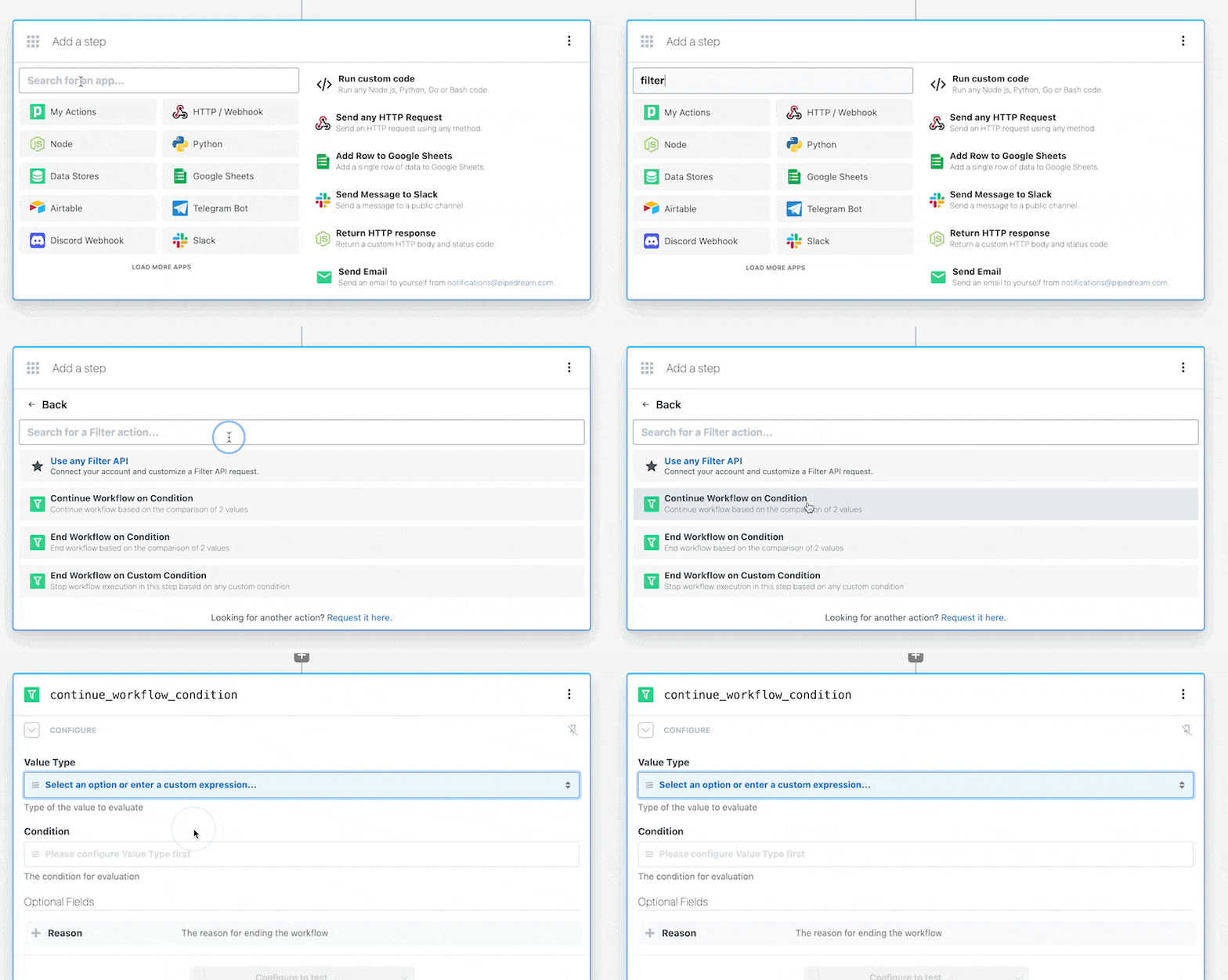
Add a filter action to your workflow by searching for the **Filter** app in a new step.
The **Filter** app includes several built-in actions: Continue Workflow on Condition, Exit Workflow on Condition and Exit Workflow on Custom Condition.
In each of these actions, the **Value** is the subject of the condition, and the **Condition** is the operand to compare the value against.
For example, to only process orders with a `status = ready`
#### Continue Workflow on Condition
With this action, only when values that *pass* a set condition will the workflow continue to execute steps after this filter.
 Add a filter action to your workflow by searching for the **Filter** app in a new step.
The **Filter** app includes several built-in actions: Continue Workflow on Condition, Exit Workflow on Condition and Exit Workflow on Custom Condition.
In each of these actions, the **Value** is the subject of the condition, and the **Condition** is the operand to compare the value against.
For example, to only process orders with a `status = ready`
#### Continue Workflow on Condition
With this action, only when values that *pass* a set condition will the workflow continue to execute steps after this filter.
Add a filter action to your workflow by searching for the **Filter** app in a new step.
The **Filter** app includes several built-in actions: Continue Workflow on Condition, Exit Workflow on Condition and Exit Workflow on Custom Condition.
In each of these actions, the **Value** is the subject of the condition, and the **Condition** is the operand to compare the value against.
For example, to only process orders with a `status = ready`
#### Continue Workflow on Condition
With this action, only when values that *pass* a set condition will the workflow continue to execute steps after this filter.