> ## Documentation Index
> Fetch the complete documentation index at: https://pipedream.com/docs/llms.txt
> Use this file to discover all available pages before exploring further.
# Python
export const PYTHON_VERSION = '3.12';
Pipedream supports [Python v{PYTHON_VERSION}](https://www.python.org) in workflows. Run any Python code, use any [PyPI package](https://pypi.org/), connect to APIs, and more.
## Adding a Python code step
1. Click the + icon to add a new step
2. Click **Custom Code**
3. In the new step, select the `python` language runtime in language dropdown
## Python Code Step Structure
A new Python Code step will have the following structure:
```python theme={null}
def handler(pd: "pipedream"):
# Reference data from previous steps
print(pd.steps["trigger"]["context"]["id"])
# Return data for use in future steps
return {"foo": {"test": True}}
```
You can also perform more complex operations, including [leveraging your connected accounts to make authenticated API requests](/workflows/building-workflows/code/python/auth/), [accessing Data Stores](/workflows/building-workflows/code/python/using-data-stores/) and [installing PyPI packages](/workflows/building-workflows/code/python/#using-third-party-packages).
* [Install PyPI Packages](/workflows/building-workflows/code/python/#using-third-party-packages)
* [Import data exported from other steps](/workflows/building-workflows/code/python/#using-data-from-another-step)
* [Export data to downstream steps](/workflows/building-workflows/code/python/#sending-data-downstream-to-other-steps)
* [Retrieve data from a data store](/workflows/building-workflows/code/python/using-data-stores/#retrieving-data)
* [Store data into a data store](/workflows/building-workflows/code/python/using-data-stores/#saving-data)
* [Access API credentials from connected accounts](/workflows/building-workflows/code/python/auth/)
## Logging and debugging
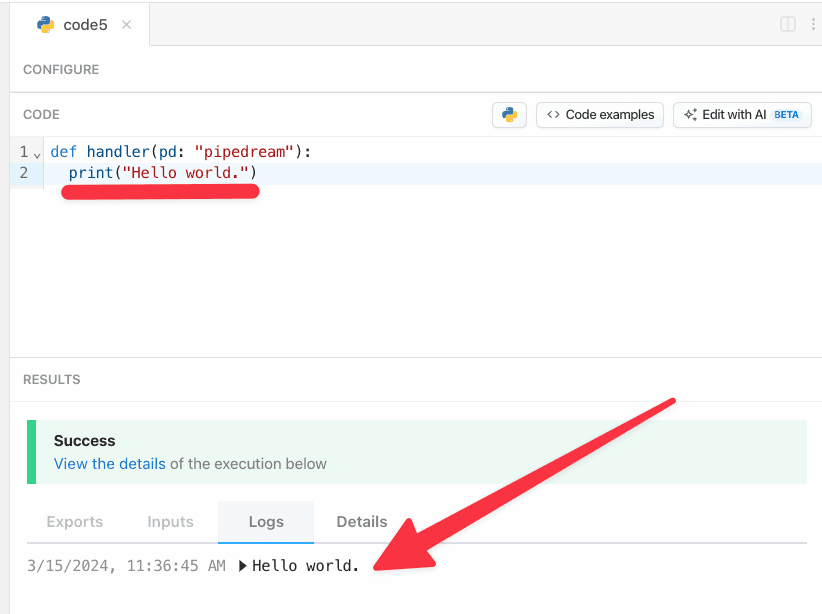
You can use `print` at any time in a Python code step to log information as the script is running.
The output for the `print` **logs** will appear in the `Results` section just beneath the code editor.
## Using third party packages
You can use any packages from [PyPI](https://pypi.org) in your Pipedream workflows. This includes popular choices such as:
* [`requests` for making HTTP requests](https://pypi.org/project/requests/)
* [`sqlalchemy`for retrieving or inserting data in a SQL database](https://pypi.org/project/sqlalchemy/)
* [`pandas` for working with complex datasets](https://pypi.org/project/pandas/)
To use a PyPI package, just include it in your step’s code:
```javascript theme={null}
import requests
```
And that’s it. No need to update a `requirements.txt` or specify elsewhere in your workflow of which packages you need. Pipedream will automatically install the dependency for you.
### If your package’s `import` name differs from its PyPI package name
Pipedream’s package installation uses [the `pipreqs` package](https://github.com/bndr/pipreqs) to detect package imports and install the associated package for you. Some packages, like [`python-telegram-bot`](https://python-telegram-bot.org/), use an `import` name that differs from their PyPI name:
```sh theme={null}
pip install python-telegram-bot
```
vs.
```javascript theme={null}
import telegram
```
Use the built in [magic comment system to resolve these mismatches](/workflows/building-workflows/code/python/import-mappings/):
```python theme={null}
# pipedream add-package python-telegram-bot
import telegram
```
### Pinning package versions
Each time you deploy a workflow with Python code, Pipedream downloads the PyPI packages you `import` in your step. **By default, Pipedream deploys the latest version of the PyPI package each time you deploy a change**.
There are many cases where you may want to specify the version of the packages you’re using. If you’d like to use a *specific* version of a package in a workflow, you can add that version in a [magic comment](/workflows/building-workflows/code/python/import-mappings/), for example:
```python theme={null}
# pipedream add-package pandas==2.0.0
import pandas
```
Currently, you cannot use different versions of the same package in different steps in a workflow.
## Making an HTTP request
We recommend using the popular `requests` HTTP client package available in Python to send HTTP requests.
No need to run `pip install`, just `import requests` at the top of your step’s code and it’s available for your code to use.
See the [Making HTTP Requests with Python](/workflows/building-workflows/code/python/http-requests/) docs for more information.
## Returning HTTP responses
You can return HTTP responses from [HTTP-triggered workflows](/workflows/building-workflows/triggers/#http) using the `pd.respond()` method:
```python theme={null}
def handler(pd: "pipedream"):
pd.respond({
"status": 200,
"body": {
"message": "Everything is ok"
}
})
```
Please note to always include at least the `body` and `status` keys in your `pd.respond` argument. The `body` must also be a JSON serializable object or dictionary.
Unlike the Node.js equivalent, the Python `pd.respond` helper does not yet support responding with Streams.
*Don’t forget* to [configure your workflow’s HTTP trigger to allow a custom response](/workflows/building-workflows/triggers/#http-responses). Otherwise your workflow will return the default response.
## Sharing data between steps
A step can accept data from other steps in the same workflow, or pass data downstream to others.
### Using data from another step
In Python steps, data from the initial workflow trigger and other steps are available in the `pd.steps` object.
In this example, we’ll pretend this data is coming into our workflow’s HTTP trigger via POST request.
```json theme={null}
// POST .m.pipedream.net
{
"id": 1,
"name": "Bulbasaur",
"type": "plant"
}
```
In our Python step, we can access this data in the `pd.steps` object passed into the `handler`. Specifically, this data from the POST request into our workflow is available in the `trigger` dictionary item.
```python theme={null}
def handler(pd: "pipedream"):
# retrieve the data from the HTTP request in the initial workflow trigger
pokemon_name = pd.steps["trigger"]["event"]["name"]
pokemon_type = pd.steps["trigger"]["event"]["type"]
print(f"{pokemon_name} is a {pokemon_type} type Pokemon")
```
### Sending data downstream to other steps
To share data created, retrieved, transformed or manipulated by a step to others downstream, `return` the data in the `handler` function:
```python theme={null}
# This step is named "code" in the workflow
import requests
def handler(pd: "pipedream"):
r = requests.get("https://pokeapi.co/api/v2/pokemon/charizard")
# Store the JSON contents into a variable called "pokemon"
pokemon = r.json()
# Expose the data to other steps in the "pokemon" key from this step
return {
"pokemon": pokemon
}
```
Now this `pokemon` data is accessible to downstream steps within `pd.steps["code"]["pokemon"]`
You can only export JSON-serializable data from steps. Things like:
* strings
* numbers
* lists
* dictionaries
## Using environment variables
You can leverage any [environment variables defined in your Pipedream account](/workflows/environment-variables/) in a Python step. This is useful for keeping your secrets out of code as well as keeping them flexible to swap API keys without having to update each step individually.
To access them, use the `os` module.
```python theme={null}
import os
def handler(pd: "pipedream"):
token = os.environ["AIRTABLE_API_KEY"]
print(token)
```
Or an even more useful example, using the stored environment variable to make an authenticated API request.
### Using API key authentication
If an particular service requires you to use an API key, you can pass it via the headers of the request.
This proves your identity to the service so you can interact with it:
```python theme={null}
import requests
import os
def handler(pd: "pipedream"):
token = os.environ["AIRTABLE_API_KEY"]
url = "https://api.airtable.com/v0/your-airtable-base/your-table"
headers = { "Authorization": f"Bearer {token}"}
r = requests.get(url, headers=headers)
print(r.text)
```
There are 2 different ways of using the `os` module to access your environment variables.
`os.environ["ENV_NAME_HERE"]` will raise an error that stops your workflow if that key doesn’t exist in your Pipedream account.
Whereas `os.environ.get("ENV_NAME_HERE")` will *not* throw an error and instead returns an empty string.
If your code relies on the presence of a environment variable, consider using `os.environ["ENV_NAME_HERE"]` instead.
## Handling errors
You may need to exit a workflow early. In a Python step, just a `raise` an error to halt a step’s execution.
```python theme={null}
raise NameError("Something happened that should not. Exiting early.")
```
All exceptions from your Python code will appear in the **logs** area of the results.
## Ending a workflow early
Sometimes you want to end your workflow early, or otherwise stop or cancel the execution of a workflow under certain conditions. For example:
* You may want to end your workflow early if you don’t receive all the fields you expect in the event data.
* You only want to run your workflow for 5% of all events sent from your source.
* You only want to run your workflow for users in the United States. If you receive a request from outside the U.S., you don’t want the rest of the code in your workflow to run.
* You may use the `user_id` contained in the event to look up information in an external API. If you can’t find data in the API tied to that user, you don’t want to proceed.
**In any code step, calling `return pd.flow.exit()` will end the execution of the workflow immediately.** No remaining code in that step, and no code or destination steps below, will run for the current event.
It’s a good practice to use `return pd.flow.exit()` to immediately exit the workflow. In contrast, `pd.flow.exit()` on its own will end the workflow only after executing all remaining code in the step.
```python theme={null}
def handler(pd: "pipedream"):
return pd.flow.exit("reason")
print("This code will not run, since pd.flow.exit() was called above it")
```
You can pass any string as an argument to `pd.flow.exit()`:
```python theme={null}
def handler(pd: "pipedream"):
return pd.flow.exit("Exiting early. Goodbye.")
print("This code will not run, since pd.flow.exit() was called above it")
```
Or exit the workflow early within a conditional:
```python theme={null}
import random
def handler(pd: "pipedream"):
# Flip a coin, running pd.flow.exit() for 50% of events
if random.randint(0, 100) <= 50:
return pd.flow.exit("reason")
print("This code will only run 50% of the time");
```
## File storage
You can also store and read files with Python steps. This means you can upload photos, retrieve datasets, accept files from an HTTP request and more.
The `/tmp` directory is accessible from your workflow steps for saving and retrieving files.
You have full access to read and write both files in `/tmp`.
See the [Working with the filesystem in Python](/workflows/building-workflows/code/python/working-with-files/) docs for more information.
## FAQ
### What’s the difference between `def handler(pd)` and the `pipedream` package for Python code steps?
The pd object passed to the handler method lets you exit the [workflow early](/workflows/building-workflows/code/python/#ending-a-workflow-early), [integrate a Data Store](/workflows/building-workflows/code/python/using-data-stores/), and [use connected accounts](/workflows/building-workflows/code/python/auth/) into your Python code steps.
However, at this time there are issues with our Python interpreter that is causing an `ECONNRESET` error.
If you need [to use data from other steps](/workflows/building-workflows/code/python/#using-data-from-another-step) or [export data to other steps](/workflows/building-workflows/code/python/#sending-data-downstream-to-other-steps) in your workflow, we recommend using the `pipedream` package module.
If you need to use a Data Store in your workflow, we recommend using a [pre-built action](/workflows/data-management/data-stores/) to retrieve or store data or [Node.js’s Data Store](/workflows/building-workflows/code/nodejs/using-data-stores/) capabilities.
### I’ve tried installing a Python package with a normal import and the magic comment system, but I still can’t. What can I do?
Some Python packages require binaries present within the environment in order to function properly. Or they include binaries but those binaries are not compatible with the Pipedream workflow environment.
Unfortunately we cannot support these types of packages at this time, but if you have an issue importing a PyPI package into a Python code step [please open a issue](https://github.com/PipedreamHQ/pipedream/issues/new/choose).
### Can I publish my Python code as a reusable pre-built action or trigger like you can with Node.js?
Not at this time. Pipedream only supports Python as a code step language. The Components system only supports Node.js at this time.
You can still duplicate Python code steps within the same workflow, but to reuse a code step, you’ll need to copy and paste the Python code to another workflow.
 ## Using third party packages
You can use any packages from [PyPI](https://pypi.org) in your Pipedream workflows. This includes popular choices such as:
* [`requests` for making HTTP requests](https://pypi.org/project/requests/)
* [`sqlalchemy`for retrieving or inserting data in a SQL database](https://pypi.org/project/sqlalchemy/)
* [`pandas` for working with complex datasets](https://pypi.org/project/pandas/)
To use a PyPI package, just include it in your step’s code:
```javascript theme={null}
import requests
```
And that’s it. No need to update a `requirements.txt` or specify elsewhere in your workflow of which packages you need. Pipedream will automatically install the dependency for you.
### If your package’s `import` name differs from its PyPI package name
Pipedream’s package installation uses [the `pipreqs` package](https://github.com/bndr/pipreqs) to detect package imports and install the associated package for you. Some packages, like [`python-telegram-bot`](https://python-telegram-bot.org/), use an `import` name that differs from their PyPI name:
```sh theme={null}
pip install python-telegram-bot
```
vs.
```javascript theme={null}
import telegram
```
Use the built in [magic comment system to resolve these mismatches](/workflows/building-workflows/code/python/import-mappings/):
```python theme={null}
# pipedream add-package python-telegram-bot
import telegram
```
### Pinning package versions
Each time you deploy a workflow with Python code, Pipedream downloads the PyPI packages you `import` in your step. **By default, Pipedream deploys the latest version of the PyPI package each time you deploy a change**.
There are many cases where you may want to specify the version of the packages you’re using. If you’d like to use a *specific* version of a package in a workflow, you can add that version in a [magic comment](/workflows/building-workflows/code/python/import-mappings/), for example:
```python theme={null}
# pipedream add-package pandas==2.0.0
import pandas
```
## Using third party packages
You can use any packages from [PyPI](https://pypi.org) in your Pipedream workflows. This includes popular choices such as:
* [`requests` for making HTTP requests](https://pypi.org/project/requests/)
* [`sqlalchemy`for retrieving or inserting data in a SQL database](https://pypi.org/project/sqlalchemy/)
* [`pandas` for working with complex datasets](https://pypi.org/project/pandas/)
To use a PyPI package, just include it in your step’s code:
```javascript theme={null}
import requests
```
And that’s it. No need to update a `requirements.txt` or specify elsewhere in your workflow of which packages you need. Pipedream will automatically install the dependency for you.
### If your package’s `import` name differs from its PyPI package name
Pipedream’s package installation uses [the `pipreqs` package](https://github.com/bndr/pipreqs) to detect package imports and install the associated package for you. Some packages, like [`python-telegram-bot`](https://python-telegram-bot.org/), use an `import` name that differs from their PyPI name:
```sh theme={null}
pip install python-telegram-bot
```
vs.
```javascript theme={null}
import telegram
```
Use the built in [magic comment system to resolve these mismatches](/workflows/building-workflows/code/python/import-mappings/):
```python theme={null}
# pipedream add-package python-telegram-bot
import telegram
```
### Pinning package versions
Each time you deploy a workflow with Python code, Pipedream downloads the PyPI packages you `import` in your step. **By default, Pipedream deploys the latest version of the PyPI package each time you deploy a change**.
There are many cases where you may want to specify the version of the packages you’re using. If you’d like to use a *specific* version of a package in a workflow, you can add that version in a [magic comment](/workflows/building-workflows/code/python/import-mappings/), for example:
```python theme={null}
# pipedream add-package pandas==2.0.0
import pandas
```