> ## Documentation Index
> Fetch the complete documentation index at: https://pipedream.com/docs/llms.txt
> Use this file to discover all available pages before exploring further.
# Running Node.js in Workflows
export const PIPEDREAM_NODE_VERSION = '20';
Pipedream supports writing Node.js v{PIPEDREAM_NODE_VERSION} at any point of a workflow.
Anything you can do with Node.js, you can do in a workflow. This includes using most of [npm’s 400,000+ packages](/workflows/building-workflows/code/nodejs/#using-npm-packages). JavaScript is one of the [most used](https://insights.stackoverflow.com/survey/2019#technology-_-programming-scripting-and-markup-languages) [languages](https://github.blog/2018-11-15-state-of-the-octoverse-top-programming-languages/) in the world, with a thriving community and extensive package ecosystem. If you work on websites and know JavaScript well, Pipedream makes you a full stack engineer. If you’ve never used JavaScript, see the [resources below](/workflows/building-workflows/code/nodejs/#new-to-javascript).
It’s important to understand the core difference between Node.js and the JavaScript that runs in your web browser: **Node doesn’t have access to some of the things a browser expects, like the HTML on the page, or its URL**. If you haven’t used Node before, be aware of this limitation as you search for JavaScript examples on the web.
## Adding a code step
1. Click the **+** button below any step of your workflow.
2. Select the option to **Run custom code**.
Note that new code steps will default to Node.js v{PIPEDREAM_NODE_VERSION}. You can add any Node.js code in the editor that appears. For example, try:
```javascript theme={null}
export default defineComponent({
async run({ steps, $ }) {
console.log("This is Node.js code");
$.export("test", "Some test data");
return "Test data";
},
});
```
Code steps use the same editor ([Monaco](https://microsoft.github.io/monaco-editor/)) used in Microsoft’s [VS Code](https://code.visualstudio.com/), which supports syntax highlighting, automatic indentation, and more.
## Sharing data between steps
A Node.js step can use data from other steps using [step exports](/workflows/#step-exports), it can also export data for other steps to use.
### Using data from another step
In Node.js steps, data from the initial workflow trigger and other steps are available in the `steps` argument passed to the `run({ steps, $ })` function.
In this example, we’ll pretend this data is coming into our HTTP trigger via POST request.
```json theme={null}
{
"id": 1,
"name": "Bulbasaur",
"type": "plant"
}
```
In our Node.js step, we can access this data in the `steps` variable Specifically, this data from the POST request into our workflow is available in the `trigger` property.
```javascript theme={null}
export default defineComponent({
async run({ steps, $ }) {
const pokemonName = steps.trigger.event.name;
const pokemonType = steps.trigger.event.type;
console.log(`${pokemonName} is a ${pokemonType} type Pokemon`);
},
});
```
### Sending data downstream to other steps
To share data created, retrieved, transformed or manipulated by a step to others downstream you can simply `return` it.
```javascript theme={null}
// This step is named "code" in the workflow
import axios from "axios";
export default defineComponent({
async run({ steps, $ }) {
const response = await axios.get(
"https://pokeapi.co/api/v2/pokemon/charizard"
);
// Store the response's JSON contents into a variable called "pokemon"
const pokemon = response.data;
// Expose the pokemon data downstream to other steps in the $return_value from this step
return pokemon;
},
});
```
### Using \$.export
Alternatively, use the built in `$.export` helper instead of returning data. The `$.export` creates a *named* export with the given value.
```javascript theme={null}
// This step is named "code" in the workflow
import axios from "axios";
export default defineComponent({
async run({ steps, $ }) {
const response = await axios.get(
"https://pokeapi.co/api/v2/pokemon/charizard"
);
// Store the response's JSON contents into a variable called "pokemon"
const pokemon = response.data;
// Expose the pokemon data downstream to other steps in the pokemon export from this step
$.export("pokemon", pokemon);
},
});
```
Now this `pokemon` data is accessible to downstream steps within `steps.code.pokemon`
You can only export JSON-serializable data from steps. Things like:
* strings
* numbers
* objects
You cannot export functions or other complex objects that don’t serialize to JSON. [You can save that data to a file in the `/tmp` directory](/workflows/building-workflows/code/nodejs/working-with-files/).
## Passing props to code steps
You can make code steps reusable by allowing them to accept props. Instead of hard-coding the values of variables within the code itself, you can pass them to the code step as arguments or parameters *entered in the workflow builder*.
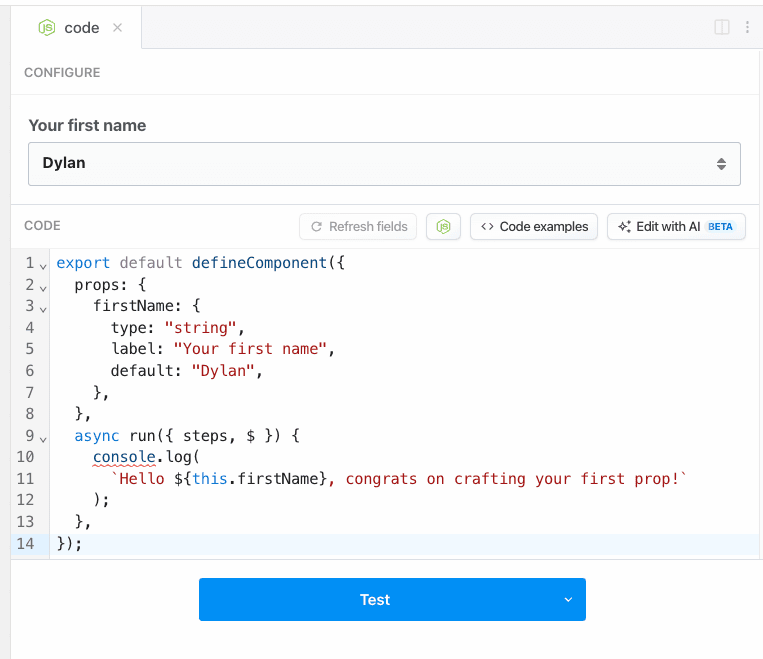
For example, let’s define a `firstName` prop. This will allow us to freely enter text from the workflow builder.
```javascript theme={null}
export default defineComponent({
props: {
firstName: {
type: "string",
label: "Your first name",
default: "Dylan",
},
},
async run({ steps, $ }) {
console.log(
`Hello ${this.firstName}, congrats on crafting your first prop!`
);
},
});
```
The workflow builder now can accept text input to populate the `firstName` to this particular step only:
Accepting a single string is just one example, you can build a step to accept arrays of strings through a dropdown presented in the workflow builder.
[Read the props reference for the full list of options](/components/contributing/api/#props).
## How Pipedream Node.js components work
When you add a new Node.js code step or use the examples in this doc, you’ll notice a common structure to the code:
```javascript theme={null}
export default defineComponent({
async run({ steps, $ }) {
// this Node.js code will execute when the step runs
},
});
```
This defines [a Node.js component](/components/contributing/api/). Components let you:
* Pass input to steps using [props](/workflows/building-workflows/code/nodejs/#passing-props-to-code-steps)
* [Connect an account to a step](/apps/connected-accounts/#from-a-code-step)
* [Issue HTTP responses](/workflows/building-workflows/triggers/#http-responses)
* Perform workflow-level flow control, like [ending a workflow early](/workflows/building-workflows/code/nodejs/#ending-a-workflow-early)
When the step runs, Pipedream executes the `run` method:
* Any asynchronous code within a code step [**must** be run synchronously](/workflows/building-workflows/code/nodejs/async/), using the `await` keyword or with a Promise chain, using `.then()`, `.catch()`, and related methods.
* Pipedream passes the `steps` variable to the run method. `steps` is also an object, and contains the [data exported from previous steps](/workflows/#step-exports) in your workflow.
* You also have access to the `$` variable, which gives you access to methods like `$.respond`, `$.export`, [and more](/components/contributing/api/#actions).
If you’re using [props](/workflows/building-workflows/code/nodejs/#passing-props-to-code-steps) or [connect an account to a step](/apps/connected-accounts/#from-a-code-step), the component exposes them in the variable `this`, which refers to the current step:
```javascript theme={null}
export default defineComponent({
async run({ steps, $ }) {
// `this` refers to the running component. Props, connected accounts, etc. are exposed here
console.log(this);
},
});
```
When you [connect an account to a step](/apps/connected-accounts/#from-a-code-step), Pipedream exposes the auth info in the variable [`this.appName.$auth`](/workflows/building-workflows/code/nodejs/auth/#accessing-connected-account-data-with-thisappnameauth).
## Logs
You can call `console.log` or `console.error` to add logs to the execution of a code step.
These logs will appear just below the associated step. `console.log` messages appear in black, `console.error` in red.
### `console.dir`
If you need to print the contents of JavaScript objects, use `console.dir`:
```javascript theme={null}
export default defineComponent({
async run({ steps, $ }) {
console.dir({
name: "Luke",
});
},
});
```
## Syntax errors
Pipedream will attempt to catch syntax errors when you’re writing code, highlighting the lines where the error occurred in red.
While you can save a workflow with syntax errors, it’s unlikely to run correctly on new events. Make sure to fix syntax errors before running your workflow.
## Using `npm` packages
[npm](https://www.npmjs.com/) hosts JavaScript packages: libraries of code someone else wrote and packaged for others to use. npm has over 400,000 packages and counting.
### Just `import` it
To use an npm package on Pipedream, simply `import` it:
```javascript theme={null}
import axios from "axios";
```
By default, workflows don’t have any packages installed. Just import any package in this manner to make it available in the step.
If a package only supports the [CommonJS module format](https://nodejs.org/api/modules.html), you may have to `require` it:
```javascript theme={null}
const axios = require("axios");
```
**Within a single step, you can only use `import` or `require` statements, not both**. See [this section](/workflows/building-workflows/code/nodejs/#require-is-not-defined) for more details.
When Pipedream runs your workflow, we download the associated npm package for you before running your code steps.
If you’ve used Node before, you’ll notice there’s no `package.json` file to upload or edit. We want to make package management simple, so just `import` or `require` the module like you would in your code, after package installation, and get to work.
### Third-party package limitations
Some packages require access to a web browser to run, and don’t work with Node.js. Often this limitation is documented on the package `README`, but often it’s not. If you’re not sure and need to use it, we recommend just trying to `import` or `require` it.
Other packages require access to binaries or system libraries that aren’t installed in the Pipedream execution environment.
If you’re seeing any issues with a specific package, please [let us know](https://pipedream.com/support/) and we’ll try to help you make it work.
### Pinning package versions
Each time you deploy a workflow with Node.js code, Pipedream downloads the npm packages you `import` in your step. **By default, Pipedream deploys the latest version of the npm package each time you deploy a change**.
There are many cases where you may want to specify the version of the packages you’re using. If you’d like to use a *specific* version of a package in a workflow, you can add that version in the `import` string, for example:
```javascript theme={null}
import axios from "axios@0.19.2";
```
You can also pass the version specifiers used by npm to support [semantic version](https://semver.org/) upgrades. For example, to allow for future patch version upgrades:
```javascript theme={null}
import axios from "axios@~0.20.0";
```
To allow for patch and minor version upgrades, use:
```javascript theme={null}
import got from "got@^11.0.0";
```
The behavior of the caret (`^`) operator is different for 0.x versions, for which it will only match patch versions, and not minor versions.
You can also specify different versions of the same package in different steps. Each step will used the associated version. Note that this also increases the size of your deployment, which can affect cold start times.
### CommonJS vs. ESM imports
In Node.js, you may be used to importing third-party packages using the `require` statement:
```javascript theme={null}
const axios = require("axios");
```
In this example, we’re including the `axios` [CommonJS module](https://nodejs.org/api/modules.html) published to npm. You import CommonJS modules using the `require` statement.
But you may encounter this error in workflows:
`Error Must use import to load ES Module`
This means that the package you’re trying to `require` uses a different format to export their code, called [ECMAScript modules](https://nodejs.org/api/esm.html#esm_modules_ecmascript_modules) (**ESM**, or **ES modules**, for short). With ES modules, you instead need to `import` the package:
```javascript theme={null}
import got from "got";
```
Most package publish both CommonJS and ESM versions, so **if you always use `import`, you’re less likely to have problems**. In general, refer to the documentation for your package for instructions on importing it correctly.
### `require` is not defined
This error means that you cannot use CommonJS and ESM imports in the same step. For example, if you run code like this:
```javascript theme={null}
import fetch from "node-fetch";
const axios = require("axios");
```
your workflow will throw a `require is not defined` error. There are two solutions:
1. Try converting your CommonJS `require` statement into an ESM `import` statement. For example, convert this:
```javascript theme={null}
const axios = require("axios");
```
to this:
```javascript theme={null}
import axios from "axios";
```
2. If the `import` syntax fails to work, separate your imports into different steps, using only CommonJS requires in one step, and only ESM imports in another.
## Variable scope
Any variables you create within a step are scoped to that step. That is, they cannot be referenced in any other step.
Within a step, the [normal rules of JavaScript variable scope](https://developer.mozilla.org/en-US/Glossary/Scope) apply.
**When you need to share data across steps, use [step exports](/workflows/#step-exports).**
## Making HTTP requests from your workflow
There are two ways to make HTTP requests in code steps:
* Use any HTTP client that works with Node.js. [See this example guide for how to use `axios` to make HTTP requests](/workflows/building-workflows/code/nodejs/http-requests/).
* [Use `$.send.http()`](/workflows/data-management/destinations/http/#using-sendhttp-in-workflows), a Pipedream-provided method for making asynchronous HTTP requests.
In general, if you just need to make an HTTP request but don’t care about the response, [use `$.send.http()`](/workflows/data-management/destinations/http/#using-sendhttp-in-workflows). If you need to operate on the data in the HTTP response in the rest of your workflow, [use `axios`](/workflows/building-workflows/code/nodejs/http-requests/).
## Returning HTTP responses
You can return HTTP responses from [HTTP-triggered workflows](/workflows/building-workflows/triggers/#http) using the [`$.respond()` function](/workflows/building-workflows/triggers/#http-responses).
## Invoke another workflow
This is an alpha feature and is subject to change without prior notice.
You can invoke another workflow in your workspace with `$.flow.trigger`:
```javascript theme={null}
await $.flow.trigger(
workflowId, // your Pipedream workflow ID, e.g. p_abc123
payload, // any JSON-serializable data
)
```
[Find your workflow’s ID here.](/troubleshooting/#where-do-i-find-my-workflows-id)
This invokes the workflow directly — you don’t need to configure a trigger, and the request does not leave the platform.
We also provide a [Trigger Workflow](https://pipedream.com/apps/helper-functions/actions/trigger-workflow) action in the [Helper Functions](https://pipedream.com/apps/helper-functions) app so you don’t need to do it by code!
## Ending a workflow early
Sometimes you want to end your workflow early, or otherwise stop or cancel the execution or a workflow under certain conditions. For example:
* You may want to end your workflow early if you don’t receive all the fields you expect in the event data.
* You only want to run your workflow for 5% of all events sent from your source.
* You only want to run your workflow for users in the United States. If you receive a request from outside the U.S., you don’t want the rest of the code in your workflow to run.
* You may use the `user_id` contained in the event to look up information in an external API. If you can’t find data in the API tied to that user, you don’t want to proceed.
**In any code step, calling `return $.flow.exit()` will end the execution of the workflow immediately.** No remaining code in that step, and no code or destination steps below, will run for the current event.
It’s a good practice to use `return $.flow.exit()` to immediately exit the workflow. In contrast, `$.flow.exit()` on its own will end the workflow only after executing all remaining code in the step.
```javascript theme={null}
export default defineComponent({
async run({ steps, $ }) {
return $.flow.exit();
console.log(
"This code will not run, since $.flow.exit() was called above it"
);
},
});
```
You can pass any string as an argument to `$.flow.exit()`:
```javascript theme={null}
export default defineComponent({
async run({ steps, $ }) {
return $.flow.exit("End message");
},
});
```
Or exit the workflow early within a conditional:
```javascript theme={null}
export default defineComponent({
async run({ steps, $ }) {
// Flip a coin, running $.flow.exit() for 50% of events
if (Math.random() > 0.5) {
return $.flow.exit();
}
console.log("This code will only run 50% of the time");
},
});
```
## Errors
[Errors](https://nodejs.org/dist/latest-v10.x/api/errors.html#errors_errors) raised in a code step will stop the execution of code or destinations that follow.
### Configuration Error
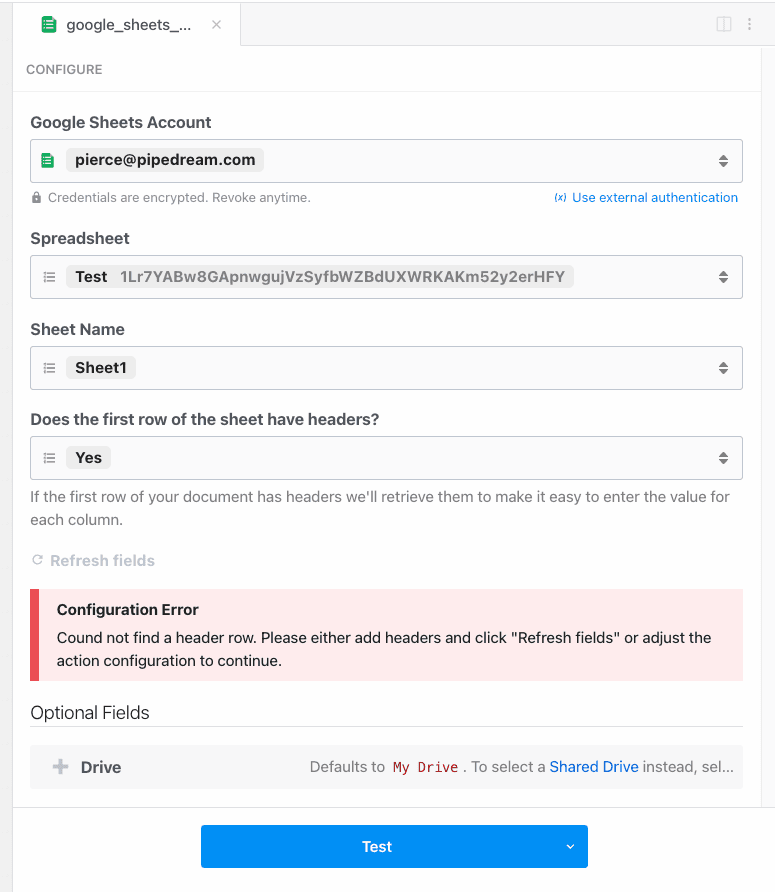
Throwing a `ConfigurationError` in a Node.js step will display the error message in a dedicated area.
This is useful for providing feedback during validation of `props`. In the example below, a required Header value is missing from the Google Sheets action:
Or you can use it for validating the format of a given `email` prop:
```javascript theme={null}
import { ConfigurationError } from "@pipedream/platform";
export default defineComponent({
props: {
email: { type: "string" },
},
async run({ steps, $ }) {
// if the email address doesn't include a @, it's not valid
if (!this.email.includes("@")) {
throw new ConfigurationError("Provide a valid email address");
}
},
});
```
## Using secrets in code
Workflow code is private. Still, we recommend you don’t include secrets — API keys, tokens, or other sensitive values — directly in code steps.
Pipedream supports [environment variables](/workflows/environment-variables/) for keeping secrets separate from code. Once you create an environment variable in Pipedream, you can reference it in any workflow using `process.env.VARIABLE_NAME`. The values of environment variables are private.
See the [Environment Variables](/workflows/environment-variables/) docs for more information.
## Limitations of code steps
Code steps operate within the [general constraints on workflows](/workflows/limits/#workflows). As long as you stay within those limits and abide by our [acceptable use policy](/workflows/limits/#acceptable-use), you can add any number of code steps in a workflow to do virtually anything you’d be able to do in Node.js.
If you’re trying to run code that doesn’t work or you have questions about any limits on code steps, [please reach out](https://pipedream.com/support/).
## Editor settings
We use the [Monaco Editor](https://microsoft.github.io/monaco-editor/), which powers VS Code and other web-based editors.
We also let you customize the editor. For example, you can enable Vim mode, and change the default tab size for indented code. Visit your [Settings](https://pipedream.com/settings) to modify these settings.
## Keyboard Shortcuts
We use the [Monaco Editor](https://microsoft.github.io/monaco-editor/), which powers VS Code. As a result, many of the VS Code [keyboard shortcuts](https://code.visualstudio.com/getstarted/keybindings) should work in the context of the editor.
For example, you can use shortcuts to search for text, format code, and more.
## New to JavaScript?
We understand many of you might be new to JavaScript, and provide resources for you to learn the language below.
When you’re searching for how to do something in JavaScript, some of the code you try might not work in Pipedream. This could be because the code expects to run in a browser, not a Node.js environment. The same goes for [npm packages](/workflows/building-workflows/code/nodejs/#using-npm-packages).
### I’m new to programming
Many of the most basic JavaScript tutorials are geared towards writing code for a web browser to run. This is great for learning — a webpage is one of the coolest things you can build with code. We recommend starting with these general JavaScript tutorials and trying the code you learn on Pipedream:
* [JavaScript For Cats](https://jsforcats.com/)
* [Mozilla - JavaScript First Steps](https://developer.mozilla.org/en-US/docs/Learn_web_development/Core/Scripting)
* [Stack Overflow](https://stackoverflow.com/) operates a programming Q\&A site that typically has the first Google result when you’re searching for something specific. It’s a great place to find answers to common questions.
### I know how to code, but don’t know JavaScript
* [JavaScript overview on MDN](https://developer.mozilla.org/en-US/docs/Web/JavaScript/Guide/Language_overview)
* [Eloquent JavaScript](https://eloquentjavascript.net/)
* [NodeSchool](https://nodeschool.io/)
* [You Don’t Know JS](https://github.com/getify/You-Dont-Know-JS)
 Accepting a single string is just one example, you can build a step to accept arrays of strings through a dropdown presented in the workflow builder.
[Read the props reference for the full list of options](/components/contributing/api/#props).
## How Pipedream Node.js components work
When you add a new Node.js code step or use the examples in this doc, you’ll notice a common structure to the code:
```javascript theme={null}
export default defineComponent({
async run({ steps, $ }) {
// this Node.js code will execute when the step runs
},
});
```
This defines [a Node.js component](/components/contributing/api/). Components let you:
* Pass input to steps using [props](/workflows/building-workflows/code/nodejs/#passing-props-to-code-steps)
* [Connect an account to a step](/apps/connected-accounts/#from-a-code-step)
* [Issue HTTP responses](/workflows/building-workflows/triggers/#http-responses)
* Perform workflow-level flow control, like [ending a workflow early](/workflows/building-workflows/code/nodejs/#ending-a-workflow-early)
When the step runs, Pipedream executes the `run` method:
* Any asynchronous code within a code step [**must** be run synchronously](/workflows/building-workflows/code/nodejs/async/), using the `await` keyword or with a Promise chain, using `.then()`, `.catch()`, and related methods.
* Pipedream passes the `steps` variable to the run method. `steps` is also an object, and contains the [data exported from previous steps](/workflows/#step-exports) in your workflow.
* You also have access to the `$` variable, which gives you access to methods like `$.respond`, `$.export`, [and more](/components/contributing/api/#actions).
If you’re using [props](/workflows/building-workflows/code/nodejs/#passing-props-to-code-steps) or [connect an account to a step](/apps/connected-accounts/#from-a-code-step), the component exposes them in the variable `this`, which refers to the current step:
```javascript theme={null}
export default defineComponent({
async run({ steps, $ }) {
// `this` refers to the running component. Props, connected accounts, etc. are exposed here
console.log(this);
},
});
```
When you [connect an account to a step](/apps/connected-accounts/#from-a-code-step), Pipedream exposes the auth info in the variable [`this.appName.$auth`](/workflows/building-workflows/code/nodejs/auth/#accessing-connected-account-data-with-thisappnameauth).
## Logs
You can call `console.log` or `console.error` to add logs to the execution of a code step.
These logs will appear just below the associated step. `console.log` messages appear in black, `console.error` in red.
### `console.dir`
If you need to print the contents of JavaScript objects, use `console.dir`:
```javascript theme={null}
export default defineComponent({
async run({ steps, $ }) {
console.dir({
name: "Luke",
});
},
});
```
## Syntax errors
Pipedream will attempt to catch syntax errors when you’re writing code, highlighting the lines where the error occurred in red.
Accepting a single string is just one example, you can build a step to accept arrays of strings through a dropdown presented in the workflow builder.
[Read the props reference for the full list of options](/components/contributing/api/#props).
## How Pipedream Node.js components work
When you add a new Node.js code step or use the examples in this doc, you’ll notice a common structure to the code:
```javascript theme={null}
export default defineComponent({
async run({ steps, $ }) {
// this Node.js code will execute when the step runs
},
});
```
This defines [a Node.js component](/components/contributing/api/). Components let you:
* Pass input to steps using [props](/workflows/building-workflows/code/nodejs/#passing-props-to-code-steps)
* [Connect an account to a step](/apps/connected-accounts/#from-a-code-step)
* [Issue HTTP responses](/workflows/building-workflows/triggers/#http-responses)
* Perform workflow-level flow control, like [ending a workflow early](/workflows/building-workflows/code/nodejs/#ending-a-workflow-early)
When the step runs, Pipedream executes the `run` method:
* Any asynchronous code within a code step [**must** be run synchronously](/workflows/building-workflows/code/nodejs/async/), using the `await` keyword or with a Promise chain, using `.then()`, `.catch()`, and related methods.
* Pipedream passes the `steps` variable to the run method. `steps` is also an object, and contains the [data exported from previous steps](/workflows/#step-exports) in your workflow.
* You also have access to the `$` variable, which gives you access to methods like `$.respond`, `$.export`, [and more](/components/contributing/api/#actions).
If you’re using [props](/workflows/building-workflows/code/nodejs/#passing-props-to-code-steps) or [connect an account to a step](/apps/connected-accounts/#from-a-code-step), the component exposes them in the variable `this`, which refers to the current step:
```javascript theme={null}
export default defineComponent({
async run({ steps, $ }) {
// `this` refers to the running component. Props, connected accounts, etc. are exposed here
console.log(this);
},
});
```
When you [connect an account to a step](/apps/connected-accounts/#from-a-code-step), Pipedream exposes the auth info in the variable [`this.appName.$auth`](/workflows/building-workflows/code/nodejs/auth/#accessing-connected-account-data-with-thisappnameauth).
## Logs
You can call `console.log` or `console.error` to add logs to the execution of a code step.
These logs will appear just below the associated step. `console.log` messages appear in black, `console.error` in red.
### `console.dir`
If you need to print the contents of JavaScript objects, use `console.dir`:
```javascript theme={null}
export default defineComponent({
async run({ steps, $ }) {
console.dir({
name: "Luke",
});
},
});
```
## Syntax errors
Pipedream will attempt to catch syntax errors when you’re writing code, highlighting the lines where the error occurred in red.
 Or you can use it for validating the format of a given `email` prop:
```javascript theme={null}
import { ConfigurationError } from "@pipedream/platform";
export default defineComponent({
props: {
email: { type: "string" },
},
async run({ steps, $ }) {
// if the email address doesn't include a @, it's not valid
if (!this.email.includes("@")) {
throw new ConfigurationError("Provide a valid email address");
}
},
});
```
## Using secrets in code
Workflow code is private. Still, we recommend you don’t include secrets — API keys, tokens, or other sensitive values — directly in code steps.
Pipedream supports [environment variables](/workflows/environment-variables/) for keeping secrets separate from code. Once you create an environment variable in Pipedream, you can reference it in any workflow using `process.env.VARIABLE_NAME`. The values of environment variables are private.
See the [Environment Variables](/workflows/environment-variables/) docs for more information.
## Limitations of code steps
Code steps operate within the [general constraints on workflows](/workflows/limits/#workflows). As long as you stay within those limits and abide by our [acceptable use policy](/workflows/limits/#acceptable-use), you can add any number of code steps in a workflow to do virtually anything you’d be able to do in Node.js.
If you’re trying to run code that doesn’t work or you have questions about any limits on code steps, [please reach out](https://pipedream.com/support/).
## Editor settings
We use the [Monaco Editor](https://microsoft.github.io/monaco-editor/), which powers VS Code and other web-based editors.
We also let you customize the editor. For example, you can enable Vim mode, and change the default tab size for indented code. Visit your [Settings](https://pipedream.com/settings) to modify these settings.
## Keyboard Shortcuts
We use the [Monaco Editor](https://microsoft.github.io/monaco-editor/), which powers VS Code. As a result, many of the VS Code [keyboard shortcuts](https://code.visualstudio.com/getstarted/keybindings) should work in the context of the editor.
For example, you can use shortcuts to search for text, format code, and more.
## New to JavaScript?
We understand many of you might be new to JavaScript, and provide resources for you to learn the language below.
When you’re searching for how to do something in JavaScript, some of the code you try might not work in Pipedream. This could be because the code expects to run in a browser, not a Node.js environment. The same goes for [npm packages](/workflows/building-workflows/code/nodejs/#using-npm-packages).
### I’m new to programming
Many of the most basic JavaScript tutorials are geared towards writing code for a web browser to run. This is great for learning — a webpage is one of the coolest things you can build with code. We recommend starting with these general JavaScript tutorials and trying the code you learn on Pipedream:
* [JavaScript For Cats](https://jsforcats.com/)
* [Mozilla - JavaScript First Steps](https://developer.mozilla.org/en-US/docs/Learn_web_development/Core/Scripting)
* [Stack Overflow](https://stackoverflow.com/) operates a programming Q\&A site that typically has the first Google result when you’re searching for something specific. It’s a great place to find answers to common questions.
### I know how to code, but don’t know JavaScript
* [JavaScript overview on MDN](https://developer.mozilla.org/en-US/docs/Web/JavaScript/Guide/Language_overview)
* [Eloquent JavaScript](https://eloquentjavascript.net/)
* [NodeSchool](https://nodeschool.io/)
* [You Don’t Know JS](https://github.com/getify/You-Dont-Know-JS)
Or you can use it for validating the format of a given `email` prop:
```javascript theme={null}
import { ConfigurationError } from "@pipedream/platform";
export default defineComponent({
props: {
email: { type: "string" },
},
async run({ steps, $ }) {
// if the email address doesn't include a @, it's not valid
if (!this.email.includes("@")) {
throw new ConfigurationError("Provide a valid email address");
}
},
});
```
## Using secrets in code
Workflow code is private. Still, we recommend you don’t include secrets — API keys, tokens, or other sensitive values — directly in code steps.
Pipedream supports [environment variables](/workflows/environment-variables/) for keeping secrets separate from code. Once you create an environment variable in Pipedream, you can reference it in any workflow using `process.env.VARIABLE_NAME`. The values of environment variables are private.
See the [Environment Variables](/workflows/environment-variables/) docs for more information.
## Limitations of code steps
Code steps operate within the [general constraints on workflows](/workflows/limits/#workflows). As long as you stay within those limits and abide by our [acceptable use policy](/workflows/limits/#acceptable-use), you can add any number of code steps in a workflow to do virtually anything you’d be able to do in Node.js.
If you’re trying to run code that doesn’t work or you have questions about any limits on code steps, [please reach out](https://pipedream.com/support/).
## Editor settings
We use the [Monaco Editor](https://microsoft.github.io/monaco-editor/), which powers VS Code and other web-based editors.
We also let you customize the editor. For example, you can enable Vim mode, and change the default tab size for indented code. Visit your [Settings](https://pipedream.com/settings) to modify these settings.
## Keyboard Shortcuts
We use the [Monaco Editor](https://microsoft.github.io/monaco-editor/), which powers VS Code. As a result, many of the VS Code [keyboard shortcuts](https://code.visualstudio.com/getstarted/keybindings) should work in the context of the editor.
For example, you can use shortcuts to search for text, format code, and more.
## New to JavaScript?
We understand many of you might be new to JavaScript, and provide resources for you to learn the language below.
When you’re searching for how to do something in JavaScript, some of the code you try might not work in Pipedream. This could be because the code expects to run in a browser, not a Node.js environment. The same goes for [npm packages](/workflows/building-workflows/code/nodejs/#using-npm-packages).
### I’m new to programming
Many of the most basic JavaScript tutorials are geared towards writing code for a web browser to run. This is great for learning — a webpage is one of the coolest things you can build with code. We recommend starting with these general JavaScript tutorials and trying the code you learn on Pipedream:
* [JavaScript For Cats](https://jsforcats.com/)
* [Mozilla - JavaScript First Steps](https://developer.mozilla.org/en-US/docs/Learn_web_development/Core/Scripting)
* [Stack Overflow](https://stackoverflow.com/) operates a programming Q\&A site that typically has the first Google result when you’re searching for something specific. It’s a great place to find answers to common questions.
### I know how to code, but don’t know JavaScript
* [JavaScript overview on MDN](https://developer.mozilla.org/en-US/docs/Web/JavaScript/Guide/Language_overview)
* [Eloquent JavaScript](https://eloquentjavascript.net/)
* [NodeSchool](https://nodeschool.io/)
* [You Don’t Know JS](https://github.com/getify/You-Dont-Know-JS)