> ## Documentation Index
> Fetch the complete documentation index at: https://pipedream.com/docs/llms.txt
> Use this file to discover all available pages before exploring further.
# Build with AI
> Build, configure, test and deploy Pipedream workflows with AI in String.com
## Create with AI
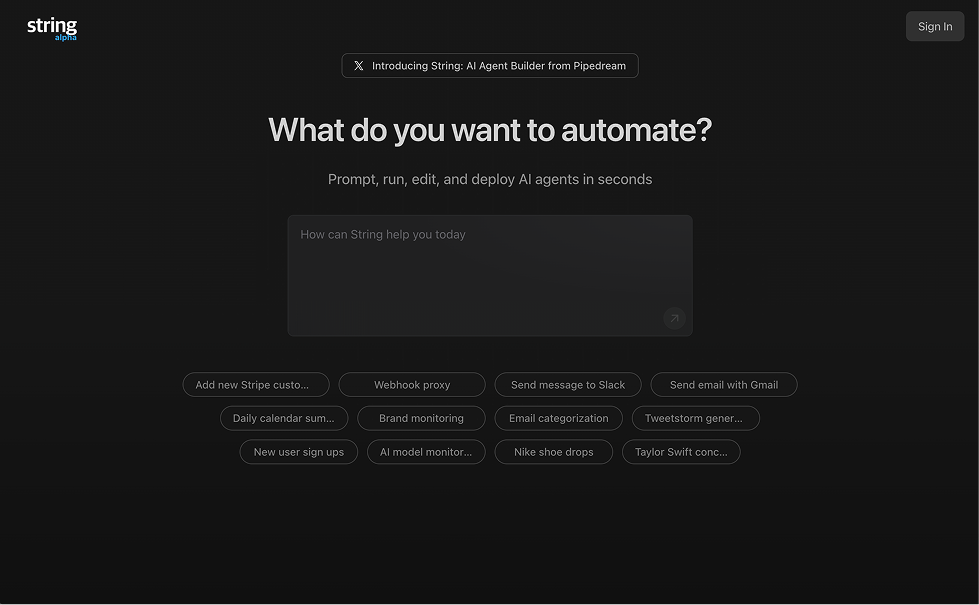
Build new agents and automations using AI at [String.com](https://string.com).
 ## Edit Existing Workflows with AI
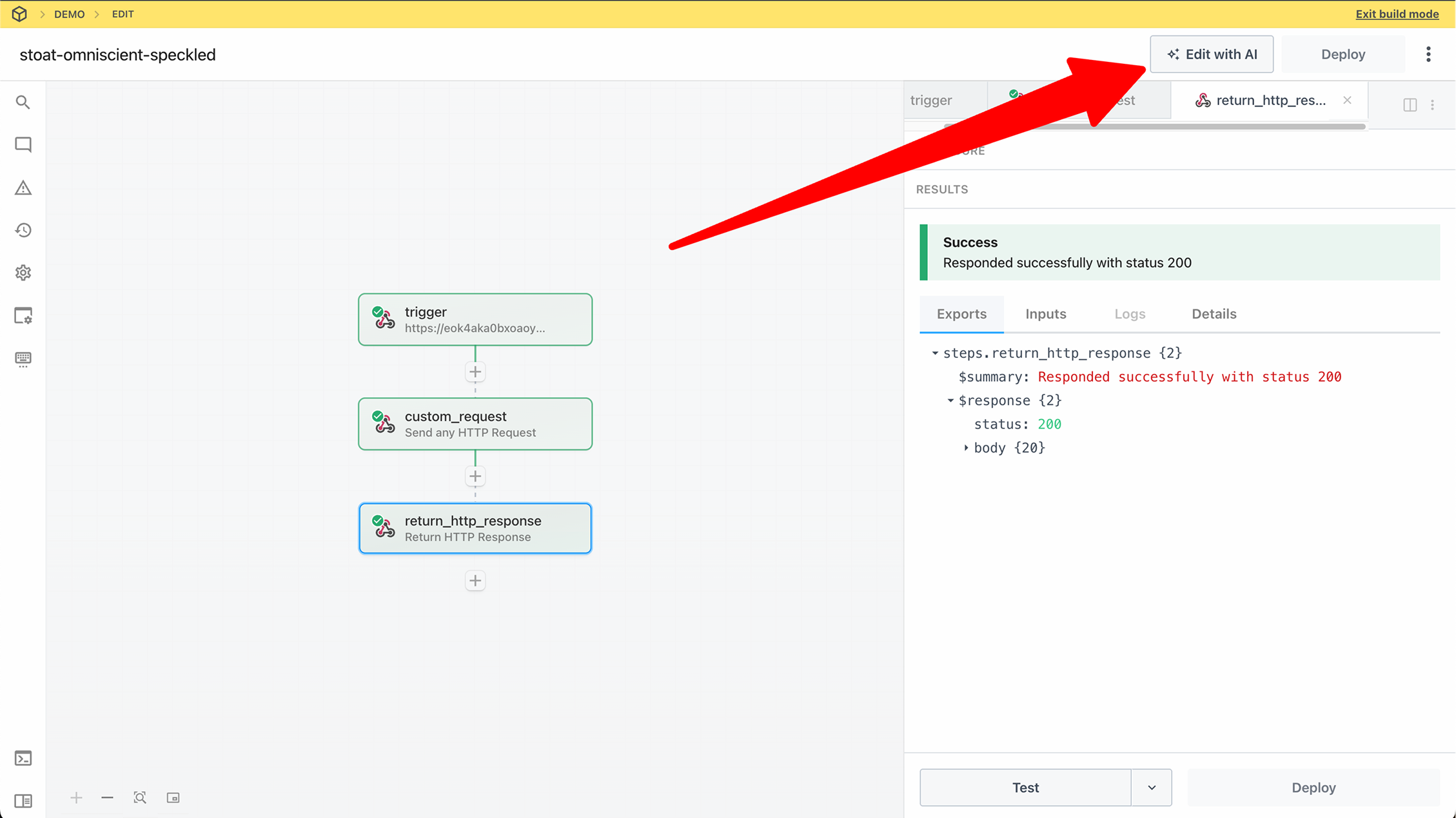
Click the **Edit with AI** button in the header of the builder or inspector.
## Edit Existing Workflows with AI
Click the **Edit with AI** button in the header of the builder or inspector.
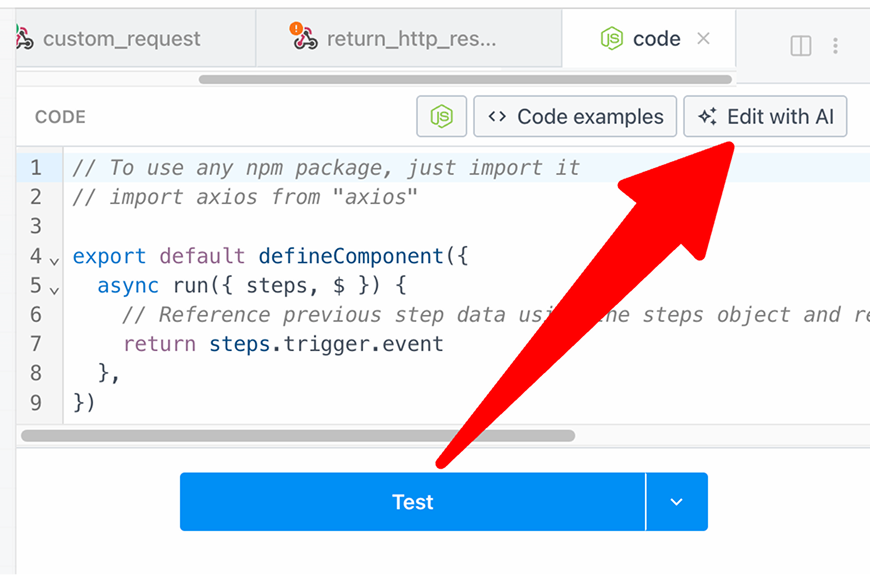
 Within any code step, click the **Edit with AI** button.
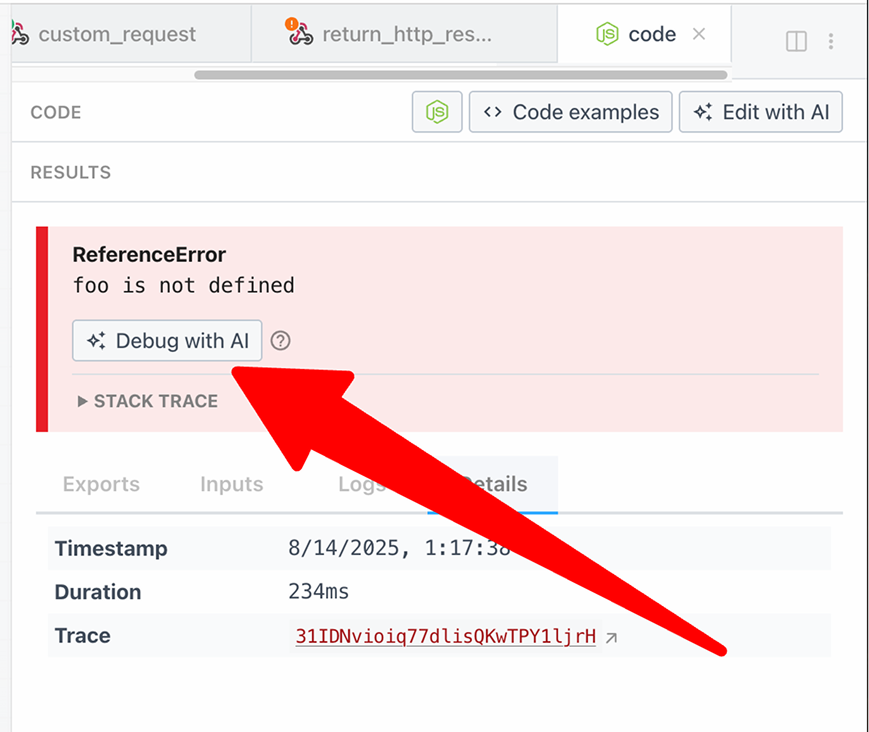
 When you encounter an error in your workflow, click the **Debug with AI** button in the step results to get AI-powered debugging assistance.
 ## Limitations
Workflows with the following features cannot be edited in String.com:
* **Control flow** - Workflows using if/else, switch, or other control flow steps
* **GitHub Sync** - Workflows synchronized with GitHub repositories
* **Python code steps** - Workflows containing Python code (Node.js is supported)
* **Pipedream Connect** - Workflows using Pipedream Connect features
* **Multiple triggers** - Workflows with more than one trigger
## Working in String.com
Once you click any of the Edit with AI buttons, you'll be redirected to String.com where you can:
### Edit Your Workflow
Use natural language to describe the changes you want to make to your workflow:
* Add new steps or modify existing ones
* Change the logic or flow of your workflow
* Integrate new services or APIs
* Optimize performance and error handling
### Configure Steps
The AI assistant helps you:
* Set up authentication and connections
* Configure step parameters and options
* Map data between steps
* Handle edge cases and errors
### Test Your Changes
String.com provides a comprehensive testing environment where you can:
* Run test executions with sample data
* Debug issues in real-time
* Preview results before deployment
* Iterate quickly based on test outcomes
### Deploy to Production
Once you're satisfied with your changes:
* Deploy directly from String.com to your Pipedream account
* Changes are automatically synced
* Your workflow is ready to run in production
## Best Practices
### Clear Instructions
When working with AI in String.com, provide clear and specific instructions:
**Good prompt**: "Add error handling to the HTTP request step that retries 3 times with exponential backoff when receiving a 429 status code"
**Less effective**: "Fix the error handling"
### Iterative Development
Work iteratively with the AI:
1. Start with high-level requirements
2. Test and validate each change
3. Refine based on results
4. Deploy when ready
## Related Resources
Learn the fundamentals of Pipedream workflows
Understanding code steps in workflows
Best practices for error handling
Watch tutorials on workflow development
## Limitations
Workflows with the following features cannot be edited in String.com:
* **Control flow** - Workflows using if/else, switch, or other control flow steps
* **GitHub Sync** - Workflows synchronized with GitHub repositories
* **Python code steps** - Workflows containing Python code (Node.js is supported)
* **Pipedream Connect** - Workflows using Pipedream Connect features
* **Multiple triggers** - Workflows with more than one trigger
## Working in String.com
Once you click any of the Edit with AI buttons, you'll be redirected to String.com where you can:
### Edit Your Workflow
Use natural language to describe the changes you want to make to your workflow:
* Add new steps or modify existing ones
* Change the logic or flow of your workflow
* Integrate new services or APIs
* Optimize performance and error handling
### Configure Steps
The AI assistant helps you:
* Set up authentication and connections
* Configure step parameters and options
* Map data between steps
* Handle edge cases and errors
### Test Your Changes
String.com provides a comprehensive testing environment where you can:
* Run test executions with sample data
* Debug issues in real-time
* Preview results before deployment
* Iterate quickly based on test outcomes
### Deploy to Production
Once you're satisfied with your changes:
* Deploy directly from String.com to your Pipedream account
* Changes are automatically synced
* Your workflow is ready to run in production
## Best Practices
### Clear Instructions
When working with AI in String.com, provide clear and specific instructions:
**Good prompt**: "Add error handling to the HTTP request step that retries 3 times with exponential backoff when receiving a 429 status code"
**Less effective**: "Fix the error handling"
### Iterative Development
Work iteratively with the AI:
1. Start with high-level requirements
2. Test and validate each change
3. Refine based on results
4. Deploy when ready
## Related Resources
Learn the fundamentals of Pipedream workflows
Understanding code steps in workflows
Best practices for error handling
Watch tutorials on workflow development