> ## Documentation Index
> Fetch the complete documentation index at: https://pipedream.com/docs/llms.txt
> Use this file to discover all available pages before exploring further.
# Projects
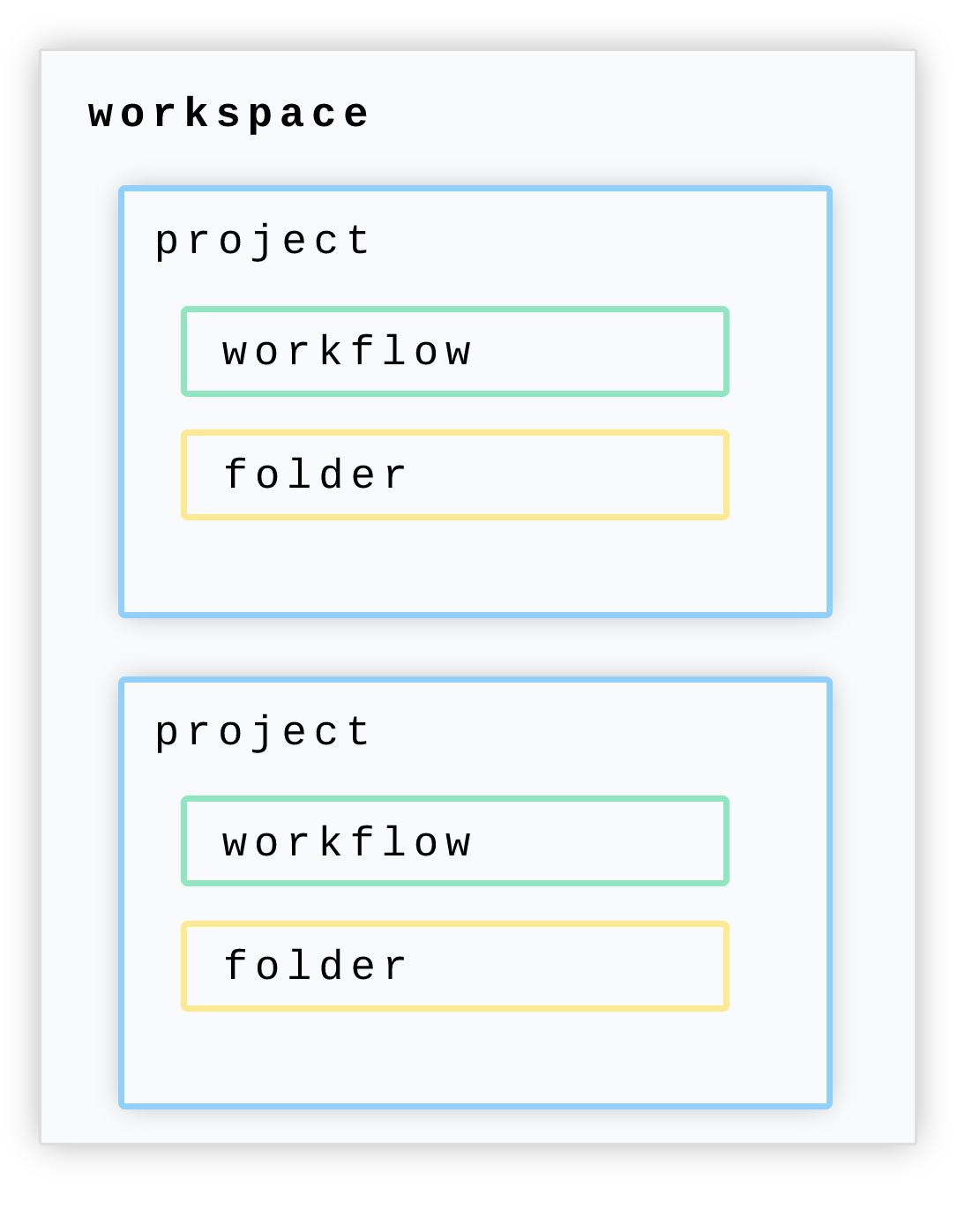
A workspace can contain one or more *projects*. Projects are a way to organize your workflows into specific groupings or categories.
 ## Getting started with projects
### Creating projects
To create a new project, first [open the Projects section in the dashboard](https://pipedream.com/projects).
Then click **Create project** to start a new project.
Enter in your desired name for the project in the prompt, then click **Create**.
That’s it, you now have a dedicated new project created within your workspace. Now you can create workflows within this project, or move workflows into it or create folders for further organization.
### Creating folders and workflows in projects
Within a given project, you can create folders for your workflows.
Open your project, and then click the **New** button for a dropdown to create a workflow in your current project.
Helpful hotkeys to speed up your development
* `C then F` creates a new folder.
* `C then W` creates a new workflow.
Folders can also contain sub-folders, which allows you to create a filing system to organize your workflows.
### Moving workflows into folders
To move workflows into folders, simply drag and drop the workflow into the folder.
You can move workflows or folders up a level by dragging and dropping the workflow to the folder icon at the top of the list.
### Importing workflows into projects
This only applies to Pipedream accounts that created workflows before the projects feature was released.
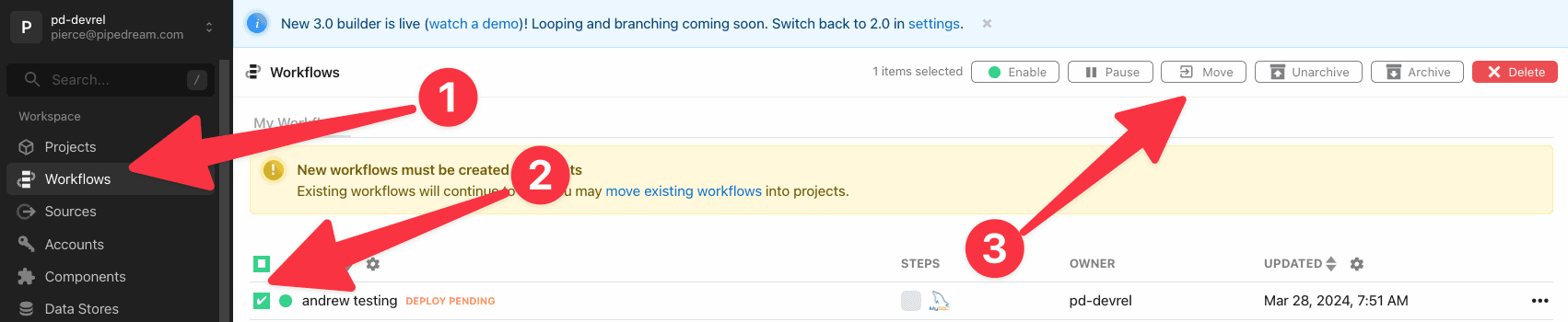
To import a workflow from the general **Workflows** area of your dashboard into a project:
1. Open the Workflows area in the dashboard
2. Select one or more workflows you’d like to import into a project
3. Click *Move* in the top right and select a project to move them to
## Getting started with projects
### Creating projects
To create a new project, first [open the Projects section in the dashboard](https://pipedream.com/projects).
Then click **Create project** to start a new project.
Enter in your desired name for the project in the prompt, then click **Create**.
That’s it, you now have a dedicated new project created within your workspace. Now you can create workflows within this project, or move workflows into it or create folders for further organization.
### Creating folders and workflows in projects
Within a given project, you can create folders for your workflows.
Open your project, and then click the **New** button for a dropdown to create a workflow in your current project.
Helpful hotkeys to speed up your development
* `C then F` creates a new folder.
* `C then W` creates a new workflow.
Folders can also contain sub-folders, which allows you to create a filing system to organize your workflows.
### Moving workflows into folders
To move workflows into folders, simply drag and drop the workflow into the folder.
You can move workflows or folders up a level by dragging and dropping the workflow to the folder icon at the top of the list.
### Importing workflows into projects
This only applies to Pipedream accounts that created workflows before the projects feature was released.
To import a workflow from the general **Workflows** area of your dashboard into a project:
1. Open the Workflows area in the dashboard
2. Select one or more workflows you’d like to import into a project
3. Click *Move* in the top right and select a project to move them to
 ### Moving workflows between projects
To move a workflow from one project to another project, first check the workflow and then click **Move** to open a dropdown of projects. Select the project to move this workflow to, and click **Move** once more to complete the move.
### Moving workflows between projects
To move a workflow from one project to another project, first check the workflow and then click **Move** to open a dropdown of projects. Select the project to move this workflow to, and click **Move** once more to complete the move.
 GitHub Sync limitation
At this time it’s not possible to move workflows out of GitHub Synchronized Projects.
## Finding your project ID
Visit your project’s **Settings** and copy the project ID.
GitHub Sync limitation
At this time it’s not possible to move workflows out of GitHub Synchronized Projects.
## Finding your project ID
Visit your project’s **Settings** and copy the project ID.