> ## Documentation Index
> Fetch the complete documentation index at: https://pipedream.com/docs/llms.txt
> Use this file to discover all available pages before exploring further.
# Project Configuration
By default, your end users will see a primarily Pipedream branded experience when they connect their account. To customize this screen to highlight your application, you can configure your [app’s name](/connect/managed-auth/customization/#application-name), [support email](/connect/managed-auth/customization/#support-email), and [logo](/connect/managed-auth/customization/#logo) in the Pipedream UI.
## Customizing your application details
Open your project in the Pipedream UI: [https://pipedream.com/projects](https://pipedream.com/projects)
1. Once you’ve opened your project, click the **Connect** tab in the left sidebar
2. From there, select the **Configuration** tab
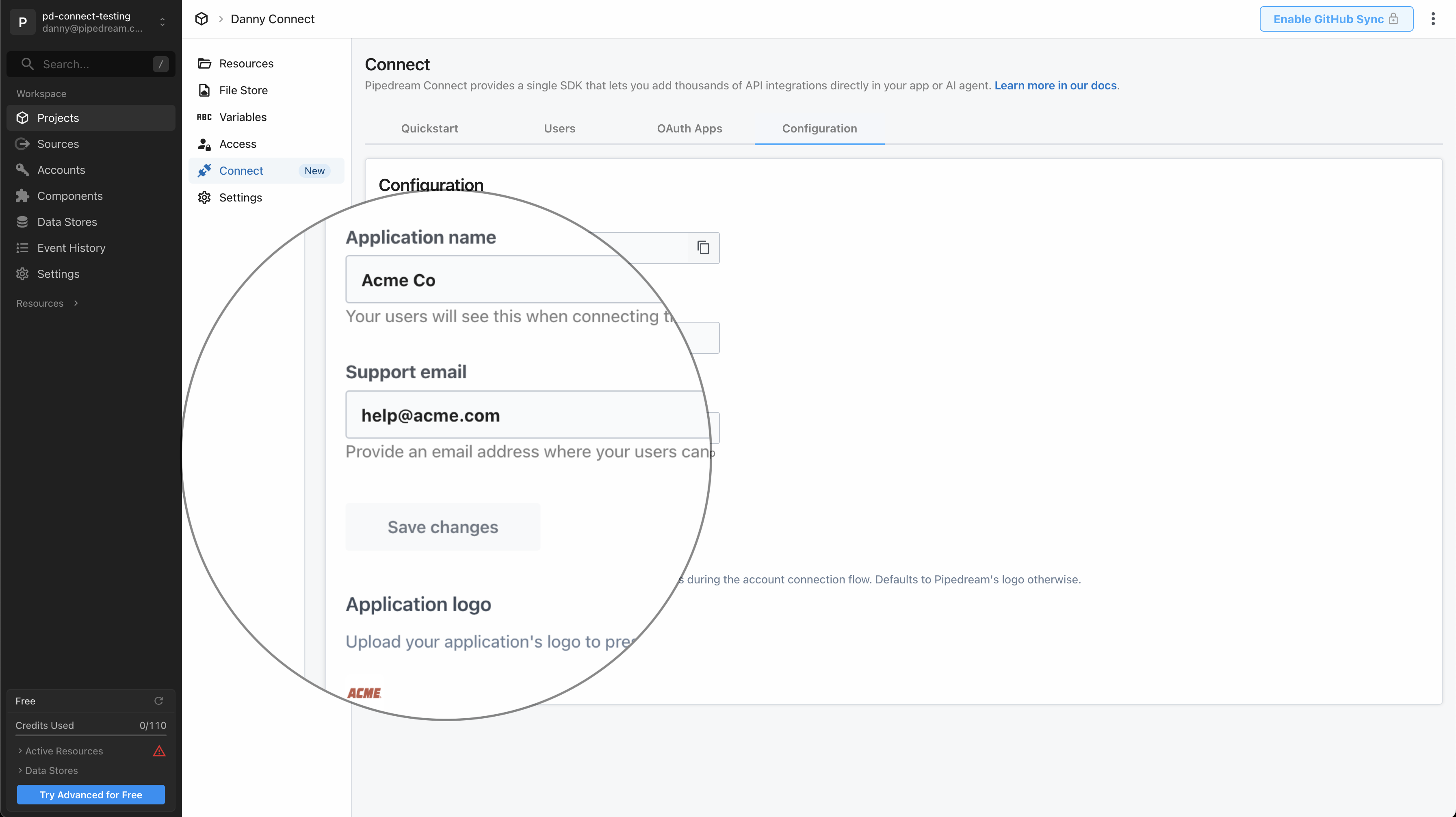 ### Application name
By default, your end users will see:
> We use Pipedream to connect your account
Enter the name of your application that you’d like to show instead, so it reads:
> \{Application Name} uses Pipedream to connect your account
### Support email
In the case of any errors during the account connection flow, by default your users will see:
> Connection failed. Please retry or contact support.
To give your end users an email address to seek support, enter your support email. We’ll display it:
> Connection failed. Please retry or contact support [help@example.com](mailto:help@example.com).
### Logo
By default we’ll show Pipedream’s logo alongside the app your user is connecting to. If you’d like to show your own logo instead, upload it here.
### Application name
By default, your end users will see:
> We use Pipedream to connect your account
Enter the name of your application that you’d like to show instead, so it reads:
> \{Application Name} uses Pipedream to connect your account
### Support email
In the case of any errors during the account connection flow, by default your users will see:
> Connection failed. Please retry or contact support.
To give your end users an email address to seek support, enter your support email. We’ll display it:
> Connection failed. Please retry or contact support [help@example.com](mailto:help@example.com).
### Logo
By default we’ll show Pipedream’s logo alongside the app your user is connecting to. If you’d like to show your own logo instead, upload it here.